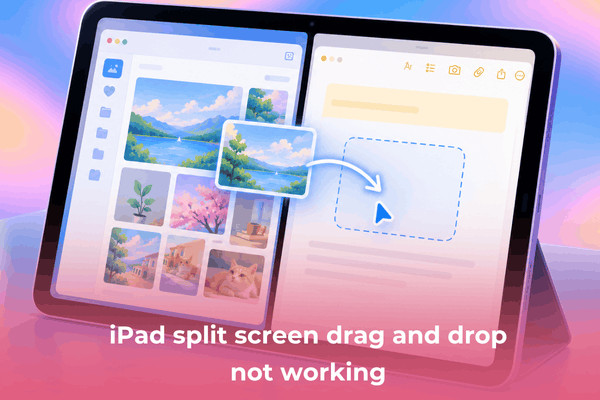

Learn how to fix iPad split screen drag and drop not working with simple settings adjustments, gesture fixes, and multitasking updates.
Multitasking on iPadOS relies heavily on seamless touch gestures. Being able to move photos, links, or file attachments side by side boosts productivity significantly.
When encountering iPad split screen drag and drop not working, the issue often stems from incompatible application permissions, incorrect gesture timing, or disabled multitasking toggles in settings. Applying a few practical adjustments quickly restores fluid multitasking across your apps.
CONTENTS:
Why iPad drag and drop fails during multitasking
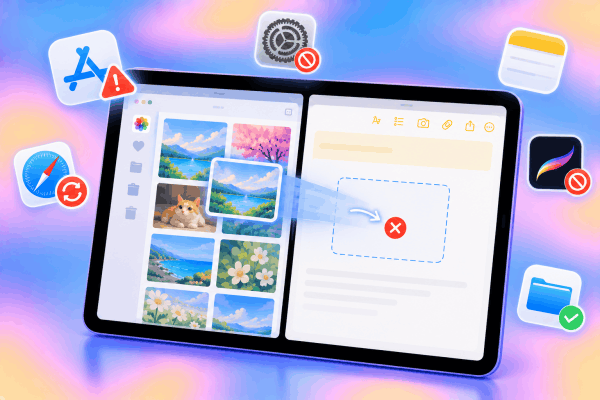
Not every app installed on iPadOS supports side-by-side drag-and-drop features. Developers must explicitly enable content sharing protocols within their software to accept dragged elements.
System glitches, outdated app releases, or disabled gesture controls can also disrupt touch interactions. Understanding these underlying causes makes troubleshooting far more effective.
How to fix iPad split screen drag and drop not working
Here are tested methods to resolve drag-and-drop failures when working in Split View or Slide Over on iPadOS.
1. Verify app compatibility for drag and drop
Certain third-party applications do not permit dropping text, images, or files directly into their workspace.
-
Test the gesture using native apps like Notes, Photos, or Files to confirm hardware responsiveness.
-
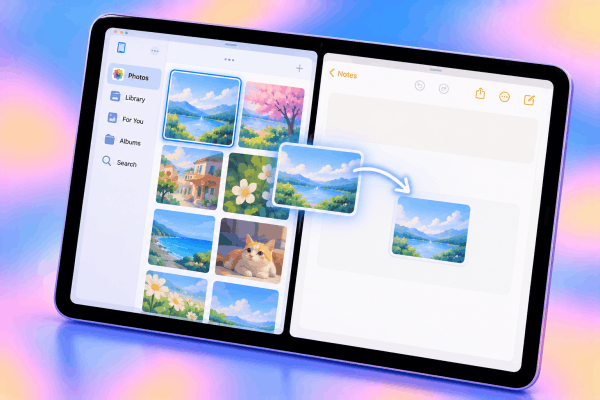
Open two native apps in Split View mode.
-
Select an image in Photos and drag it toward a blank note in Notes.
-
If the item drops successfully, the original app you tried to use likely lacks support for this feature.
2. Check multitasking settings and Stage Manager controls
iPadOS offers multiple multitasking layouts, including standard Split View and Stage Manager. Switching modes or toggling settings helps reset gesture recognition.
-
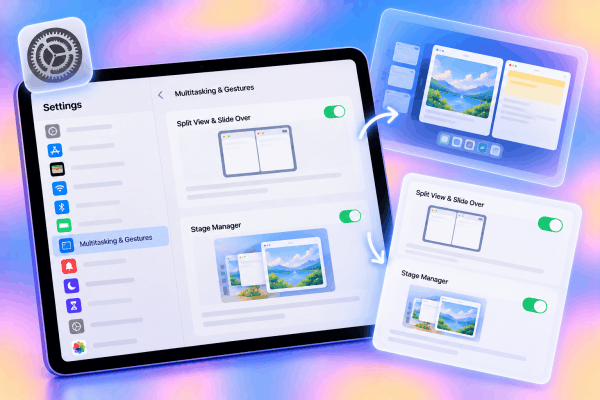
Open Settings on your iPad.
-
Select Multitasking & Gestures.
-
Ensure Split View & Slide Over or Stage Manager is enabled according to your workflow preference.
-
Toggle off the feature, wait a few seconds, and turn it back on to clear temporary configuration glitches.
3. Master the correct touch and hold technique
Dragging items between windows requires precise touch sequence timing. Releasing a finger too early causes the selected item to snap back to its origin.
-
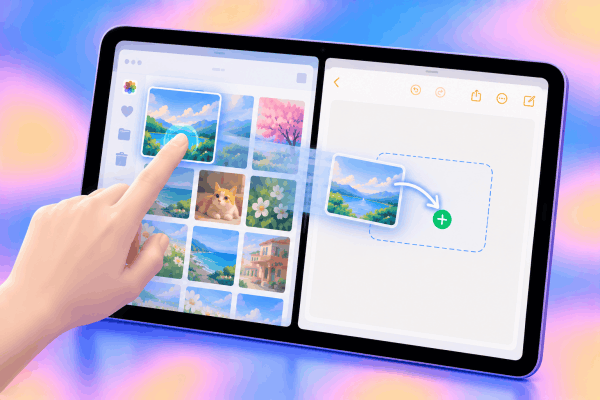
Press and hold the target item until it slightly expands or detaches under your finger.
-
Maintain firm contact with the screen while moving your finger into the adjacent window.
-
Wait until a green + icon or drop target highlight appears before lifting your finger.
When transferring multiple items at once, utilizing two hands prevents unexpected gesture drops.
-
Press and hold the first item with one finger until it floats.
-
Tap additional items with a second finger to stack them together under the first touch point.
-
Use your free hand to open or navigate your target app in Split View before releasing the stack.
5. Update iPadOS and affected applications
Outdated application builds frequently cause gesture bugs or temporary unresponsive touch zones.
-
Open the App Store and tap your profile icon at the top right.
-
Pull down to refresh the updates list and tap Update All.
-
Go to Settings > General > Software Update to ensure your iPad runs the latest system software.
6. Perform a standard device restart
If gesture engine processes freeze in the background, a standard restart resets system memory and resolves minor touch glitches.
-
Press and hold the Top button alongside either Volume button until the power slider appears.
-
Drag the slider across the screen to power down the iPad completely.
-
Wait roughly 30 seconds, then hold the Top button until the Apple logo displays to restart the device.

Additional tips for seamless iPad multitasking
-
Use the Files app as an intermediate bridge: If dragging directly between two specific apps fails, drop the content into the Files app first, then transfer it to your destination.
-
Keep app windows active: Tap inside the secondary app window before initiating a drag gesture to ensure the target window is active and ready to receive input.
-
Avoid aggressive screen protector interference: Thick or improperly fitted screen protectors can interfere with multi-touch touch signals near screen edges.
Don’t miss this:
- iPad Split Screen Not Working? Easy Fixes to Get Multitasking Back
- Split Screen Study Method for College Students: Boost Productivity
Frequently asked questions
Why does the item snap back when I drag it to another window?
This usually happens when the target app does not accept the file format being dragged or when touch contact is broken before entering the drop zone.
Does Stage Manager affect drag and drop functionality on iPad?
Stage Manager alters how windows overlap, requiring you to drag items onto app thumbnails or active windows. Swapping back to traditional Split View often simplifies direct dragging.
Can low memory cause drag and drop gestures to fail?
Yes. Heavy background processes can cause touch delay, resulting in dropped items during transfer. Closing unused background apps helps smooth out gesture performance.

Final thought
Resolving iPad split screen drag and drop not working usually involves refining gesture timing, verifying app compatibility, or updating iPadOS settings. Ensuring both apps support content sharing keeps your tablet workflow fast, fluid, and efficient.