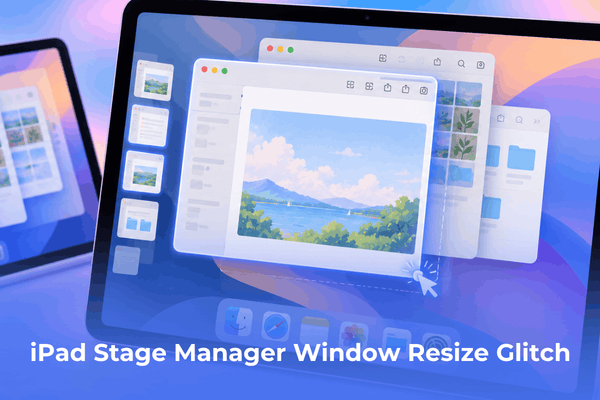

Fix the iPad stage manager window resize glitch easily. Learn practical troubleshooting tips to stop windows from snapping.
Multitasking on an iPad using advanced window management features is supposed to bridge the gap between tablet convenience and desktop productivity. However, running into unexpected layout shifts can completely disrupt your concentration.
When your application borders snap erratically, refuse to scale smoothly, or freeze during resizing attempts, it usually points to a mismatch between touch inputs, display scaling settings, or temporary window caching inside iPadOS.
CONTENTS:
How to fix the iPad stage manager window resize glitch
Resolving erratic layout behavior requires checking system configurations, resetting touch preferences, and clearing minor interface bugs. Follow these step-by-step troubleshooting actions to get your workspace running smoothly.
Toggle stage manager off and back on
Resetting the internal window server state often clears out stubborn layout bugs and snap anomalies.
-
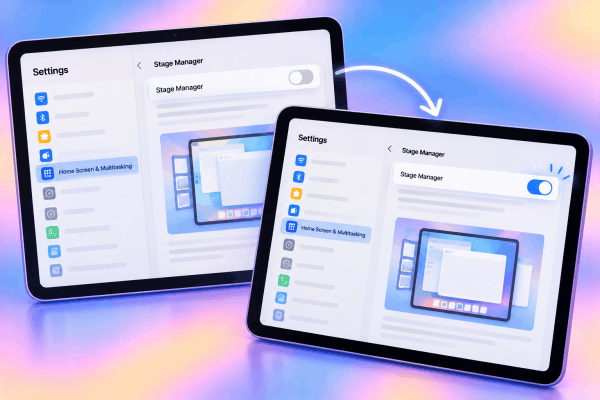
Open the Settings app on your iPad.
-
Tap Home Screen & Multitasking, then select Stage Manager.
-
Toggle the main switch off.
-
Wait roughly ten seconds, then toggle the switch back on to force the system to rebuild your workspace layout hierarchy.
Adjust display zoom and text size settings
Incorrect resolution scaling can trick the touch digitizer into misinterpreting boundary drag gestures, causing windows to jump or fail scaling parameters.
-
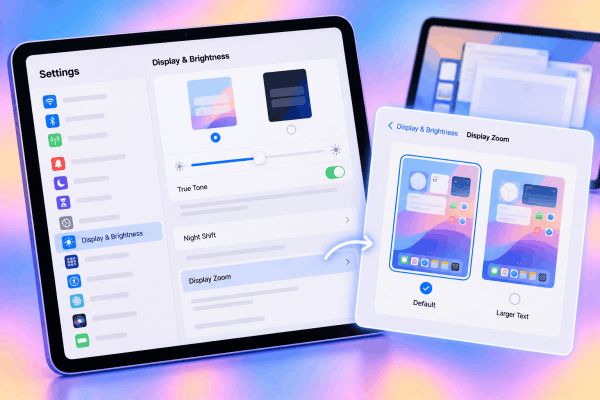
Open Settings on your tablet.
-
Scroll down and tap Display & Brightness.
-
Select Display Zoom near the bottom of the menu.
-
Ensure your view is set to Default rather than larger text options, as high scaling configurations sometimes restrict proper window scaling boundaries.
Use manual corner dragging to force layout reflow
When an application layout becomes stuck in an awkward aspect ratio, forcing a complete boundary redraw helps the application engine recalculate its proper viewport size.
-
Tap and hold any of the curved corner handles on the misbehaving window.
-
Drag the corner inward significantly to force a major size reduction.
-
Release the handle, then drag it back outward to your preferred dimension. This action forces the application to re-render its internal grid framework correctly.
Disconnect external keyboards and trackpads
Sometimes hardware accessory communication lag can interfere with cursor tracking, sending conflicting coordinate signals while you attempt to grab window borders.
-
Unplug any wired keyboards or turn off Bluetooth keyboards paired to your tablet.
-
Test window scaling using direct touch gestures with your finger on the screen.
-
Reconnect your accessories one by one to ensure a malfunctioning peripheral is not sending ghost coordinate inputs.

Practical tips to prevent future window management issues
Maintaining clean system habits ensures your multi-window environment remains stable during heavy work sessions.
-
Avoid dragging window borders rapidly to extreme screen edges, which can trigger aggressive automatic snapping.
-
Keep your iPad software updated to the latest version of iPadOS to benefit from background system stability patches.
-
Close unused application groups running in the background to free up active memory allocation for the window server.
Don’t miss this:
- How to Use iPad Stage Manager with Mouse Keyboard: Ultimate Guide
- Fix iPad Stage Manager Resolution Blur on External Displays
Frequently asked questions
Why do my application windows snap randomly in stage manager?
Automatic snapping usually triggers when a window boundary comes too close to another application or the edge of the display grid.
Can a screen protector affect window resizing gestures?
Thicker glass screen protectors can occasionally reduce touch sensitivity near bezel edges, making it difficult to grab corner resize handles accurately.
Does turning off stage manager delete my open app groups?
Disabling the feature temporarily hides active window layouts, but your grouped app configurations will reappear once you turn the feature back on.

Final thought
Fixing the iPad stage manager window resize glitch is usually straightforward by toggling your multitasking settings, adjusting display zoom preferences, or forcing a manual boundary reflow. Applying these practical troubleshooting steps will help restore a stable, reliable desktop-like environment for your daily tasks.