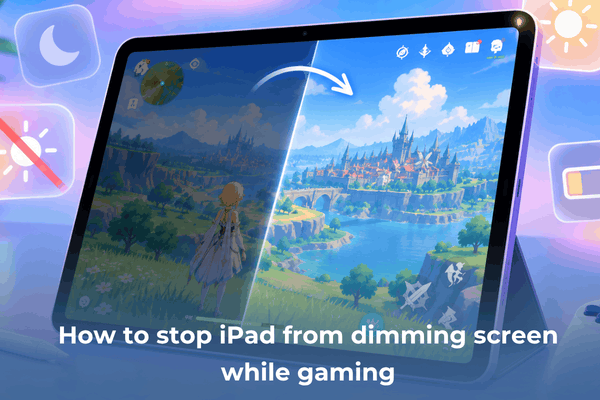

Learn how to stop iPad from dimming screen while gaming. Discover practical fixes for auto-brightness, thermal throttling, and display settings.
Playing an intense game on your tablet only to watch the display suddenly go dark can wreck your concentration. When you are in the middle of a match, clear vision matters. Knowing how to stop iPad from dimming screen while gaming keeps your gameplay crisp and smooth without unexpected dark shifts.
Display dimming usually happens due to automated software adjustments or internal hardware safeguards. Your device constantly balances brightness levels against internal thermal buildup and battery drain. Understanding these underlying triggers helps you adjust the right settings quickly.
CONTENTS:
How to stop iPad from dimming screen while gaming
To keep your display bright during long gaming sessions, you need to turn off automatic adjustments across multiple settings menus. Here are the most effective adjustments to stabilize your display output.
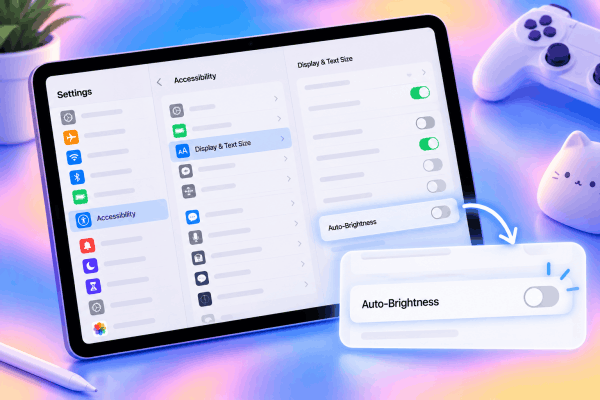
Turn off Auto-brightness in Accessibility
Many gamers assume that display brightness controls live solely under the main display settings menu. Apple actually places the master automatic toggle inside the Accessibility options.
-
Open Settings on your tablet.
-
Select Accessibility, then tap Display & Text Size.
-
Scroll down to the bottom of the menu.
-
Toggle off Auto-Brightness.
Disabling this setting stops ambient light sensors from lowering your screen light when room lighting shifts.
Disable True Tone and Night Shift
True Tone dynamically adapts display color intensity based on environmental light. Night Shift warms up colors during evening hours. Both features run background scripts that alter display output during active app usage.
-
Go to Settings > Display & Brightness.
-
Switch off True Tone.
-
Tap Night Shift and set it to off.
Removing these automatic adjustments ensures your backlight stays set to your preferred manual level.
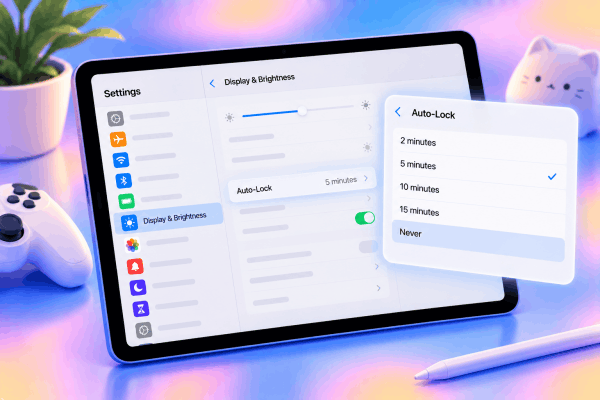
Adjust Auto-Lock timer settings
When your hands stay on secondary controller buttons or external accessories without touching the glass directly, iOS might assume the tablet is idle.
-
Navigate to Settings.
-
Select Display & Brightness.
-
Tap Auto-Lock.
-
Choose Never or set a longer duration like 10 or 15 minutes.
This prevents the operating system from dimming the display ahead of a complete lock screen shutdown.
Managing thermal throttling and heat buildup
If your settings are locked to manual brightness and your display still turns dark after 15 to 20 minutes, thermal protection is occurring. Modern mobile processors lower backlight power when internal temperatures reach critical thresholds.
Remove bulky protective cases
Heavy rubber or synthetic leather cases retain heat around the aluminum chassis. Modern tablets rely on their metal rear casing to dissipate processing heat into ambient air.
Removing thick covers during graphic-heavy sessions lets passive cooling work effectively, reducing processing heat naturally.
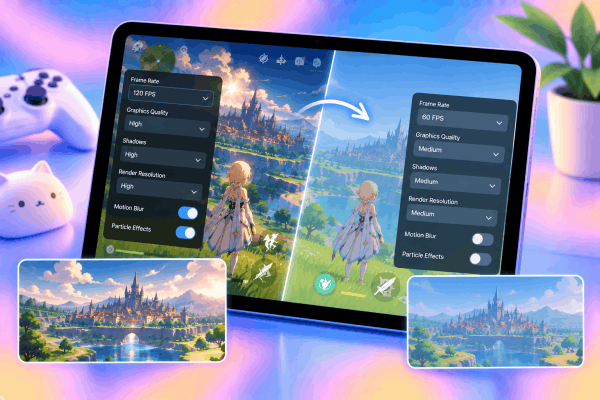
Lower in-game visual settings
Pushing ultra-high graphic settings, maximum frame rates, and realistic shadows forces the graphics chip to run at peak capacity. Peak processing generates rapid heat.
-
Lower frame rate targets from 120 FPS down to 60 FPS within the game menu.
-
Turn down shadow quality and render resolution.
-
Disable motion blur and heavy particle effects.
Slightly dialling back graphic intensity prevents the hardware from reaching thermal throttling triggers.
Avoid playing while charging
Fast charging increases battery temperature significantly. Combining heavy GPU rendering with fast-charge current creates high heat conditions.
-
Charge your device to full capacity prior to long gaming sessions.
-
If power is needed, use a lower wattage charging block during play.
-
Position a small desktop cooling fan toward the back of the tablet body.
Additional system settings that affect display brightness
A few lesser-known software features can cause sudden display dimming during active gameplay.
Check Low Power Mode status
Low Power Mode automatically reduces background processing power and display output to extend battery life.
-
Open Settings > Battery.
-
Ensure Low Power Mode is toggled off.
Running games while Low Power Mode is active forces the system to cap overall power draw, causing early screen dimming.

Disable Attention Awareness features
On models equipped with Face ID sensors, system cameras continuously scan for user attention. If your holding angle hides your face, the display may dim prematurely.
-
Open Settings.
-
Tap Face ID & Passcode.
-
Turn off Attention-Aware Features.
Read More:
- How to use iPad Game Mode for better performance: The ultimate guide
- Best iPad Games For Women: Cute And Relaxing
Frequently asked questions
Why does my screen dim even when Auto-Brightness is off?
When Auto-Brightness is disabled, screen dimming is caused by thermal throttling. The internal hardware reduces backlight power to cool down processing chips and prevent permanent battery damage.
Can running high screen brightness damage my display?
Running maximum brightness for extended periods generates additional heat and accelerates battery drain. Maintaining brightness around 70% to 80% offers great visibility while keeping device temperatures manageable.
Does Guided Access stop screen dimming during gameplay?
Guided Access keeps your screen focused on a single app and disables gesture swipes, but it does not bypass hardware thermal limits or primary Auto-Lock settings.
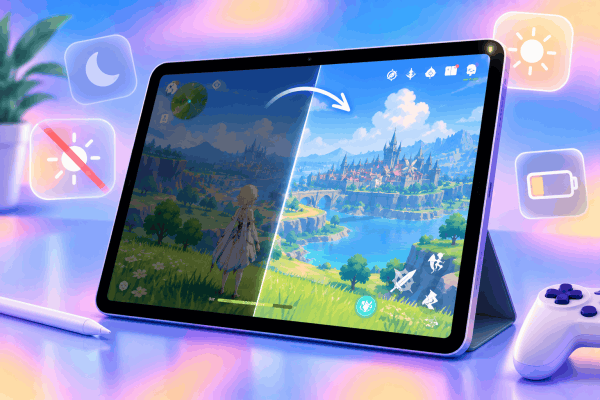
Final thoughts
Learning how to stop iPad from dimming screen while gaming comes down to managing auto-brightness settings and keeping internal temperatures under control.
Disabling automatic display adjustments stops software triggers, while lowering graphic settings and removing heavy cases handles thermal limits effectively. Balancing these tweaks ensures your display remains clear and bright through every match.