
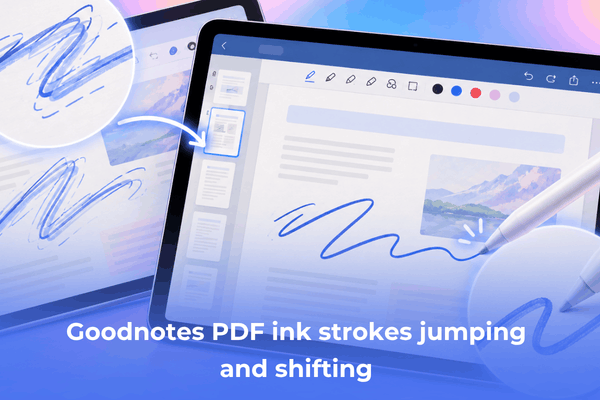

Learn how to fix the Goodnotes PDF ink strokes jumping or shifting bug. Discover practical troubleshooting tips to stop your handwriting from moving.
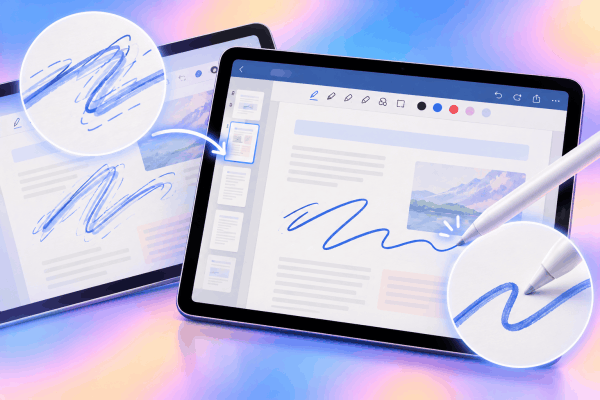
Taking digital notes or annotating documents on your tablet should feel just like writing on real paper. However, encountering a glitch where your handwritten ink suddenly jumps, drifts, or shifts to a different spot on the page can completely ruin your focus and disrupt your workflow.
When your handwriting teleports or misaligns across the screen, it typically stems from a conflict between document rendering, stylus sensitivity, or touch rejection settings inside the app.
CONTENTS:
Why Goodnotes PDF ink strokes jumping or shifting occurs
Understanding what triggers this annoying glitch helps you apply the right fix. Usually, imported PDF files with heavy vector layers, accidental touch inputs from your palm, or specific scrolling direction settings can confuse how the app anchors your digital ink to the page.
Adjust palm rejection and stylus sensitivity
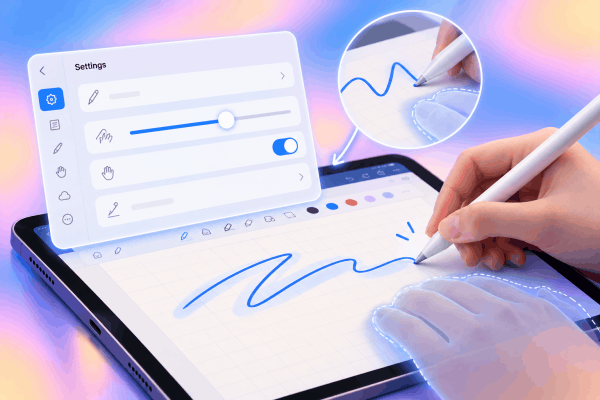
Your hand resting near the edge of the screen can sometimes register as stray touch inputs, causing the canvas to shift or your strokes to reposition unexpectedly while writing.
-
Open the settings menu inside Goodnotes or your device settings.
-
Locate the stylus or Apple Pencil connection settings.
-
Adjust your palm rejection sensitivity to a firmer setting if available.
-
Ensure your hand position matches the writing posture settings configured within the app.
Change the scrolling direction to vertical or horizontal
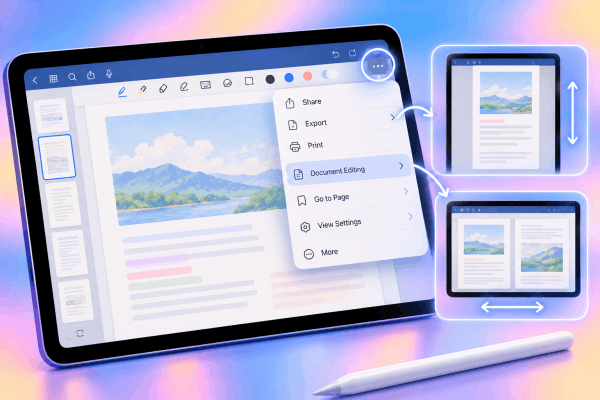
The way Goodnotes handles page navigation can sometimes trigger layout recalculations that displace ink coordinates on imported documents.
-
Open your notebook or document inside Goodnotes.
-
Tap the three-dot menu icon in the upper right corner.
-
Select Document Editing or Scrolling Direction.
-
Switch your page scrolling from horizontal to vertical, or vice versa, to see if the canvas stabilization improves.
Flatten your PDF before importing
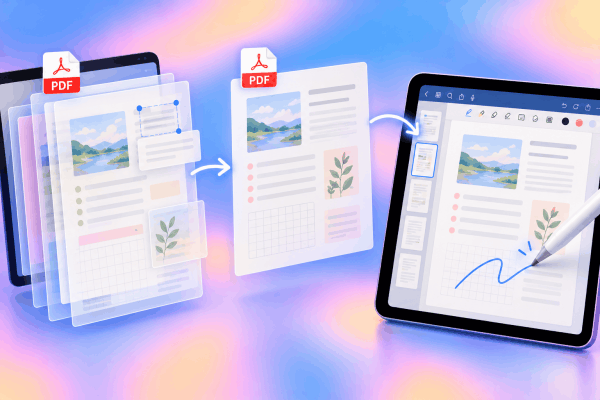
Large PDF textbooks or planners often contain multiple interactive layers that make it difficult for the app to lock ink placement accurately, leading to drifting handwriting.
-
Export your PDF through a dedicated PDF editor or a web-based flattening tool before bringing it into Goodnotes.
-
Flattening merges all interactive form fields, annotations, and background layers into a single image layer.
-
Import the newly flattened PDF into Goodnotes to prevent the background elements from moving under your pen strokes.
Clear app cache or update Goodnotes
Running an outdated version of the app can leave you vulnerable to known rendering bugs that affect ink placement on imported templates.
-
Open the App Store on your device.
-
Search for Goodnotes and check if an update is available.
-
Tap Update to install the latest software patch.
-
If problems persist, back up your notes, then uninstall and reinstall the app to clear corrupted local cache files.
Perform a standard device restart
Temporary system caching issues or minor memory glitches in iPadOS can interfere with precise touch and pen tracking. Performing a standard restart clears out these temporary bugs.
-
Press and hold the Top button along with either volume button until the power-off slider appears on the display.
-
Drag the slider to turn off your device completely.
-
Wait roughly thirty seconds until the screen goes dark.
-
Press and hold the Top button again until the Apple logo appears to power the tablet back on.

Practical tips to prevent future handwriting shift issues
Maintaining good digital organization habits keeps your notebooks stable during long study or work sessions.
-
Use custom templates designed specifically for Goodnotes rather than excessively large scanned documents.
-
Keep your screen clean from oils or moisture that might trick the digitizer into registering phantom touches.
-
Lock your page zoom level when doing detailed handwriting work to prevent accidental panning.
See More:
- Goodnotes lasso tool selection not working? Try these fixes
- Goodnotes Typing Text Box Jumping Around? Quick Fixes
Frequently asked questions about Goodnotes PDF Ink Strokes Jumping and Shifting
Why does my handwriting move around when I write on a PDF in Goodnotes?
This usually happens because the underlying PDF has multiple interactive layers that shift slightly, or because accidental palm touches are moving the canvas while you write.
Does flattening a PDF delete my existing notes?
Flattening locks the background document elements so they cannot be edited, but it does not affect any new handwritten notes you add on top of the page.
Can a screen protector cause ink strokes to jump?
Low-quality or overly thick tempered glass screen protectors can occasionally interfere with touch digitizer accuracy, though software settings are a more common culprit.
Final thought
Fixing the Goodnotes PDF ink strokes jumping or shifting issue is entirely manageable once you adjust your scrolling direction, flatten heavy document files, or fine-tune your palm rejection settings. Applying these practical steps will help stabilize your digital workspace so you can take notes smoothly without any annoying interruptions.






