

Is iPad PIP video not working on YouTube or Safari? Discover step-by-step solutions to fix Picture in Picture issues on iPadOS quickly.
Multitasking on an iPad relies heavily on smooth system features, and Picture in Picture (PIP) is easily one of the most useful. Watching a tutorial on YouTube or streaming via Safari while taking notes or checking emails makes full use of the tablet’s screen real estate.
However, when you swipe up to return to the Home screen and the video window suddenly vanishes, your workflow hits an immediate wall. If you are experiencing iPad PIP video not working, this comprehensive guide provides practical steps to restore seamless video multitasking.
CONTENTS:
Signs your iPad PIP feature is failing
Before diving into root causes, identifying how the issue manifests helps target the right fix:
-
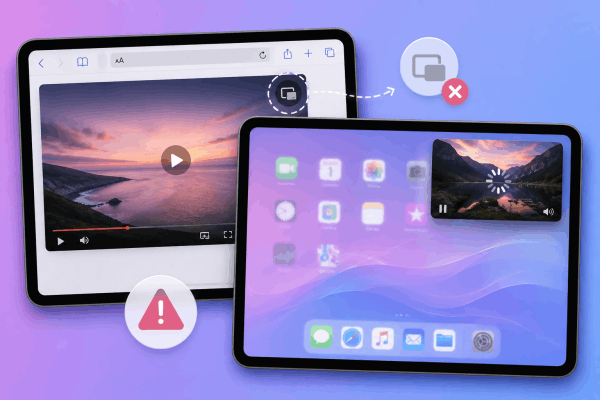
The video closes completely or plays background audio only when swiping to the Home screen instead of shrinking into a floating window.
-
The PIP action icon inside web players like Safari or third-party video apps is grayed out or entirely missing.
-
The floating video player freezes, turns into a black screen, or crashes unexpectedly after a few seconds of playback.
-
Picture in Picture works once, but stops functioning when launching a secondary app or switching between browser tabs.
Why is Picture in Picture video not working on iPad?
System glitches, toggled-off settings, or app-specific restrictions typically prevent PIP from running smoothly.
-
System auto-PIP is disabled: The global system toggle allowing background playback on iPadOS might be switched off.
-
App-level toggles are off: Popular streaming services like YouTube require PIP permissions within their internal app settings alongside iPadOS controls.
-
Browser display conflicts: Web video players in Safari or Chrome often fail to trigger PIP unless forced into full-screen mode first.
-
Regional or subscription limitations: Certain media apps restrict floating playback based on your location or account tier.
-
Temporary OS cache glitches: Minor bugs in recent iPadOS updates can cause communication failures between playback players and system gestures.
Keep Reading:
- Goodnotes Typing Text Box Jumping Around? Quick Fixes
- Apple Pencil Pressure Sensitivity Stopped Working? How to Fix
Step-by-step fixes for iPad PIP video issues
Try these practical troubleshooting methods to get your floating video window working again:
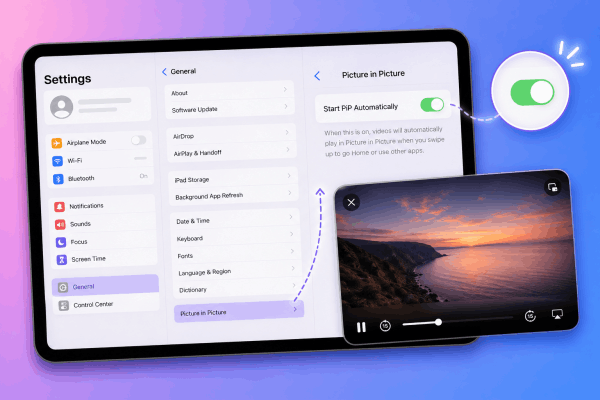
1. Enable automatic PIP in iPadOS settings
If the feature was turned off during an update or by default, the iPad will simply return to the Home screen without popping out the video player.
-
Open Settings on your iPad.
-
Tap General.
-
Select Picture in Picture.
-
Turn on the toggle for Start PiP Automatically.
2. Verify settings inside specific apps
In addition to system permissions, individual platforms need internal PIP toggles turned on.
-
Launch the app experiencing issues (e.g., YouTube).
-
Tap your profile icon in the corner.
-
Go to Settings, then tap General or Playback.
-
Ensure Picture-in-picture is toggled on.
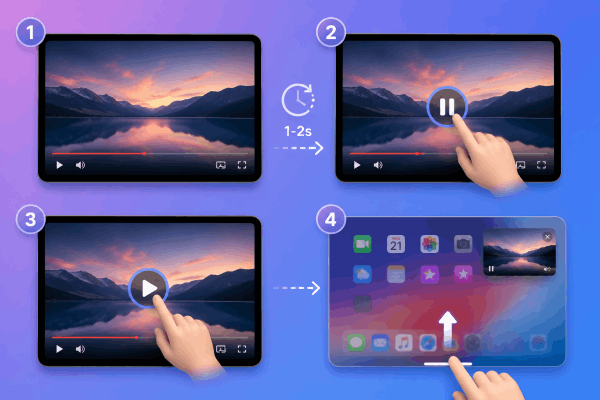
3. Apply the pause-play bypass trick
When video players freeze or close during Home gestures, a simple sequence refresh clears the player state glitch.
-
Start playing your video in your app or browser.
-
Tap the screen to bring up controls and press Pause.
-
Wait 1-2 seconds, then press Play.
-
Immediately swipe up from the bottom edge to return to the Home screen.
This manual state refresh forces iPadOS to recognize the active video feed as an ongoing task.
4. Force full-screen mode in Safari
When streaming via Safari, swiping away while the video plays inside an embedded webpage frame frequently breaks PIP.
-
Play the video on the webpage.
-
Tap the Full Screen icon on the player (or double-tap the video pane) to expand it across the whole display.
-
Tap the PIP icon (two overlapping boxes) in the upper-left controls, or swipe up to the Home screen.
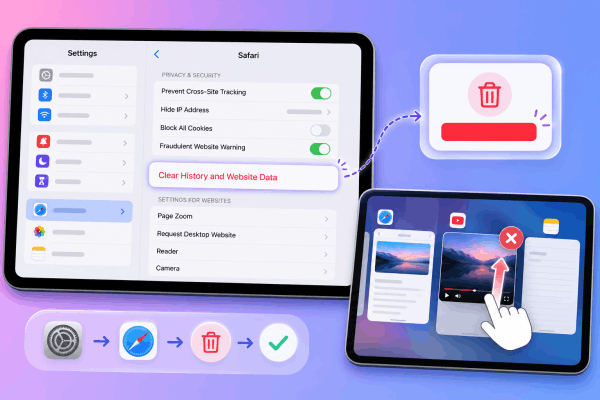
5. Clear browser cache and reset app state
Corrupted cache files degrade how browser players interact with video drivers.
-
Open Settings on your iPad.
-
Scroll down and select Safari.
-
Tap Clear History and Website Data, then confirm.
-
Swipe up from the bottom of your screen and hold to bring up the App Switcher, then swipe away your browser and video apps to shut them down completely.
6. Perform a standard iPad restart
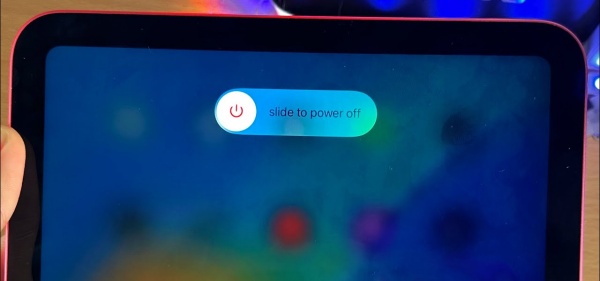
A standard system restart clears out stuck processes and refreshes background system permissions.
-
Press and hold either Volume button and the Top button together until the power slider appears on screen.
-
Drag the Slide to power off slider to the right and wait about 30 seconds for your iPad to shut down completely.
-
Press and hold the Top button again until the Apple logo appears to power the device back on.
Practical tips to keep PIP running smoothly
Beyond basic fixes, taking a proactive approach ensures your video overlay functions consistently. Use these reliable practices to maintain seamless multitasking on iPadOS:
-
Use Safari extension tools: Installing dedicated PIP extensions from the App Store gives you a persistent button to pull videos into floating windows instantly.
-
Keep iPadOS updated: System updates frequently fix audio and display framework bugs that disrupt multitasking.
-
Avoid low power mode during heavy multitasking: Low Power Mode throttles background tasks, which can force iPadOS to terminate floating windows to save battery life.
Frequently asked questions
Why did Picture in Picture stop working on YouTube suddenly?
Platform updates or regional licensing changes often toggle off app playback permissions automatically. Ensure PIP is enabled in both iPadOS settings and app settings, or play the video through Safari instead.
Can I use PIP on two videos at the same time on an iPad?
No, iPadOS allows only one active Picture in Picture window at a time. Launching a second floating video automatically closes or pauses the first one.
Why is my PIP player window displaying a black screen with audio only?
Black video screens usually point to digital rights management (DRM) restrictions on protected content or a temporary graphics glitch. Closing the app completely and restarting your device resolves graphics pipeline hiccups.
Final thought
Fixing an iPad PIP video issue usually comes down to checking two main toggles – system-wide settings and in-app permissions. If those settings are correct, clearing app caches or performing a standard power restart will clear up temporary glitches and get your video overlay running smoothly again.







