

Ditch the heavy textbooks. Learn exactly how to study for exams using only an iPad, master split screen, and ace your finals like a pro.
Carrying ten pounds of textbooks, wrinkled notebooks, and a drying pack of highlighters is officially a thing of the past. If you own an iPad and an Apple Pencil, you already hold a mini-supercomputer capable of handling your entire academic workload.
But let’s be real: simply buying a tablet won’t magically give you straight As. The real challenge is avoiding the temptation to open Netflix or scrolling social media when you should be prepping for finals.
If you want to know how to study for exams using only an iPad effectively without losing your focus or your sanity, this practical guide will break down the exact strategies, hidden features, and daily setups used by top-performing students.
CONTENTS:
How to study for exams using only an iPad
Studying entirely on a digital screen requires a specific system. You cannot just read a static PDF and expect the information to stick. Real retention happens when you actively engage with the material. Here is the optimal layout to set up your digital study station for maximum productivity.
Master the iPad split view for active recall
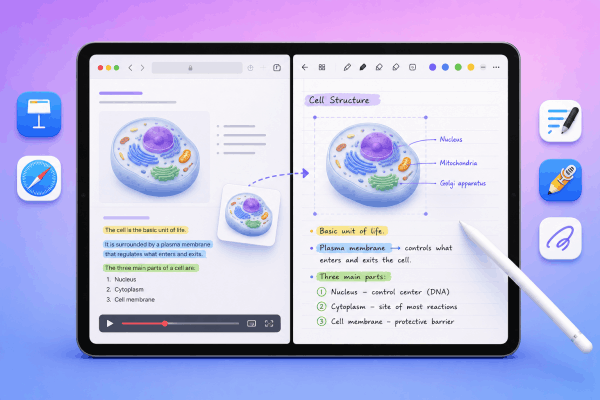
The absolute biggest game-changer on the iPad is mastering Split View (running two apps side-by-side).
Open your lecture slides, textbook, or online video on the left side of the screen. On the right side, open your favorite note-taking app like Goodnotes, Notability, or CollaNote. Instead of just copy-pasting text, use this setup for active extraction:
-
The drag-and-drop trick: See an important anatomical diagram, a complex organic chemistry structure, or a math formula? Press down on the image from your web browser or textbook slide and drag it directly into your notebook app. You can crop it instantly and write your own explanations underneath.
-
The structural highlight method: When reading source text on one side, use three distinct colors. Yellow for core facts, blue for definitions, and green for structural points (like “the three causes of economic inflation”).
Build a digital “mistake notebook” for practice exams
Top students agree that doing practice questions is the fastest way to boost exam scores. An iPad makes tracking your weaknesses incredibly efficient.
-
Import your PDF practice exams into a handwritten note app.
-
Answer the questions using your Apple Pencil just like you would on the real exam.
-
Whenever you get a question wrong, take a screenshot of it.
-
Paste that screenshot into a separate notebook labeled “My Mistakes”. Review this exact folder the night before the exam to ensure you don’t repeat the same errors.

Top iPad apps to streamline your exam preparation
Your hardware is only as good as the software you use. You don’t need dozens of bloated apps; you just need a few solid tools that serve distinct purposes.
| App Name | Primary Use Case | Best Feature for Exams |
| Goodnotes / CollaNote | Handwritten notes & PDF markups | Flawless Apple Pencil integration & shape recognition. |
| NotebookLM | AI study buddy & audio summaries | Synthesizes your uploaded notes without hallucinating. |
| Anki / Voovo | Digital flashcards & spaced repetition | Drag-and-drop image occlusion to memorize diagrams. |
| Focus Keeper | Time management | Clean Pomodoro timer to prevent digital burnout. |
3 practical tips to eliminate digital distractions
The biggest downside to using a single device for studying is that your entertainment is only one swipe away. If you find yourself constantly breaking focus, implement these three strict boundaries:
1. Lock down your device with strict Focus Modes
Don’t rely on willpower alone. Go to your iPad Settings > Focus and create a dedicated “Study Focus.” Configure it to block all incoming text notifications, social media alerts, and app badges. You can even set it up to change your home screen wallpaper to a blank, minimal layout that only shows your core school apps, hiding tempting games entirely.
2. Mimic the real exam environment
If your upcoming test is a traditional pen-and-paper exam, your brain needs to practice that exact physical sensation. Invest in a matte, paper-like screen protector. It adds friction to the glass surface, making the Apple Pencil glide like a real pen on paper, which reduces hand fatigue during long writing sessions. Furthermore, practice your mock exams without playing music in the background to ensure you don’t panic in a silent testing hall.

3. Harness the power of the Apple Pencil
Whenever possible, write your thoughts out by hand rather than typing them on a Magic Keyboard. The physical act of forming letters and drawing connections builds stronger neural pathways, making it much easier to recall complex information under testing pressure.
May you need this:
- How to organize college lecture notes on iPad to study smarter
- Learning a new language on iPad tips: Master your fluency
Frequently asked questions
Is an 11-inch iPad big enough for studying for exams?
Yes, an 11-inch iPad (like the iPad Air or standard iPad) is highly portable and great for reading. However, if you plan on using Split View heavily for hours at a time, a 12.9-inch or 13-inch model provides a much more comfortable digital workspace.
Does writing on an iPad help you retain information as well as paper?
Yes, provided you are actually handwriting with the Apple Pencil rather than just typing or reading passively. The cognitive process of handwriting is what triggers memory retention, not the material of the page itself.
How do I prevent eye strain during long digital study sessions?
Turn on Night Shift in your display settings to reduce blue light, adjust your screen brightness to match the room’s ambient light, and follow the 20-20-20 rule: every 20 minutes, look at something 20 feet away for at least 20 seconds.

Final thought
Learning how to study for exams using only an iPad isn’t about collecting aesthetic digital stickers or downloading every app in the App Store. It is about building a lean, hyper-focused digital environment that encourages active recall, organized tracking, and consistent deep work.
Turn on your Focus Mode, open up your practice sheets, and let your iPad do the heavy lifting this semester. You’ve got this!


