

Running into the Procreate canvas size too small error? Learn practical ways to bypass layer limitations and optimize your digital art canvas.
If you are dealing with the Procreate canvas size too small error or struggling with harsh layer limitations, do not panic. This is not a random bug ruining your day; it is a direct result of how your iPad manages its hardware memory.
Let’s dive into why this happens and look at the real-world, practical fixes to bypass this roadblock so you can get back to creating without technical limits.
CONTENTS:
Understanding the Procreate canvas size too small error
To fix the issue, we first need to understand the mechanics behind it. Unlike desktop software that can leverage virtual memory on a massive hard drive, Procreate is heavily optimized for iPadOS. This optimization relies entirely on your iPad’s RAM (Random Access Memory), not your overall device storage.
When you create a canvas, Procreate calculates a strict formula:
If you set your physical inches or centimeters very high along with a massive DPI (dots per inch), Procreate realizes your iPad’s RAM cannot process the graphical data smoothly. To protect your iPad from crashing or losing data, the app will either throw an error or limit you to a single-digit number of layers.
Read More:
- How to Fix Procreate Lag After Update: Practical Solutions for iPad Artists
- Is your Procreate brush skipping? Here’s how to get your flow back
Practical ways to fix the Procreate canvas limit issue
If you want to create large-scale artwork but your current canvas properties won’t allow it, try these actionable, field-tested workarounds.
1. Optimize your DPI for the actual project medium
A common trap is setting the DPI to 300 or 400 for absolutely everything. While 300 DPI is the golden standard for small, close-up prints (like stickers, keychains, or standard photo prints), you rarely need it for large-scale projects.
-
For massive posters and banners: Large artwork is viewed from several feet away. Lowering your DPI to 150 or 200 will instantly unlock massive canvas sizes and grant you dozens of extra layers, without any noticeable loss in quality to the human eye.
-
For digital-only displays: If your artwork is exclusively going on screens (Instagram, websites, wallpapers), stick strictly to 72 to 144 DPI. Anything higher is wasted processing power.

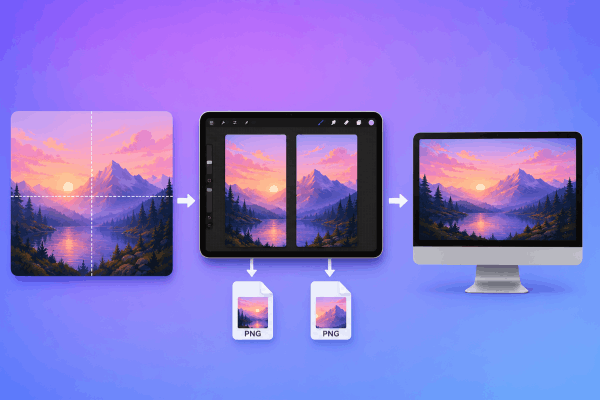
2. Design in sections and stitch later
If your project absolutely demands high-resolution print dimensions that your iPad simply cannot open as a single file, take a modular approach. Divide your canvas conceptually into halves, quarters, or a grid.
-
Create separate, perfectly proportional canvases for each section (e.g., Left Side and Right Side).
-
Illustrate your elements on these individual canvases where you have full access to your layer limits.
-
Export the finished sections as uncompressed PNG files.
-
Combine and stitch them together on a desktop computer using a dedicated photo editing or vector software.
3. Use the “Upscale at the End” technique
One clever trick used by experienced digital illustrators is to build the actual artwork on a smaller canvas scale to preserve layer flexibility.
For instance, if your target is a massive poster, create a custom canvas exactly half or a quarter of the final physical size, keeping the aspect ratio locked. Draw your entire composition using all the layers you need. Once the painting is finished, merge down unnecessary layers, go to Actions > Canvas > Crop and Resize, turn on Resample Canvas, and scale up the dimensions to your target size for final export.
Pro Tip: When upscaling line art or flat graphics, change your interpolation setting from Bicubic to Nearest Neighbor to keep your edges from turning into a blurry mess.
Best canvas sizes for popular digital art projects
To save you from trial-and-error errors in the future, bookmark this quick reference guide for safe, efficient canvas setups on standard iPads:
| Project Type | Recommended Physical Size | Recommended DPI | Safe Layer Range |
| Stickers / Merch | $3 \times 3 \text{ inches}$ | 350 DPI | High (50+ layers) |
| Standard Art Print | $8 \times 10 \text{ inches}$ | 300 DPI | Medium (20–30 layers) |
| Large Poster | $18 \times 24 \text{ inches}$ | 150–200 DPI | Medium (15–25 layers) |
| Social Media / Web | $2048 \times 2048 \text{ pixels}$ | 132 DPI | High (60+ layers) |
Frequently asked questions about Procreate Canvas Size Too Small Error
Why does my iPad show fewer maximum layers than my friend’s iPad?
Maximum layer counts are entirely dependent on your iPad model’s RAM. Base iPads and older iPad Air models typically feature 3GB to 4GB of RAM. Newer iPad Airs and iPad Pro models boast 8GB or even 16GB of RAM, allowing them to open much larger canvases with plenty of layers to spare.
Will clearing up my iPad storage space give me more layers?
No. iPad storage (GBs for storing photos and apps) is completely separate from RAM (system memory). Deleting old movies or apps will not change Procreate’s structural canvas limitations.
Can I change my canvas size after starting a drawing?
Yes. Go to Actions (Wrench Icon) > Canvas > Crop and Resize. If you enter larger dimensions with Resample Canvas toggled on, your artwork expands with it. Keep an eye on the maximum layer readout at the top of the menu as you change values.
Final thought
Encountering a technical wall when you are in the creative zone is incredibly jarring, but the Procreate canvas size too small error is highly manageable once you understand how to balance resolution against physical dimensions.
By adapting your DPI to your true medium and utilizing structural workflow tricks like sectional designing, you can easily bypass hardware limitations. Treat your canvas setup as part of the creative process, plan smart, optimize your specs early, and your iPad will keep up with your imagination every single time.





