


Wondering how to fix Procreate lag after update? Discover proven, practical tips to stop brush delay, freeze, and iPad slowdowns instantly.
Few things are more frustrating than settling down with your iPad, Apple Pencil in hand, ready to dive into a creative flow, only to find your digital canvas stuttering. You recently hit “update” expecting shiny new features or smoother performance, but instead, your favorite drawing app feels heavy, unresponsive, or visibly delayed.
If your brush strokes are suddenly trailing a second behind your pencil tip, or your zoom and pinch gestures are freezing, you are not alone. Performance drops right after an application patch are a common headache for digital illustrators.
Fortunately, this sluggishness is rarely fatal. Let’s look at exactly how to troubleshoot your device and get your digital studio running at full speed again.
CONTENTS:
How to fix Procreate lag after update
When an app updates, it often requires more temporary processing memory (RAM) or introduces new background systems that conflict with your older settings. To fix the issue, we need to look at both internal app configurations and global iPad settings.
Below is a breakdown of practical steps compiled from active community workarounds and expert troubleshooting methods to restore immediate responsiveness to your canvas.
1. Perform a hard system restart
A standard software update leaves a trail of temporary cached files and active background threads that can choke your iPad’s memory. Simply closing the app and reopening it doesn’t flush this data.
For iPads without a physical Home Button:
-
Quickly press and release the Volume Up button.
-
Quickly press and release the Volume Down button.
-
Press and hold the Top Power Button. Keep holding it down past the “slide to power off” prompt until the screen goes black and the Apple logo appears.
-
Release the button and let the device boot normally.

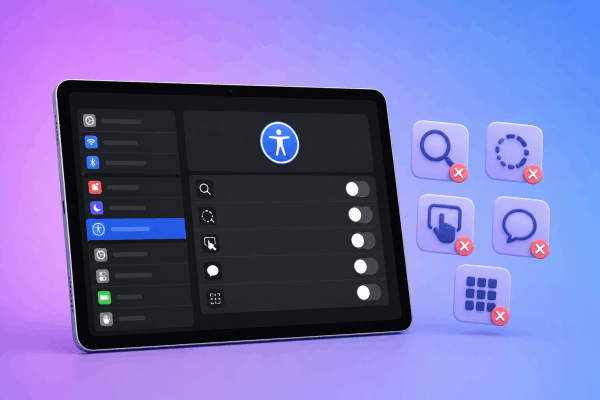
2. Turn off resource-heavy accessibility features
Sometimes, global iPadOS settings designed to make the operating system smoother actually interfere with the rapid touch-and-pressure processing required by drawing software.
Open your iPad Settings app, scroll down to Accessibility, and verify that the following options are toggled completely Off:
-
Zoom: Can cause accidental gesture triggers and sudden canvas lag.
-
Reduce Motion: Disabling or enabling this can occasionally conflict with responsive app rendering.
-
AssistiveTouch: The floating on-screen menu constantly consumes a small baseline layer of processing thread power.
-
Spoken Content / Switch Control: Ensure these are inactive unless explicitly needed.
3. Check and tighten your Apple Pencil tip
It sounds absurdly simple, but a massive number of reported “brush lag” or “line sputtering” issues immediately following an update are purely mechanical. Over time, or while adjusting to a new surface, the small plastic tip of your Apple Pencil can microscopic-level loosen.
Turn the pencil tip clockwise to ensure it is screwed completely flush against the base. If the tip is worn down or showing internal metal, replace it. A loose tip alters how pressure sensitivity signals are beamed to the screen, causing the app to freeze momentarily while trying to read your stroke.

4. Optimize canvas dimensions and layer count
If the lag is specifically hitting you on a single massive project, look at your canvas specs. Major updates often recalibrate how much hardware memory is allocated per canvas layer.
If you are pushing up against the maximum layer limit allowed for your iPad model, try the following:
-
Duplicate and Merge: Duplicate your artwork file in the Gallery as a safety backup. In the working copy, merge down completed layers to free up memory.
-
Isolate Background Apps: Avoid running resource-heavy streaming widgets, videos in picture-in-picture mode, or web browsers simultaneously. If you are working on a high-resolution file, your iPad needs to dedicate 100% of its available RAM to your brush engine.
May you need this:
- Is your Procreate brush skipping? Here’s how to get your flow back
- Procreate layer limit: Why it happens and how to fix it
Technical adjustments inside the app
If your hardware is clean, the lag might be stemming from how the brush engine behaves under the new software build.
Adjust brush stabilization and streamline
If every brush you use feels like it’s dragging through mud, your global stabilization settings might have been dialed up during the update transition.
-
Open a canvas, tap the Actions menu (wrench icon), and select Preferences.
-
Tap Pressure and Smoothing.
-
Look at the Stabilization and Motion Filtering sliders. If these values are pushed too high, the app deliberately delays your stroke to calculate a mathematically perfect, smooth curve. Drop them down slightly to see if native, snappy responsiveness returns.
| Action | Why It Works |
| Clear iPad Storage | Ensure at least 15% of your total storage remains free. iPads use empty storage as “virtual memory” (swap space) when processing intense visual files. |
| Offload the App | Go to iPad Settings > General > iPad Storage > Procreate and choose Offload App (Do NOT tap delete). This refreshes the core app code via the App Store without deleting your artwork gallery. |
Frequently asked questions
Why does my Apple Pencil only lag when I use Procreate?
This happens because drawing applications pull massive amounts of real-time pressure, tilt, and azimuth data from the stylus, whereas the standard iPad home screen or note apps only read basic coordinates. If the app engine is struggling post-update, or if your iPad storage is nearly full, the high data influx will cause visible processing delay.
Will deleting and reinstalling the app fix the lag?
Stop! Do not delete the app. Deleting the icon directly from your home screen will erase your entire local library of artwork, custom brushes, and palettes permanently. If you need a clean code installation, use the safe Offload App feature inside your iPad’s systemic storage menu to preserve your portfolio.
Does iPad overheating cause brush lag?
Yes. When an iPad’s processing chip gets too hot (often caused by drawing at maximum screen brightness while charging or running complex updates), the system automatically “throttles” its CPU speed to cool down. This directly results in heavy lagging, tool freezes, and automatic screen dimming. Take a 15-minute break and let the hardware cool.

Final thought
An unexpected software lag can derail your creative momentum, but it is almost always caused by system cache buildup, low virtual memory space, or minor setting mismatches right after a new version drops.
By running a clean system reboot, ensuring your iPad has breathing room in its physical storage, and checking your mechanical pencil tips, you can clear the bottleneck and return to fluid, uninterrupted digital painting. Keep your gear optimized, and happy creating!





