


Experiencing the Procreate brush stroke tapering glitch? Fix abrupt line endings and pressure issues with these easy iPad drawing solutions.
Digital illustration relies on predictable line behavior. When drawing in Procreate, an artist expects line ends to narrow down gracefully based on pressure and speed. However, a sudden breakdown in this behavior turns a fine line into an unexpected blob or an unnaturally sharp stub. This issue, commonly known as the Procreate brush stroke tapering glitch, disrupts inking, lettering, and detailed line work.
Understanding why stroke endings fail and applying targeted adjustments brings back the natural flow of your brushes.
CONTENTS:
What causes the Procreate brush stroke tapering glitch?
The tapering engine in Procreate calculates stroke geometry using a combination of input pressure, velocity, and touch surface area. When these inputs conflict, the stroke engine misinterprets how the line should finish.
Several hidden variables trigger this miscalculation:
-
Pressure curve misconfiguration: Excessive sensitivity or sudden pressure drops tell the app to end the stroke abruptly.
-
Tip size vs. Pressure Taper conflicts: Overlapping settings between manual Touch Taper and Pressure Taper create conflicting geometric instructions.
-
Physical signal drops: Temporary Bluetooth disconnections or tip loose-ends interrupt the stream of pressure data right as the stylus leaves the glass.
-
Palm Rejection interference: Accidental contact from the side of your hand registers as a secondary touch point, canceling out the tapering calculation at the last microsecond.
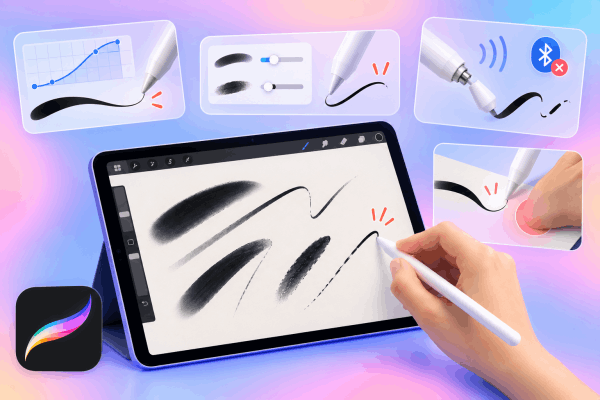
Adjusting pressure and taper settings inside Procreate
Addressing setting conflicts inside the brush engine resolves the majority of line-ending bugs without resetting your entire workspace.
Fine-tune the Brush Studio taper controls
Every brush carries its own set of tapering rules. Opening the Brush Studio reveals separate controls for Pressure Taper and Touch Taper.
-
Tap the active brush to enter the Brush Studio.
-
Select Taper from the left sidebar menu.
-
Adjust the Pressure Taper slider so the front and end sliders mirror each other.
-
Increase the Size slider under Taper to force the stroke end to shrink down to a finer point.
-
Toggle Tip from Sharp to Useful if the line ends feel overly harsh or blunt.
Setting the Size slider higher guarantees that the brush engine forces a thin terminal point regardless of how quickly your hand leaves the canvas.
Keep Reading:
- How to fix Procreate brush pressure delay on iPad
- Procreate Color Picker Picking Wrong Color? How to Fix It Fast
Reset the global App Pressure Curve
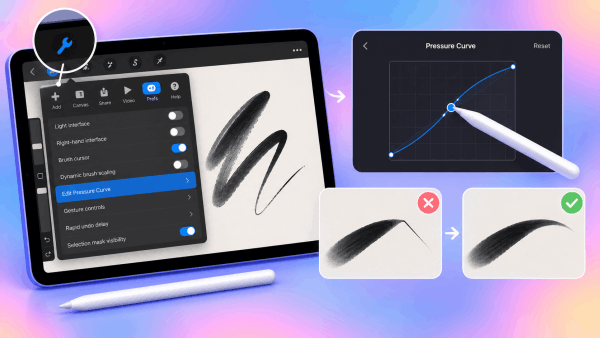
A harsh global pressure curve forces Procreate to drop pressure values to zero instantaneously instead of fading them out smoothly.
Navigate to Actions (wrench icon), select Preferences, and open Edit Pressure Curve. Pulling the middle of the diagonal line slightly upward creates a smooth arc. This gentle curve buffers swift wrist flick movements, smoothing out input drops at the tail end of your strokes.
Fixing hardware and surface responsiveness
Software parameters only work when the physical input devices deliver uninterrupted data to your iPad screen.
Check the Apple Pencil nib connection
A slightly unscrewed Apple Pencil tip creates micro-gaps in signal transmission. Unscrew the nib completely, check for debris inside the housing, and screw it back on firmly. A tight nib ensures that continuous pressure readings reach the iPad display until the exact moment of lift-off.
Disable Palm Support settings
Built-in palm rejection features occasionally collide with native Apple Pencil palm rejection. When Procreate receives two conflicting palm signals, stroke tapering often freezes mid-motion.
Access your iPad Settings, scroll down to Procreate, and ensure Palm Support is disabled or set to Disabled. Modern iPads paired with an official Apple Pencil handle palm rejection natively at the hardware level, making in-app palm tracking redundant.

Restart your iPad using standard steps
System cache buildup can degrade background real-time rendering. A simple standard reboot clears active RAM and resets touch screen digitizer sampling rates.
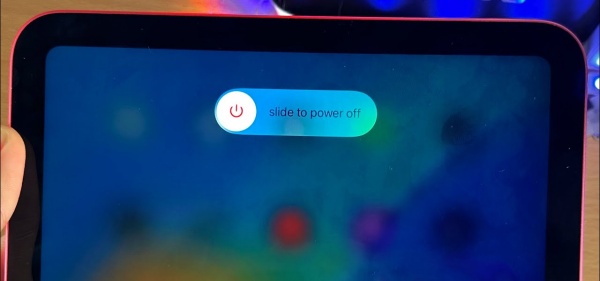
To restart modern iPad models without a Home button:
-
Press and hold the Top button alongside either Volume button until the power-off slider shows up.
-
Drag the Slide to power off control to shut down the device.
-
Wait roughly 30 seconds for complete shutdown.
-
Hold down the Top button again until the Apple logo appears.
For older iPad models featuring a Home button, press and hold the Top button, drag the slider to power down, and turn the device back on using the same button.
Tapering troubleshooting checklist
| Issue pattern | Primary suspect | Quickest corrective action |
| Blunt, boxy stroke endings | Low Taper Size value | Increase Size slider in Brush Studio Taper tab |
| Sudden line tail popping | Aggressive Pressure Curve | Smooth out the global Pressure Curve arc |
| Intermittent taper loss | Loose Apple Pencil tip | Retighten the plastic nib firmly |
| Random dots at line ends | Dual palm rejection conflict | Disable Palm Support inside system Procreate settings |
Frequently asked questions
Why does the tapering glitch happen on some brushes but not others?
Brushes possess individual settings inside the Brush Studio. A custom brush might have Pressure Taper turned off completely or set to a flat Size value, while native brushes utilize built-in tapering curves.
Will replacing my Apple Pencil tip fix tapering issues?
Replacing a worn, flattened, or damaged tip restores consistent surface area contact with the glass. If your current tip shows visible wear, a fresh tip usually stabilizes pressure reads during stroke lift-off.
Does screen protector material influence taper glitches?
Thick glass protectors reduce subtle pressure sensitivity nuances. Switching to a thinner screen cover or a textured matte film often improves light pressure detection at the end of quick strokes.
Final thought
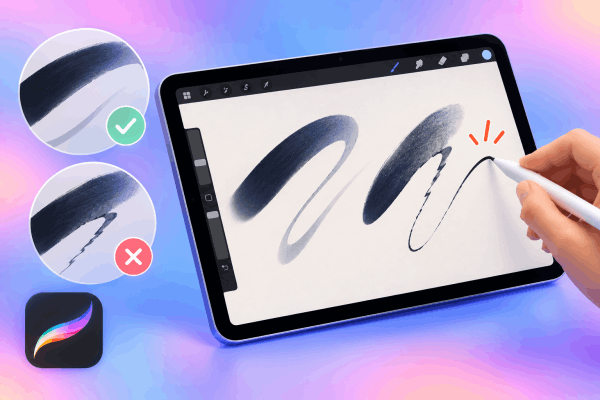
Resolving line taper inconsistencies comes down to balancing Brush Studio settings with a steady hardware signal. Tweaking your pressure curves and verifying a secure Pencil connection brings back crisp, reliable line endings to every sketch.






