


iPad storage full problem? Here’s how to fix it fast, clean hidden files, and free up space without losing your data.
One day, you’re watching a movie or sketching on Procreate, and suddenly a message pops up: “iPad Storage Almost Full.” It feels like the digital version of running out of closet space. No matter how many files you delete, that warning keeps coming back.
If you’ve been dealing with this, don’t worry. I’ve been there too, and after a few rounds of frustration, I finally figured out what really works. Let’s go through how to understand and fix your iPad’s storage problem.
CONTENTS:
Why your iPad storage gets full so fast?
It’s not always about how much you download. Sometimes your iPad quietly fills itself up with hidden files.
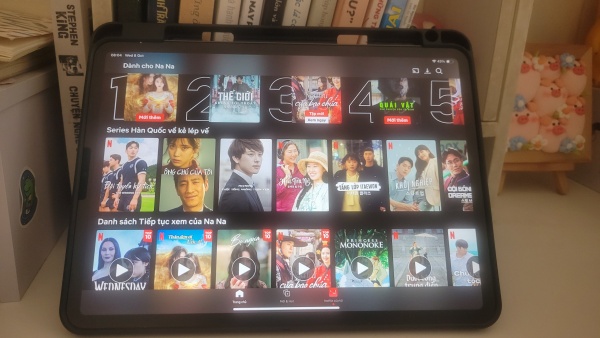
Apps like Procreate, Netflix, or GarageBand are heavy. They store projects, offline files, and data that stay even after you stop using them.
Photos and videos also eat up tons of space, especially 4K clips or Live Photos.
If you love watching YouTube or TikTok, their cached data keeps growing too. The more you scroll, the bigger it gets.
Then there’s the mysterious “System Data” section. It includes all the temporary files your iPad creates to run smoothly, but sometimes it just forgets to clean up.

How to check what’s taking up space
Before deleting anything, it’s good to know where your storage is going.
Go to Settings => General => iPad Storage (or General => About).

Wait a few minutes while your iPad analyzes itself.
You’ll see a colored chart showing which apps take the most space. Tap on each app to check details. You might be surprised that your photo library or messages are much heavier than expected.
Pay attention to “System Data.” If it takes up several gigabytes, don’t panic. It’s normal for it to grow over time, especially if you haven’t restarted your iPad in months.

Fixing the iPad storage full problem
Once you know what’s using your space, you can start cleaning.
Here’s what actually helps, not random “delete everything” advice you’ll find elsewhere.
1. Remove unused apps
Open the list in iPad Storage and check which apps you rarely touch.
Tap “Offload App” to remove the app but keep its data. When you reinstall, your files come back automatically.

2. Manage your photos and videos
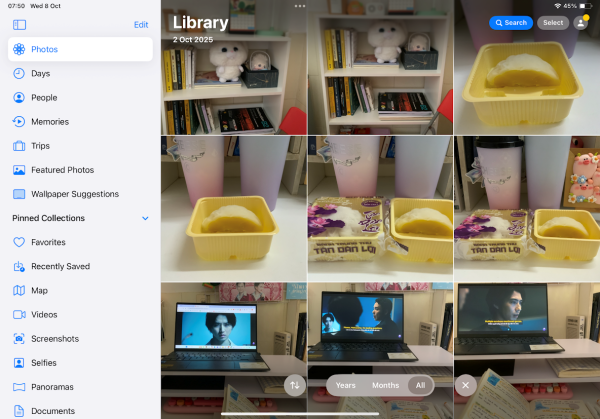
The photo library often hides duplicates, screenshots, and screen recordings you no longer need. Delete them manually or move everything to iCloud, Google Photos, or an external drive.
If you prefer keeping things offline, export old videos to your computer and free up space for new memories.
3. Clear Safari and app cache
Safari stores every little thing you browse.
Go to Settings => (App) => Safari => Clear History and Website Data.
Some apps like YouTube, TikTok, and Instagram also keep cache inside the app. The fastest fix? Delete and reinstall them.

4. Deal with “System Data”
Restart your iPad. You’d be surprised how much temporary data disappears just by doing this.
If the “System Data” is still huge, update to the latest iPadOS version. Apple often includes background cleanups in updates.
In extreme cases, back up your data and do a full restore. It’s annoying, but it works.
5. Check the Files app and downloads
Many people forget this one.
Open the Files app => On My iPad and browse through your folders.
Old PDFs, ZIPs, or downloaded videos take more space than you expect. Move them to cloud storage or delete them completely
Read More:
- How to organize iPad home screen for productivity and style
- How To Customize Google Calendar Colors and Add Backgrounds
6. Optimize your iCloud usage
If you use iCloud Photos, make sure Optimize iPad Storage is turned on (Settings => iCloud => Photos => Optimize iPad Storage).
This keeps only smaller versions of photos on your device while saving full-resolution files in the cloud.
It’s an easy way to free up several gigabytes without losing any memories.

Smart ways to avoid this problem in the future
Once you clean everything up, you don’t want to go through the same pain again.
Here’s what helps me keep things tidy without thinking too much about it.
I schedule a quick cleanup every month – five minutes to delete downloads, screenshots, and old documents.
Instead of saving music and movies, I stream them.
I also use Procreate’s cloud backup feature to store old art files safely outside my device.
If you like automation, there are apps such as Smart Cleaner or Cleaner One that help identify large or duplicate files. I’ve tried them myself, but honestly, they didn’t work that well, and they even took up extra storage. So I’d say think twice before installing them
And here’s a small but useful trick: keep at least 10-15% of your iPad storage free. Your device runs smoother and faster that way.
When it’s time to upgrade your iPad
If you’ve done all the steps and your iPad still feels full, it might be time for an upgrade.
Older models with 32GB or 64GB storage simply can’t handle modern apps and photo sizes anymore.
If you rely heavily on apps like Procreate, LumaFusion, or Notion, storage fills up faster than you think. In that case, consider switching to 128GB or 256GB when you buy your next iPad.
Wondering if the 128GB iPad is enough for students? Check out my previous post!
Q&A: common iPad storage questions
Q: Why is my iPad storage full even after deleting things?
A: The cache from apps and “System Data” often stays behind. Try restarting, updating iPadOS, or doing a backup and restore.
Q: What is “Other” or “System Data” on iPad?
A: It’s a collection of temporary files, logs, and app cache. It grows over time and can be reduced by clearing cache or restoring the device.
Q: Can I use an external drive with my iPad?
A: Yes! Most iPads support USB-C or Lightning drives. You can move large files, photos, and backups to external storage easily.
Q: Is it safe to use cleaner apps?
A: Generally yes, if they come from trusted developers. But you can achieve the same results by manually cleaning your iPad.
Q: How much free space do I need?
A: Keeping at least 5-10 GB free ensures your iPad runs smoothly without random slowdowns or app crashes.

Final thoughts
The iPad storage full problem is annoying, but it’s also fixable. Once you understand where the space goes, managing it becomes much easier.
For me, the biggest difference came when I stopped hoarding old downloads and started using cloud storage properly. Now, I can open Procreate, edit videos, and read without that dreaded “Storage Almost Full” message popping up again.
So go check your storage now, you might be surprised at what’s hiding there.






