


Learn how to organize iPad Home screen with folders, widgets, and aesthetic layouts. Make your iPad cleaner and more motivating to use.
Your iPad is powerful, but the Home screen can get messy fast. Apps everywhere. Widgets you never touch. Folders you forgot you made. If you want your iPad to feel smooth and inspiring, it’s time to organize your home screen. Here’s how.
CONTENTS:
- Why organize your iPad Home screen
- Delete what you don’t need
- Use the dock wisely
- Group apps into folders
- Add widgets that matter
- Try a minimal layout
- Customize app icons and wallpaper
- Create a study-only page
- Use focus mode with home screens
- Keep reviewing your layout
- Tips for making iPad Home screen aesthetic
- Popular widgets for customizing your iPad home screen
- FAQ
- Final thoughts
Why organize your iPad Home screen
-
Saves time. You find apps faster.
-
Boosts focus. A clean screen feels less stressful.
-
Looks better. Aesthetic layouts can motivate you to study or work.
-
Improves productivity. Widgets and folders can actually help if set up right.

Delete what you don’t need
Step one is simple. Remove apps you never use. Press and hold the icon. Tap “Remove App.” Done.
This clears space. It also makes sure you only see what matters.
Use the dock wisely
The dock is the strip at the bottom of your iPad. It is always visible. Put your most-used apps here. Notes, Safari, Gmail, or your favorite study app.
Don’t overload it. Keep it minimal. Around 5-7 apps is perfect.
Group apps into folders
Folders stop your screen from looking chaotic. Hold an app and drag it on top of another. Boom, you have a folder.
Ideas for folders:
-
Study
-
Work
-
Social
-
Entertainment
-
Creative
Name folders in a way that makes sense to you. Short names look cleaner.

Add widgets that matter
Widgets can be super helpful. The Calendar widget shows deadlines. The Notes widget lets you jump back into your last note. The Weather widget tells you if you need an umbrella.
But don’t add too many. Choose 2-3 that actually help you.
Try a minimal layout
Minimalism works. One home screen, not five. Fewer apps, more space. Some students even keep only the dock and widgets on the first page. All other apps go into one folder.
This makes your iPad feel calm. Perfect if you get distracted easily.
Customize app icons and wallpaper
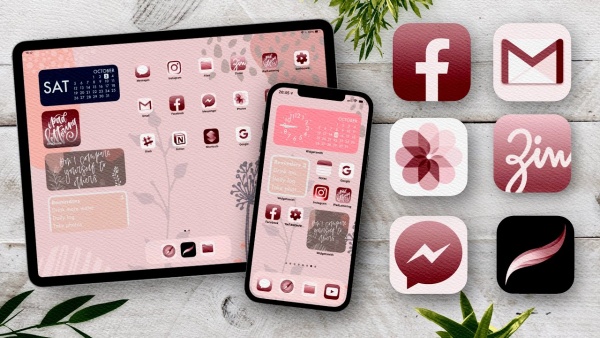
Your iPad should feel like yours. You can change app icons with the Shortcuts app. Search for icon packs on Pinterest or Etsy. Choose a wallpaper that matches your vibe.
Tip: go for neutral colors if you want focus. Bright, fun colors if you want energy.
Create a study-only page
Did you know you can have multiple home screens? Dedicate one just for studying. Put all your school apps there. Hide distracting apps.
This makes it easy to “switch mode” when it’s time to focus.
Use focus mode with home screens
Focus mode is a game changer. Go to Settings > Focus. Create a Study focus. You can connect it with a custom home screen.
When Study focus is on, only your study page shows up. Social media disappears. Less distraction, more progress.

Keep reviewing your layout
Your needs change. A layout that works this semester might not work next semester. Once a month, review your iPad. Delete apps. Move things around. Keep it fresh.
Tips for making iPad Home screen aesthetic
To make your iPad home screen more aesthetic, don’t forget to check out a few tips below:
-
Use the same style of app icons.
-
Pick a matching wallpaper and widget color.
-
Search “iPad home screen inspo” on Pinterest for ideas.
- Watch the “How to Customize Your iPad” video on YouTube.
-
Stick to a theme: pastel, minimal, dark mode, or playful.
Remember, function first. Aesthetic second. But why not both?

Popular widgets for customizing your iPad home screen
Calendar
Shows the date and upcoming events right on your home screen. Many people keep this widget to stay on top of classes, deadlines, and schedules.
Notes / Quick Note
Lets you start a new note instantly. Perfect when you want to jot down an idea or reminder without opening the full app.
Weather / Forecast
Handy if you’re always on the move-know the weather at a glance before heading out for class or study sessions.
Reminders / Tasks / To-do-list
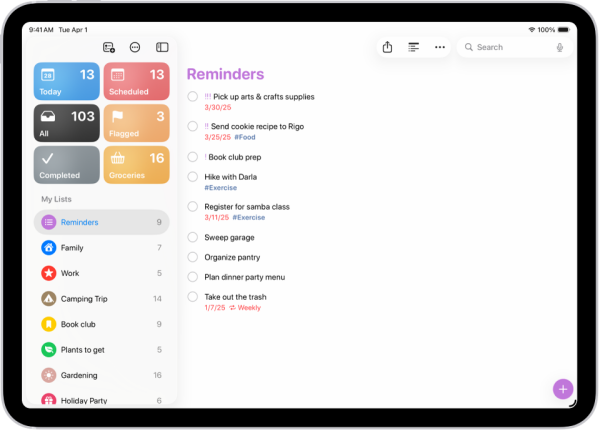
Keep track of homework, deadlines, and personal tasks. A task widget makes sure nothing slips through the cracks.
Widget Stack / Smart Stack
Combine several widgets in one slot and swipe through them. It saves space but still gives you quick access to multiple tools.
Custom / Aesthetic widgets
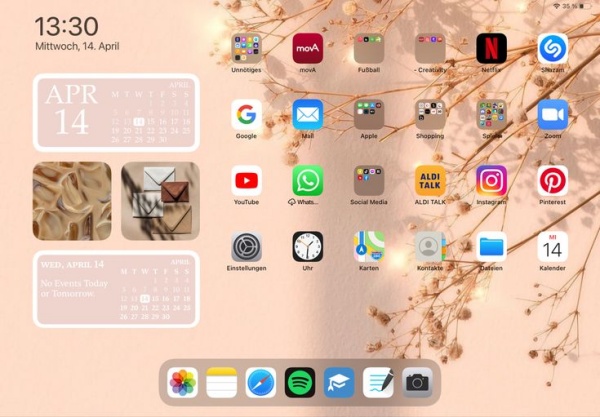
Many students add custom widgets, like minimalist calendars, weather icons, or motivational quotes, for a more aesthetic vibe.
ZenFlipClock
A simple flip-style clock widget. Clean, minimal, and perfect for a study vibe.
Minical
A small, neat calendar widget. Helps you see dates at a glance without taking up too much space.
MD Clock
A modern digital clock widget. Many use it for its bold design and readability.

iScreen (transparent background)
Creates widgets with transparent backgrounds. Blends perfectly with your wallpaper for a seamless look.
Mico
A cute and aesthetic widget app. Offers pastel colors and fun styles to brighten up your home screen.
MD Vinyl
A music widget that looks like a vinyl record. Shows what you’re playing in a stylish retro way.
MD Blank
A “blank space” widget. Used to create custom layouts and spacing between other widgets.
Widgetsmith
One of the most popular widget apps. Lets you build fully custom widgets—calendars, photos, clocks, reminders, and more.
dtd Sounds
A sound-related widget. Many people use it for quick access to relaxing background sounds while studying.
FAQ
Q: Can you hide apps on iPad home screen?
Yes. Hold the app and choose “Remove from Home Screen.” It stays in the App Library.
Q: How do I move apps faster?
Hold one app until it wiggles. Then tap other apps to select them. You can move several at once.
Q: Can I create multiple home screens?
Yes. Swipe left and keep adding apps. You can even hide entire screens in edit mode.
Q: How to make my iPad home screen aesthetic?
Change icons with Shortcuts, pick a theme wallpaper, and use widgets that match the colors.

Final thoughts
Learning how to organize iPad home screen takes a little effort. But once done, you’ll feel the difference. Your iPad will be easier to use, less distracting, and way more inspiring.
Start small. Delete what you don’t need. Add folders. Try widgets. Soon, your home screen won’t just be organized—it’ll feel like you.
Read More:
- How To Customize Google Calendar Colors and Add Backgrounds
- How To Use Slide Over On iPadOS 26: What Changed?







