


Is your iPad screen flickering or glitching? Discover the real causes and learn how to fix it effectively today.
There is nothing more frustrating than settled into a movie or a deep-work session only to have your iPad screen flickering like a strobe light. It’s distracting, it’s hard on the eyes, and naturally, it makes you worry if your expensive tablet is about to give up the ghost.
As a tech enthusiast who lives on an iPad, I’ve seen this issue pop up across many models, from the classic iPad Gen to the latest iPad Pro. While your first instinct might be to panic and assume you need a brand-new device, the reality is often a bit more nuanced. Sometimes it’s a temporary software glitch, but more frequently, it’s a sign of a hardware component struggling under the hood.
In this guide, we’ll dive into why this happens and, more importantly, how to distinguish a simple fix from a professional repair job.
CONTENTS:
Common causes of iPad screen flickering
Before we grab the tools, we need to understand the “why.” Generally, screen issues fall into two buckets:
1. Software glitches and app conflicts
Sometimes, a specific app doesn’t play nice with iPadOS, or a background process gets stuck in a loop. This can cause the “refresh rate” of the screen to stumble, leading to a perceived flicker.
2. Hardware and connection issues (The most common)
If you’ve ever dropped your iPad or even just carried it in a cramped backpack, the internal display data cable (often called the flex cable) might have loosened or sustained minor damage.
Since the iPad is a “sealed” sandwich of glass and metal, even a tiny shift in this connection can cause the screen to flicker, show lines, or become unresponsive.

Quick software fixes to try first
Before assuming the worst, let’s rule out the “easy” stuff. These steps take less than five minutes and won’t cost you a dime.
-
The “Force Restart” trick: This is the “turn it off and on again” on steroids. It clears the temporary cache and resets the hardware controllers.
-
For iPads without a Home Button: Press and quickly release Volume Up, press and quickly release Volume Down, then hold the Top button until the Apple logo appears.
-
-
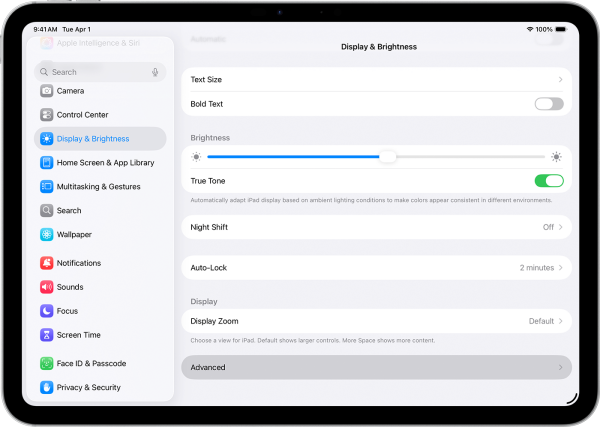
Toggle Auto-Brightness and True Tone: Occasionally, the ambient light sensor sends conflicting data to the display. Go to Settings > Display & Brightness and turn off both Auto-Brightness and True Tone to see if the flickering stabilizes.
-
The “Burp” method (Community Tip): This sounds like a myth, but many users on Reddit and Apple Forums swear by it. Gently – and I mean gently – tap the back of the iPad near the area where the logic board meets the screen. If a connection is slightly loose, a tiny bit of vibration can sometimes “seat” it back into place.
Warning: Do not hit it hard, we’re looking for a “nudge,” not a “knockout.”
Why your iPad screen flickering is likely a hardware issue
If you’ve tried the steps above and the flickering persists, especially if it happens on the Apple logo during startup, you are likely dealing with a hardware failure.
The display cable problem
Inside your iPad, a thin ribbon cable connects the logic board to the LCD or OLED panel. Over time, heat, subtle bending, or physical impact can cause this cable to fray or the connector to oxidize. When the signal between the “brain” and the “eyes” of the iPad is interrupted, you get that characteristic flickering.
Discover more:
- iPad screen won’t rotate? 6 quick fixes you need to know
- iPad Screen Unresponsive? Here’s What You Can Do
Damaged display panel
Even if the glass isn’t cracked, the underlying display layers can fail. This is common if the iPad has been exposed to moisture or extreme pressure. If you notice the flickering gets worse when you press on a certain part of the screen, the panel itself is the culprit.

Professional repair: What are your options?
When software fixes fail, it’s time to call in the pros. Here is how to handle the repair process professionally:
1. Check your warranty (AppleCare+)
If your iPad is under a year old or you have AppleCare+, this is your best bet. Apple usually replaces the entire unit for display issues rather than repairing the screen. Check your status at checkcoverage.apple.com.
2. Authorized Service Providers vs. Independent Shops
If you are out of warranty:
-
Apple Store: Expensive, but you get genuine parts and a guarantee.
-
Independent Repair: Often much cheaper. However, ensure they use “OEM-grade” screens. A cheap third-party screen can lead to poor touch sensitivity or – you guessed it – more flickering.

3. Precautions before repair
-
Back up your data: Always back up to iCloud or a computer. Repairs can sometimes result in data loss or device replacement.
-
Disable “Find My”: Repair technicians will require this to be turned off to run diagnostics.
Frequently asked questions (FAQs)
Q: Can a low battery cause screen flickering?
A: Rarely. While extreme low power can cause performance stutters, it usually won’t cause consistent visual flickering unless the battery is physically swelling and pushing against the screen.
Q: Will a factory reset fix a flickering screen?
A: If the issue is hardware-related (cable or panel), a factory reset will not help. It’s better to try a “Force Restart” first to save your data.
Q: Is it worth repairing an older iPad with a flickering screen?
A: It depends on the model. For an iPad Pro, a screen replacement is worth it. For a base-model iPad that is 4-5 years old, the cost of repair might be close to the price of a new device.

Final thoughts on iPad maintenance
Dealing with an iPad screen flickering is a reminder that our sleek tech is actually quite fragile. To prevent this in the future, I always recommend using a sturdy, “non-flexing” case and avoiding placing heavy objects (like textbooks) on top of your iPad in your bag.
If your screen is currently acting up, start with the software resets, but don’t be afraid to seek professional help. A flickering screen is usually the device’s way of telling you something is loose inside, and catching it early can prevent a total display blackout.
Stay tech-savvy, and good luck with your repair!






