
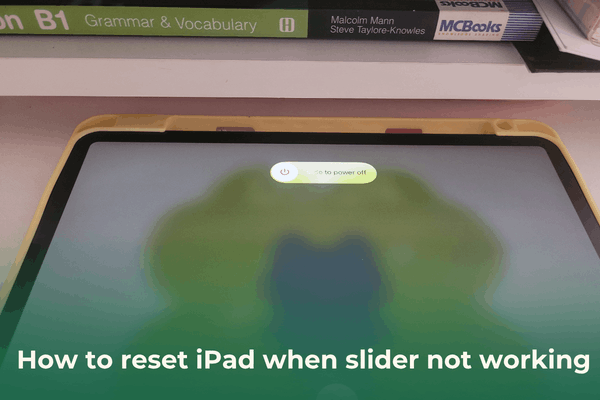

Stuck on the “Slide to Power Off” screen? Here is how to reset iPad when slider not working using some easy tips.
Let’s imagine. You’re in the middle of a flow, maybe sketching on Procreate or catching up on emails, and suddenly, your iPad stops responding. You try to turn it off, but the “Slide to Power Off” bar appears and refuses to budge. No matter how hard you swipe, that slider just won’t move.
When your touchscreen becomes unresponsive, it feels like your expensive tablet has turned into a high-tech paperweight. But don’t panic. Whether it’s a software glitch, a hardware hiccup, or a ghost-touch issue, there are several ways to bypass the screen and get things moving again.
In this guide, I’ll walk you through how to reset iPad when slider not working, pulling from real-world solutions found on Apple Support forums and Reddit threads to ensure you get back to work (or play) in no time.
CONTENTS:
Why is my iPad slider not responding?
Before we dive into the “how-to,” it’s worth understanding the “why.” Usually, the slider fails for one of three reasons:
-
Software Freeze: A specific app has crashed the UI (User Interface) layer.
-
Digitizer Issues: The physical layer of the screen that detects touch is failing or dirty.
-
Memory Overload: The iPad’s RAM is so bogged down it can’t process the touch input for the shutdown command.

How to reset iPad when slider not working
The most effective way to handle a frozen slider is a Force Restart. This doesn’t erase your data; it simply cuts the power to the processor and forces the system to reboot fresh. The method depends on which iPad model you have.
If your iPad has Face ID or Touch ID on the top button, follow this sequence:
-
Quickly press and release the Volume Up button.
-
Quickly press and release the Volume Down button.
-
Press and hold the Top (Power) button.
-
Crucial step: Ignore the “Slide to Power Off” slider if it appears. Keep holding the button until you see the Apple logo on the screen. Then let go.

If you’re rocking a classic iPad with the circular button at the bottom:
-
Press and hold both the Home button and the Top (or Side) button at the same time.
-
Keep holding them even when the slider appears.
-
Release once the Apple logo flashes on the screen.

Practical tips from the community (Reddit & Forums)
Sometimes a standard restart isn’t enough. Here are some “field-tested” tips from users who have faced the same headache:
1. Using software workarounds to shut down
If your physical buttons are acting up or you want a gentler way to trigger the system to refresh, you can use iPadOS built-in software features. These are great “plan B” options found in the Settings menu.
Many users forget that Apple added a software shutdown button. If your screen is partially responsive but the slider is stuck, try this:
-
Go to Settings > General.
-
Scroll all the way to the bottom.
-
Tap Shut Down.
-
This will bring up the slider again. Sometimes, triggering the slider from within Settings bypasses the glitch that occurred when using physical buttons.

If you can’t use your physical buttons effectively, AssistiveTouch is a lifesaver:
-
Go to Settings > Accessibility > Touch > AssistiveTouch and toggle it on.
-
A small virtual circle will appear on your screen. Tap it.
-
Go to Device, then long-press the Lock Screen icon. This will force the power-off slider to appear. Users on Reddit often report that the virtual slider works even when the “real” one is frozen.

2. The “Charging Cable” trick
A weird but occasionally successful tip from Reddit: Plug your iPad into a power source or a Mac/PC. Sometimes the handshake between the iPad and the charger can “wake up” the digitizer or force the OS to refresh its status, allowing the slider to become responsive again.
3. Clean the screen
It sounds basic, but iPad screens are sensitive to oils and moisture. If there is a microscopic layer of conductive residue on the “Slide to Power Off” area, the iPad might be registering “ghost touches” that prevent your finger from being recognized. Use a dry microfiber cloth and give it a firm wipe.
Discover more:
- iPad screen flickering: Top causes and how to fix it
- iPad screen won’t rotate? 6 quick fixes you need to know
What if the iPad is still stuck?
If the force restart didn’t work, you might need to use a computer to “nudge” the software back to life.
Using Recovery Mode
-
Connect your iPad to a computer (Mac or PC with iTunes/Apple Devices app).
-
Perform the button sequence for a Force Restart (as mentioned above) but keep holding the buttons even after the Apple logo appears.
-
Continue holding until you see a screen showing a cable pointing toward a computer (Recovery Mode).
-
On your computer, a pop-up will ask if you want to Update or Restore. Choose Update. This will attempt to reinstall the iPadOS without deleting your files.
If none of the above steps work, it might be time to take your iPad to an Apple Store or a professional repair center for expert assistance.
Pro tips for iPad health and development
As a tech enthusiast, I believe prevention is better than a cure. To avoid the “frozen slider” in the future, try these self-maintenance habits:
-
Clear your cache: Periodically restart your iPad even when it’s working fine. This clears out temporary files that lead to UI freezes.
-
Update Apps: Many system freezes are caused by outdated apps running in the background. Keep your “Automatic Updates” on.
-
Mind your storage: An iPad with less than 10% free storage is significantly more likely to experience UI lag and unresponsive sliders.

Frequently asked questions (FAQs)
Q: Will force resetting my iPad delete my photos?
No. A force restart is just like pulling the plug on a desktop computer and plugging it back in. Your data remains intact.
Q: My slider works, but the iPad won’t turn on after I slide it. What now?
This usually indicates a battery that has fallen below the “critical” threshold. Plug it into a high-wattage charger (at least 20W) for at least an hour before trying to turn it on again.
Q: The Apple logo appears but then it gets stuck again. Is it broken?
This is known as a “boot loop.” You will likely need to use the Recovery Mode method mentioned above to “Restore” the device to factory settings. Note: This will erase your data, so hopefully you have an iCloud backup!
Q: Can a screen protector cause the slider to fail?
Yes. If the protector is cracked or has an air bubble directly over the slider area, it can interfere with the capacitive touch. Try removing it if the problem persists.

Final thoughts
Learning how to reset iPad when slider not working is a vital skill for any iPad owner. Most of the time, it’s just a minor software “brain fart” that a quick button combo can fix. However, if this happens frequently, it might be a sign that your iPad’s hardware is aging or that a specific app is causing havoc.
Stay curious, keep your device updated, and don’t let a frozen screen ruin your productivity! If you found this tip helpful, check out our other guides on mastering iPadOS and staying efficient in the digital age.





