

Is your iPad Magic Keyboard stops typing randomly? Try these easy fixes to get your keys working smoothly again without losing focus.
Your iPad Magic Keyboard is working fine, until you switch apps and suddenly none of the keys type. Closing and reopening the iPad, detaching the keyboard, or restarting the device may get it working again, but the problem keeps coming back
If your iPad Magic Keyboard stops typing randomly, this guide will help you narrow down what’s happening and try fixes that go beyond a temporary reset.
CONTENTS:
Why the iPad Magic Keyboard stops typing randomly
Understanding what causes the input drop helps prevent it from happening mid-task. Rather than a total hardware breakdown, this glitch usually comes down to three main culprits:
-
Smart Connector communication drops: Dust, lint, or natural skin oils accumulate on the three gold contacts on the back of your iPad or the Magic Keyboard hinge. Even an invisible layer of residue disrupts the low-voltage signal between the devices.
-
Software focus loss: When iPadOS handles multi-tasking, Stage Manager, or rapid app switching, the system occasionally loses track of where text input should go. The onscreen interface remains active, but the hardware input focus drops entirely.
-
Background process freezes: Minor background conflicts in iPadOS can freeze the driver handling external accessories. When this occurs, the iPad stops recognizing incoming keystrokes until the connection resets.

Step-by-step fixes for Magic Keyboard typing issues
When your Magic Keyboard stops typing after switching apps or drops connection randomly, try these practical solutions in order, starting with the simplest adjustment.
Clean the Smart Connector contacts
Before changing software settings, inspect the physical connection point. The Magic Keyboard does not use Bluetooth; it relies entirely on the Smart Connector—the three small metallic dots on the back of the iPad.
-
Detach your iPad from the Magic Keyboard.
-
Inspect the three gold contacts on both the back of the iPad and the keyboard hinge.
-
Take a soft, lint-free microfiber cloth and gently wipe both sets of contacts.
-
For stubborn residue, slightly dampen the edge of the cloth with isopropyl alcohol (rubbing alcohol) and clean the pins gently, ensuring no moisture leaks into the hinge.
-
Snap the iPad firmly back into place.
Testing this physical link ensures that intermittent signal drops are not caused by simple dust buildup.

Re-establish text focus in your app
If the Magic Keyboard only works after closing and reopening iPad apps, the operating system likely lost track of the active text field. You can force iPadOS to recognize your keyboard again without restarting the device:
-
Tap directly inside the text area using your finger or Apple Pencil to explicitly set the cursor focus.
-
Swipe up from the bottom line of the screen to return to the Home Screen, wait two seconds, and reopen your app.
-
If you use Stage Manager or split-view multitasking, try closing the adjacent window to return the system to a single-window layout.
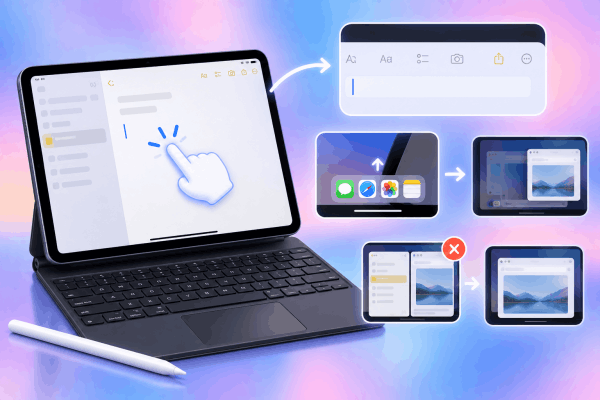
Re-anchoring the cursor often clears temporary software stalls caused by switching back and forth between messaging and browser applications.
Adjust Full Keyboard Access settings
iPadOS includes accessibility features that alter how external keys interact with user interface elements. Sometimes, an enabled navigation setting overrides standard typing behavior.
-
Open the Settings app on your iPad.
-
Scroll down and tap Accessibility.
-
Select Keyboards under the Physical Motor section.
-
Tap Full Keyboard Access.
-
Toggle the feature Off if it is enabled, or toggle it On and then Off again to clear cached settings.
Disabling this feature prevents iPadOS from interpreting standard character keystrokes as navigation commands across system menus.
Keep Reading:
- Apple Pencil Not Working with Magic Keyboard? Try These Fixes
- Fix iPad Magic Keyboard Backlight Not Working: Quick Solutions
Disconnect and reattach the iPad
Since the Magic Keyboard draws power and transfers data directly through the hinge connector, detaching the iPad acts as an immediate hard reset for the accessory’s driver.
-
Grasp your iPad and pull it off the magnetic back plate.
-
Wait approximately 5 seconds for the iPadOS software to switch back to the virtual onscreen keyboard interface.
-
Realign the iPad with the magnetic backplate and snap it back into position.
-
Tap inside your text document and begin typing.

This quick physical break forces the internal hardware connection daemon to reload without interrupting your active apps.
Restart your iPad normally
When software glitches freeze the underlying accessory background processes, a straightforward system restart clears out cached errors and restores normal hardware recognition.
-
Press and hold the Top button along with either Volume button until the power-off slider appears on the screen.
-
Drag the slide to power off slider to the right.
-
Wait around 30 seconds until the screen turns completely dark and the device powers down fully.
-
Press and hold the Top button again until the Apple logo appears on the screen to turn your iPad back on.
Once the system finishes booting up, attach your keyboard and test your typing responsiveness.

Practical tips to prevent connection drops
Maintaining a reliable connection requires minimal effort once you know what triggers signal interruptions.
-
Keep your iPad case contacts clear: If you use a thin, Smart Connector-compatible protective case along with your Magic Keyboard, ensure the passthrough pins remain clean and free from debris.
-
Avoid aggressive angle adjustments while typing: Flexing the hinge excessively while actively typing can momentarily gap the gold contact points, leading to dropped letters mid-sentence.
-
Update iPadOS regularly: Apple frequently bundles background bug fixes into minor software updates. Keeping your operating system up to date minimizes recurring driver freezes.
FaQs about iPad Magic Keyboard stops typing randomly
Why does my Magic Keyboard intermittently stop working on iPad while the trackpad still works?
The trackpad and physical keys communicate over separate data channels via the Smart Connector. A minor driver stall in iPadOS can freeze character input while leaving pointer navigation functional. Detaching the iPad from the magnetic backplate for five seconds usually resolves this imbalance.
Does low iPad battery cause the Magic Keyboard to stop typing?
Yes. When your iPad battery drops below a critical threshold (typically under 10%), iPadOS enters power-saving modes that reduce voltage delivered to external accessories. Charging your iPad above 20% restores full power flow to the Smart Connector.
Can a dirty Smart Connector permanently damage the keyboard?
No, dirty contacts simply block low-voltage electrical signals. Wiping the pins with a dry microfiber cloth restores proper communication without risk of permanent hardware failure.

Final thoughts
Dealing with a hard keyboard that drops keystrokes breaks your concentration and slows down your day. Most of the time, an instance where an iPad Magic Keyboard stops typing randomly points to temporary software focus loss or dirty Smart Connector pins rather than an irreparable hardware defect.
With some practical tips above, you can keep your portable setup reliable and get straight back to your work.





