

Is your iPad Magic Keyboard backlight not working? Try these quick, practical troubleshooting steps to fix illuminated keys instantly.
The iPad Magic Keyboard is easily one of the best productivity accessories Apple has ever made. Sliding your iPad Pro or iPad Air onto that magnetic stand transforms a simple tablet into a sleek workstation. But late at night, when you expect those keycaps to glow and nothing happens? It is incredibly frustrating.
If your iPad Magic Keyboard backlight not working issue is keeping you in the dark, don’t panic. You likely don’t need to replace your keyboard. Here is a comprehensive troubleshooting guide packed with practical steps to get your backlighting up and running again in no time.
CONTENTS:
Why is my iPad keyboard light not glowing?
Before jumping into technical fixes, it helps to understand how the backlight functions. Apple relies heavily on an ambient light sensor built into your iPad’s front glass (near the camera).
When your workspace is bright, the sensor automatically turns the key lighting off to conserve your iPad’s battery life. Consequently, the backlight only engages when the ambient light drops below a certain threshold.

The most common reasons for a failing keyboard light include:
-
Bright ambient environment: Your iPad thinks the room is already bright enough.
-
Sensor obstruction: A thick screen protector, case border, or dirty camera lens is blinding the light sensor.
-
System glitches: Temporary bugs in iPadOS freeze the illumination controller.
-
Passthrough power hiccups: Residual static build-up through the USB-C charging port.
7 practical steps to fix iPad Magic Keyboard backlighting issues
Before booking an appointment at the Repair Center, let’s go through these step-by-step solutions to bring your keys back to life, starting with the absolute easiest check:
1. Test in a pitch-black room
It sounds almost too simple, but double-check your environment first. The ambient light sensor is remarkably sensitive. If you are working under a desk lamp or sitting near a window, the iPad will keep the keys off to save power.
-
The fix: Walk into a dark room or closet, attach the iPad, and press a few keys. If it turns on instantly, your keyboard is fine – your room was just too bright.
2. Check and manually adjust brightness settings
System updates occasionally reset hardware preferences. You can verify whether the backlight brightness is simply turned all the way down.
-
Open Settings on your iPad.
-
Tap General > Hardware Keyboard.
-
Drag the Keyboard Backlighting slider to the right to increase brightness.
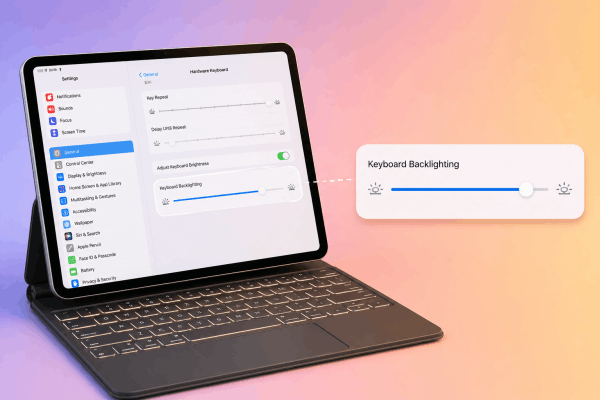
Pro Tip: You can also add the Keyboard Brightness control directly to your Control Center (Settings > Control Center) for quick adjustments without diving into menus.
3. Clean the Smart Connector contacts
The Smart Connector consists of three tiny gold dots on the back of your iPad and on the hinge of the keyboard. These transfer power and data directly between devices without Bluetooth. Even a tiny fingerprint smudge, microscopic dust, or pocket lint can disrupt power delivery to the LED backlights.
-
The fix: Separate the iPad from the keyboard. Use a clean, dry microfiber cloth to gently wipe down the three gold pins on both the iPad and the keyboard base.
4. Perform the “Total Power Drain” reset (For stubborn bugs)
If detaching the iPad does not work, static electricity or a minor power delivery glitch in the USB-C passthrough port might be freezing the hardware.
-
Unplug the USB-C charging cable from the Magic Keyboard’s hinge.
-
Remove the iPad from the magnetic backplate.
-
Wait about 10 seconds to let any lingering power completely drain out.
-
Snap the iPad back onto the case before re-attaching your charger.
This quick sequence forces the keyboard controller to perform a hard reboot.

5. Check your screen protector and ambient sensor
The ambient light sensor sits near the front FaceTime camera. If you recently installed a matte screen protector or a full-coverage tempered glass shield without proper cutouts, it might block the sensor. Wipe off grease around the front camera, or test without a heavy case frame attached.
6. Toggle AssistiveTouch (Odd system bug fix)
An unexpected bug in recent iPadOS releases involves accessibility features interfering with keyboard light controls.
-
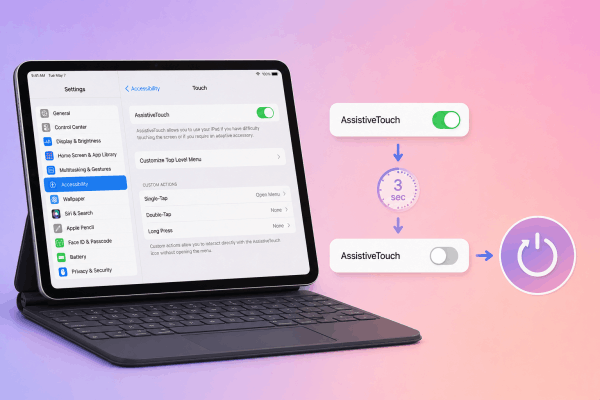
Navigate to Settings > Accessibility > Touch > AssistiveTouch.
-
Toggle it ON, wait 3 seconds, and turn it OFF.
-
Reboot your iPad immediately afterward. Many users find this restores control to the backlighting slider.
7. Force restart your iPad
When in doubt, reboot. A simple restart clears out temporary system caches and refreshes connection protocols between hardware devices.
| iPad Model | How to Force Restart |
| iPads with Face ID / Top Button Touch ID | Press & quickly release Volume Up, press & quickly release Volume Down, then press & hold the Top Power Button until the Apple logo appears. |
| iPads with Home Button | Press and hold both the Home Button and the Top Power Button together until you see the Apple logo. |
Helpful tips to preserve your iPad battery life
Running keyboard backlights constantly drains power from your iPad battery. Here are quick ways to maximize battery life while still enjoying lit keys:
-
Keep brightness low: Set the backlight level to around 20-30%. In dark settings, low brightness provides plenty of legibility without unnecessarily exhausting your battery.
-
Reduce Auto-Lock duration: Set your iPad screen auto-lock to 2 or 5 minutes (Settings > Display & Brightness > Auto-Lock). When the display turns off, your keyboard light shuts down immediately alongside it.
Keep Reading:
- iPad Keyboard Floating and Stuck on Screen? Easy Fixes
- iPad keyboard not showing up and 8 proven ways to fix it fast
Frequently asked questions about iPad Magic Keyboard backlight not working
Why does my iPad keyboard backlight keep turning off automatically?
To save battery, iPadOS automatically shuts off key lighting after a few seconds of keyboard inactivity. As soon as you tap any key or touch the trackpad, the lighting instantly wakes back up.
Can I turn on the backlight in a bright room?
Yes, but you have to do it manually. Navigate to Settings > General > Hardware Keyboard and slide the Keyboard Backlighting bar up. Note that under direct sunlight, the lights might still be hard to notice.
What if my Magic Keyboard backlighting still won’t work?
If you have tried cleaning the Smart Connector, force-restarting, and manually boosting brightness in pitch darkness without success, you may be facing a hardware fault – such as a torn ribbon cable or faulty connector. Contact official technical support or visit an authorized service center to check your warranty status.
Final thought
Dealing with an iPad Magic Keyboard backlight not working issue can be annoying, but in most cases, it stems from minor software hiccups, dirty contacts, or strict ambient light sensor settings.
Keep your device up to date, check those gold contact points occasionally, and enjoy typing away smoothly – day or night.





