


Is your iPad keyboard floating and stuck on screen? Learn quick, practical ways to dock, unshrink, or reset your iPadOS onscreen keyboard fast.
If you are typing an email, writing notes, or working on your iPad and suddenly your virtual keyboard shrinks into an iPhone-sized mini bar that floats right in the middle of your work, you are not alone. Having your iPad keyboard floating and stuck on screen is one of the most common and frustrating quirks of iPadOS.
Instead of sitting neatly at the bottom of the display, the floating keyboard moves around, covers your text, and sometimes refuses to expand back to its normal size. While Apple introduced the floating keyboard feature to make one-handed thumb typing easier, it frequently gets activated by mistake or gets stuck due to minor software glitches.
As someone who relies on the iPad daily for work, content creation, and writing, I know how disruptive this can be. In this practical guide, we will break down why your iPad onscreen keyboard is behaving this way and walk through exact, field-tested solutions to get your full-sized keyboard back immediately.
CONTENTS:
- Why is your iPad keyboard floating and stuck on screen?
- Quick pinch-to-zoom tricks to restore your full iPad keyboard
- Practical fixes for a frozen or stuck iPad floating keyboard
- Pro tips for a seamless iPad typing experience
- Frequently asked questions about iPad keyboard floating and stuck on screen
- Final thought
Why is your iPad keyboard floating and stuck on screen?
Understanding why your iPad keyboard shrinks or freezes helps prevent it from happening again. In most cases, the floating keyboard issue boils down to three main reasons:
-
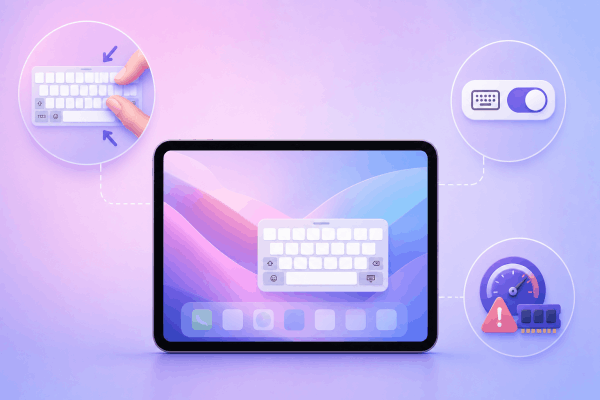
Accidental Pinch Gestures: iPadOS includes a pinch gesture designed to shrink the keyboard. A quick two-finger pinch-in on the full keyboard instantly converts it into the compact floating version. It is very easy to trigger this gesture by accident while typing fast or resting your fingers on the glass.
-
Disabled Docking Settings: If the keyboard gets undocked, it floats freely across the screen instead of anchoring to the bottom edge.
-
iPadOS Memory and Display Glitches: Occasionally, switching between apps, rotating your screen orientation, or running low on system RAM can cause the keyboard interface to freeze, making it unresponsive to touch commands.
Quick pinch-to-zoom tricks to restore your full iPad keyboard
Before digging into settings or restarting your device, try these physical touchscreen gestures. Nine times out of ten, a quick gesture expands your small floating keyboard back to full size in less than two seconds.
1. Pinch-out to expand
To reverse the shrink feature, place two fingers (like your thumb and index finger) on the mini floating keyboard and pinch outward, just as if you were zooming in on a photo.
2. Drag to the bottom edge
If pinching feels awkward, look at the bottom of the floating mini keyboard. You will see a small horizontal line (the drag bar).
-
Tap and hold the drag bar.
-
Drag the entire mini keyboard all the way down to the bottom center of your iPad screen.
-
Release your finger. In most iPadOS versions, pulling the keyboard to the bottom edge automatically forces it to dock and expand back to full width.

Practical fixes for a frozen or stuck iPad floating keyboard
If gestures fail and your mini keyboard refuses to respond or remains stuck on top of your apps, try these practical troubleshooting steps used by daily iPad power users.
Toggle Split and Floating keyboard settings
Sometimes the system software gets confused about whether the keyboard should be docked, split, or floating.
-
Open the Settings app on your iPad.
-
Navigate to General > Keyboard.
-
Locate settings like Shortcuts or Multitasking options depending on your iPadOS version.
-
Toggle the settings off, wait 5 seconds, and turn them back on to refresh the keyboard background process.

Turn off the iPad floating keyboard option completely
If you never intend to use one-handed thumb typing and want to prevent accidental triggers forever, you can disable or minimize floating keyboard behaviors in your settings.
-
Go to Settings > Accessibility > Keyboards.
-
Review your interaction settings to ensure extra touch shortcuts are not interfering with typing.
-
Alternatively, if you use a physical keyboard accessory (like a Magic Keyboard or Smart Keyboard Folio), disconnecting and reconnecting the physical magnetic smart connector usually forces the software keyboard to hide and reset itself.

Change screen orientation
A simple display refresh can break the visual glitch:
-
Turn off Rotation Lock in your iPad Control Center (swipe down from the top right corner).
-
Rotate your iPad from Portrait to Landscape mode (or vice versa).
-
Tap on a text field to see if the keyboard re-renders in its correct full-width layout.
Read More:
- Procreate Layers Invisible? Easy Ways to Get Them Back
- iPad Split Screen Not Working? Easy Fixes to Get Multitasking Back
Restart your iPad
When an app or system UI process freezes completely, clearing your iPad’s temporary RAM memory is the ultimate fix. A simple restart resets running processes without touching your personal files or custom settings.
How to restart your iPad normally:
-
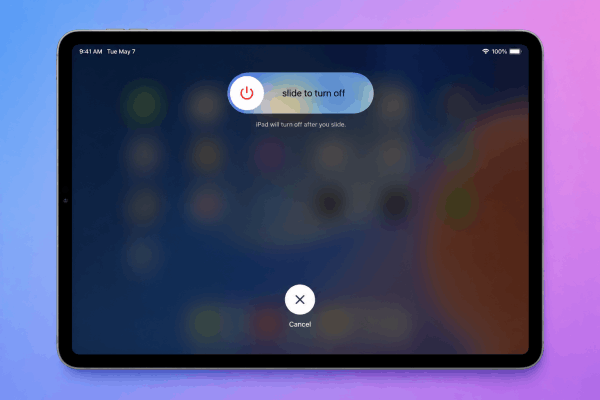
Press and hold the Top Power button along with either Volume button (or just the Top button if your iPad has a physical Home button) until the power-off slider appears on the screen.
-
Drag the Slide to power off toggle to the right.
-
Wait about 20 to 30 seconds until the screen goes completely black.
-
Press and hold the Top Power button again until you see the Apple logo appear.
-
Once your iPad turns back on, open Notes or Safari and test your keyboard.
Pro tips for a seamless iPad typing experience
To keep your iPadOS keyboard running smoothly without unexpected disruptions, keep these handy tips in mind:
-
Master the Touch Shortcuts: Knowing that two fingers pinching in shrinks the keyboard and two fingers pinching out expands it gives you instant control whenever an accidental swipe happens.
-
Keep iPadOS Updated: Software updates regularly contain bug fixes for interface glitches and onscreen keyboard responsiveness. Check Settings > General > Software Update to ensure your device is running the latest stable build.
-
Clean Your Screen: Accumulated finger oils or dirt on the display can register false multi-touch inputs, causing the keyboard to jump or shrink unexpectedly while you type.

Frequently asked questions about iPad keyboard floating and stuck on screen
How do I get my iPad keyboard back to normal size?
Place two fingers on the small floating keyboard and perform a pinch-out motion (zooming out). Alternatively, drag the small bar at the bottom of the mini keyboard straight down to the bottom center of your screen to dock and enlarge it.
Why does my iPad keyboard keep shrinking by itself?
Your iPad keyboard shrinks because iPadOS detects a two-finger pinch gesture across the keyboard surface. This frequently happens when typing quickly with both hands or when resting palm edges against the screen.
Will restarting my iPad delete my data or keyboard dictionary?
No. Performing a standard power restart (sliding to power off and turning it back on) only clears temporary system cache and RAM. Your photos, apps, files, and custom keyboard text replacements will remain completely safe.

Final thought
Dealing with an iPad keyboard floating and stuck on screen is an annoying hitch, but it is almost always quick to fix once you know the right touchscreen gestures and settings.
By mastering the simple pinch-out motion, dragging the handle to the bottom edge, or giving your device a quick normal restart, you can easily reclaim your screen real estate and get right back to typing comfortably!





