


Want to clear mental clutter? Learn how to start building a second brain on iPad using top note-taking apps, Apple Pencil hacks, and practical workflow.
We have all been there. You come across a brilliant article, a life-changing quote, or a killer business idea while scrolling through your tablet. You tell yourself, “I’ll definitely remember this.” Fast forward to two days later, and it is gone—completely wiped from your memory.
Our minds are fantastic for having ideas, but terrible at holding them. In a world of digital overload, trying to remember everything is a losing battle. That is where the concept of a “second brain” comes in. And if you own an iPad, you are already holding the absolute best device to build one.
Let’s dive into how you can start building a second brain on iPad to supercharge your productivity, organize your thoughts, and never lose a great idea again.
CONTENTS:
What is a second brain anyway?
Before we get into the tech setup, let’s demystify the concept. Coined by productivity expert Tiago Forte, a second brain is an external, digital system where you capture, organize, and retrieve your ideas, notes, and learnings.
Think of it as a personalized digital archive that works for you 24/7. Instead of stressing over remembering a book summary, a project outline, or a daily checklist, you outsource that cognitive load to your device.

The core framework follows the CODE method:
-
Capture: Collect the information that resonates with you.
-
Organize: Put it where it is actually useful.
-
Distill: Find the core essence of the note.
-
Express: Turn your collected knowledge into actual output (creative work, blogs, or projects).
Using an iPad makes this method incredibly dynamic because it bridges the gap between structured typed data and the intuitive freedom of handwriting.
Why the iPad is the ultimate second brain device
You could build a digital system on a laptop or a phone, but the iPad occupies a unique sweet spot. It offers the portability of a mobile device with the screen real estate and processing power of a computer.
When you pair an iPad with an Apple Pencil, magic happens. You are no longer confined to rigid text boxes. You can sketch mind maps during a brainstorming session, highlight PDFs like a textbook, and instantly switch to a split-screen view to type up a summary. It adapts to how your brain naturally processes information, whether you are a visual thinker or a structured organizer.

Step-by-step guide to building a second brain on iPad
Ready to build your setup? Real-world power users rely on a specific stack of tools and habits to make their systems friction-free. Here is exactly how to configure yours.
1. Choose your core note-taking app
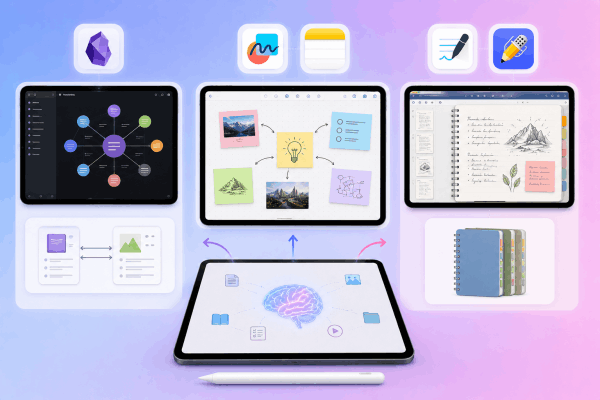
Your second brain needs a home base. Depending on your personal thinking style, pick one of these top-tier options:
-
The Connected Networker (Obsidian / Logseq): If you love the idea of linking notes together like a personal Wikipedia, Obsidian is king. It uses bi-directional linking, meaning you can connect a note about “Personal Growth” to a note about “Book Summary: Walden” seamlessly.
-
The Visual Visualizer (Freeform / Apple Notes): If you prefer canvas layouts, Apple’s native Freeform or basic Notes app are fantastic. Apple Notes has evolved into a powerhouse with deep iPadOS integration, allowing you to quickly scribble a thought with a simple swipe from the corner of the screen.
-
The Digital Notebook Traditionalist (GoodNotes / Notability): Perfect if you prefer the tactile feel of handwriting, organizing your life into digital binders, and color-coding your journals.
2. Master the quick-capture habit
A second brain is useless if it is too hard to put information into it. You need to capture ideas before your mind discards them. On an iPad, you can set up a frictionless workflow using built-in features:
-
Quick Notes: Swipe up from the bottom right corner with your Apple Pencil to instantly pop open a note, even if your iPad is locked.
-
Share Sheet Mastery: When reading an article in Safari, use the Share Sheet to send the link directly to your chosen app, keeping your browser tabs clean.
3. Organize with the PARA method
To avoid turning your digital brain into a digital junkyard, organize your notes by actionability rather than strict categories. Use the PARA method:
-
Projects: Short-term efforts you are actively working on (e.g., “Write SEO article”).
-
Areas: Ongoing responsibilities you need to maintain (e.g., “Health & Yoga”, “Finances”).
-
Resources: Topics or interests that might be useful in the future (e.g., “Affiliate marketing tips”, “Book quotes”).
-
Archives: Inactive items from the other three categories that you want to keep for reference.

Practical tips to optimize your digital workflow
Building the system is only half the battle; maintaining it is what brings actual peace of mind. Here are some highly practical, user-tested habits to keep your iPad system running smoothly:
-
Use Split View effectively: Don’t toggle back and forth between apps. Keep your reading material (like a Kindle app or web browser) on the left, and your note-taking app on the right.
-
Embrace handwriting-to-text (Scribble): If you prefer writing with the Apple Pencil but want searchable text, enable Scribble in your settings. It automatically converts your handwriting into typed text in real time.
-
Leverage tags over deep folders: Deep folder structures are where notes go to die. Use specific tags (like
#ideas,#quotes,#recipes) so you can find what you need via a quick search.
Read More:
- Unleash your creativity: How to use iPad Freeform for visual brainstorming
- Master Your Schedule: Time Blocking with iPad Calendar and Widgets
Frequently asked questions about building a second brain on iPad
Will building a second brain cause digital clutter?
Only if you don’t review it. The secret is setting aside 10 minutes at the end of every week to glance through your “Inbox” folder, file things away into your PARA folders, and delete things that no longer feel relevant.
Do I need a paid app to make this work?
Absolutely not. Apple Notes is entirely free, fully integrated into iPadOS, syncs perfectly across devices, and easily handles text, handwriting, and web links. Start free, and upgrade to complex tools only if you feel limited.
How do I prevent my iPad battery from draining while managing notes?
Heavy background syncing in apps like Obsidian or Notion can drain battery life. To fix this, turn off “Background App Refresh” for apps you only need to sync when they are actively open. Keeping your iPad screen brightness around 50% also extends your writing sessions significantly.

Final thoughts: Start small, stay consistent
Building a second brain on iPad isn’t about creating a flawless, visually perfect aesthetic system overnight. It is simply about creating a trusted space where your future self can find brilliant ideas when they need them most.
Pick one app today, practice capturing three interesting things this week, and watch how much mental clarity you regain. Your brain will thank you for it.






