


Turn your iPad into a responsive drawing tablet for your Windows PC with this easy step-by-step guide covering stylus input, apps, and latency tips.
Transforming your iPad into a graphics display for a Windows PC is one of the smartest upgrades you can make to your digital art workflow. Instead of spending hundreds of dollars on a dedicated display tablet like a Wacom Cintiq, you can harness the Apple Pencil’s precision directly inside desktop software like Photoshop, Clip Studio Paint, or Blender.
While Apple designed sidecar functionality exclusively for Mac, third-party software makes bridging the gap between iOS and Windows smooth and reliable. This guide breaks down the best ways to connect your tablet and configure your tools for a seamless drawing experience.
CONTENTS:
Why turn an iPad into a Windows graphics tablet?
The iPad screen offers exceptional color accuracy, high pixel density, and palm rejection that rivals high-end professional hardware. Pairing these hardware strengths with the computing power and software library of a Windows desktop gives you the best of both worlds.
-
Apple Pencil precision: The low latency and precise pressure sensitivity of the Apple Pencil translate beautifully into desktop software.
-
Cost savings: Eliminates the need to buy a secondary display tablet if you already own an iPad.
-
Portability: You can easily disconnect your tablet and take your sketchpad anywhere.

Essential software options to connect iPad to PC
Because Windows does not support native AirPlay extended displays with touch input, you will need a reliable third-party app. Artists across active creator communities consistently favor three primary solutions based on connection stability, pressure sensitivity, and price.
1. Astropad Studio (Best for performance and pressure sensitivity)
Astropad Studio is widely considered the gold standard for artists switching between iPad and Windows. It mirrors or extends your PC screen over Wi-Fi or USB while maintaining high frame rates and precise pressure curves. It includes customizable sidebar shortcuts, pressure curve tuning, and gesture controls specifically tailored for drawing software.
2. Duet Display (Best for versatility and dual-monitor setups)
Originally built by ex-Apple engineers, Duet Display allows you to use your iPad as a secondary display with full stylus support. It offers solid performance over a wired USB connection, making it ideal if you want to drag tool palettes onto your iPad screen while keeping your main canvas on your primary monitor.

3. SuperDisplay (Best budget option)
SuperDisplay delivers performance rivaling premium options at a one-time purchase price. It provides crisp display scaling, pressure sensitivity support via Windows Ink, and near-zero input lag over a USB cable.
Step-by-step guide: How to use iPad as drawing tablet for Windows
Setting up your devices takes under ten minutes regardless of which software you choose. Follow these steps to ensure a stable, lag-free connection.
Step 1: Install driver software on your Windows PC
Visit the official website of your chosen software (such as Astropad or Duet) and download the desktop host application. Run the installer and restart your computer to ensure all display drivers load properly.
Step 2: Download the companion app on your iPad
Open the App Store on your iPad and search for the corresponding application. Install the app and grant necessary permissions, such as local network access for wireless connections.
Step 3: Establish a wired USB connection
While wireless connections work over high-speed Wi-Fi networks, a physical USB-C or Lightning cable yields significantly lower latency and prevents signal interference. Connect your iPad directly to a USB 3.0 or higher port on your PC motherboard rather than an unpowered USB hub.
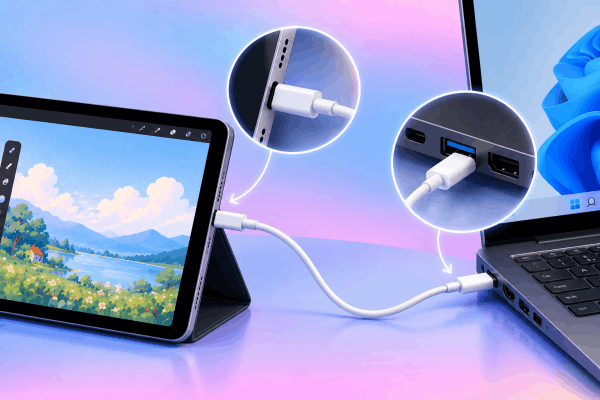
Step 4: Configure display settings and stylus sensitivity
Launch the host app on your PC and open the iPad application. Once the display mirrors or extends, navigate to your Windows Display Settings to match the resolution and orientation of your iPad. Open your drawing software (e.g., Photoshop or Clip Studio Paint) and enable Windows Ink under the tablet preferences tab to activate Apple Pencil pressure sensitivity.
See More:
- How to use external display with iPad, the complete guide
- Fix iPad Stage Manager Resolution Blur on External Displays
Practical tips to eliminate brush lag and line jitter
Achieving a smooth, real-time drawing feel requires a few quick tweaks to both your computer settings and physical workspace.
Prioritize wired connection over Wi-Fi
Wireless streaming relies heavily on network traffic and router bandwidth. Plugging in a physical cable maintains a stable frame rate and eliminates sudden drops in responsiveness while sketching fast lines.
Adjust canvas resolution in desktop apps
Streaming an ultra-high resolution image across devices taxes your GPU. Setting your desktop display output matching the native ratio of your iPad reduces frame processing overhead.
Enable touch rejection settings
To prevent accidental canvas movement caused by resting your palm on the glass, turn on palm rejection within your chosen companion app settings. Alternatively, wearing a simple two-finger artist glove dramatically reduces friction and accidental inputs.

Frequently asked questions
Does Apple Pencil pressure sensitivity work on Windows?
Yes. As long as your chosen bridging app supports Windows Ink or Wintab drivers, pressure sensitivity and tilt recognition work accurately in compatible desktop drawing software.
Is a wired connection better than wireless for drawing?
A USB connection is strongly recommended for digital illustration. It ensures minimal input lag, consistent frame rates, and keeps your iPad charged while you work.
Can I use my iPad as a secondary monitor while drawing?
Yes. Apps like Duet Display and Astropad allow you to choose between mirroring your main desktop screen or using the iPad screen as an extended display workspace.

Final thoughts
Using an iPad as a drawing tablet for Windows provides a powerful solution for digital artists. By choosing the right connection software, tweaking your display settings, and keeping your connection wired, you can enjoy the precision of the Apple Pencil alongside the full power of desktop creative applications.






