


Learn how to import custom fonts into CapCut on iPad, mobile, and PC. Elevate your video editing with personalized typography in minutes.
Typography can make or break your video. While CapCut offers a fantastic library of built-in text styles, using the same fonts as everyone else makes your content blend into the background. If you want your TikToks, Instagram Reels, or YouTube shorts to pop, learning how to use custom typography is a game-changer.
Whether you edit on a high-end iPad, a mobile phone on the go, or a desktop setup, adding your own brand fonts or aesthetic typefaces is incredibly straightforward. This guide walks you through the exact steps to customize your video projects with unique styles.
CONTENTS:
How to import custom fonts into CapCut
The process of adding custom typefaces involves two main phases: downloading the font files to your device and uploading them directly into the application. CapCut natively supports both .ttf (TrueType Font) and .otf (OpenType Font) formats.
Before starting, visit a trusted font library like Google Fonts or DaFont on your device web browser, find a style you like, and download it. If the file arrives as a compressed folder, extract the zip file first to access the raw font files.
Step-by-step guide for iPad and mobile (iOS & Android)
Mobile operating systems handle files a bit differently, but the editing app streamlines the process perfectly across both iPhone, iPad, and Android interfaces.
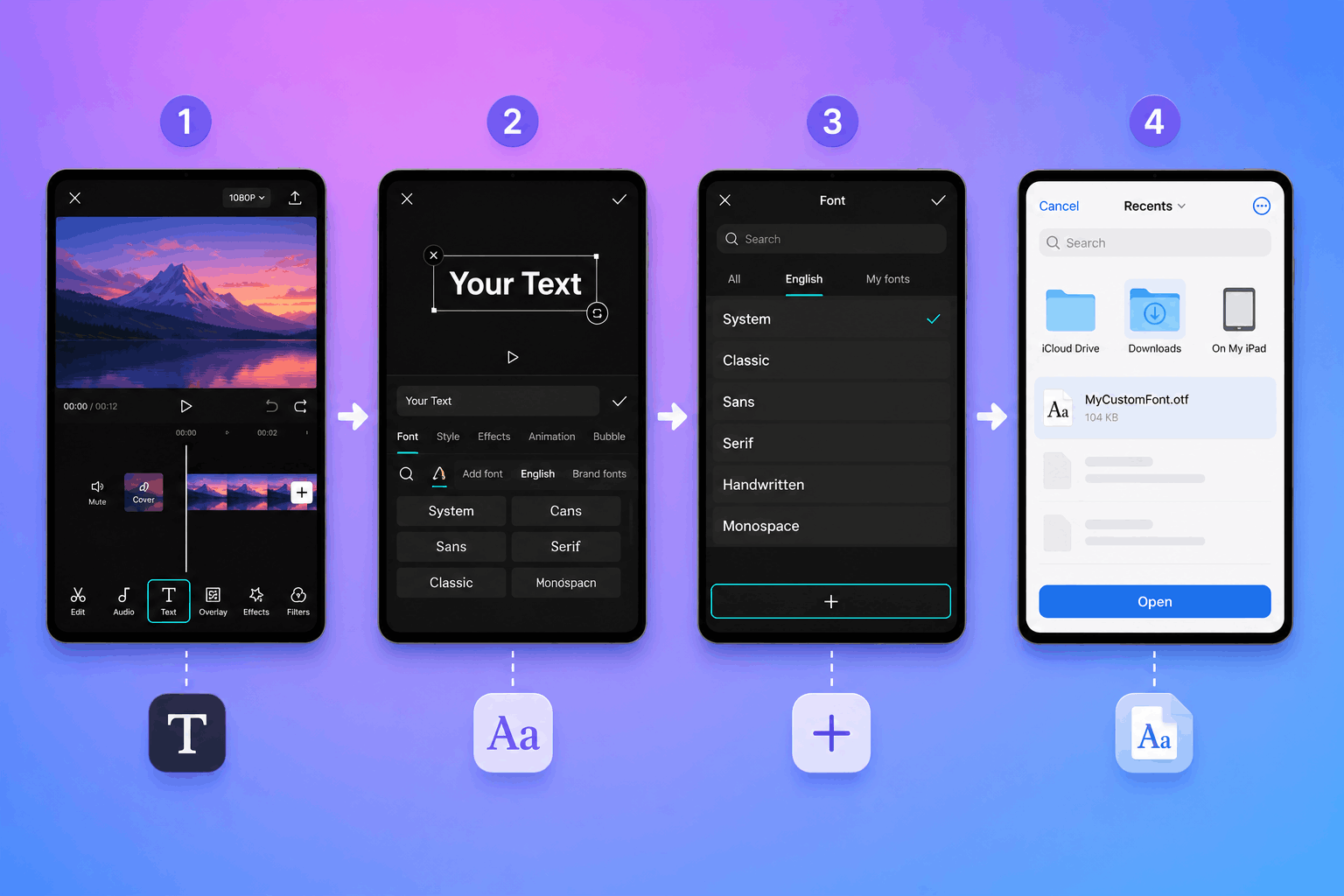
Launch the app, start a new project, or open an existing video. Tap on the Text icon in the bottom toolbar, then select Add text.
Type your desired caption. In the text editing menu, tap on Font. You will see a list of default system categories.
Look for a small plus icon (+) or a category labeled Add font (sometimes listed under My fonts depending on your app version). Tap it.
The device native file explorer will open. Navigate to your Downloads folder, select the extracted .ttf or .otf file, and hit open. The font will instantly load into your library for immediate use.
How to add custom text styles on CapCut PC
If you prefer editing on a larger screen using the desktop application, the process is slightly different because the software automatically detects typefaces already installed on your operating system.
-
Install system-wide: Download your chosen file onto your Windows or Mac computer. Unzip the folder, double-click the
.ttfor.otffile, and click Install. -
Access in-app: Launch the desktop version of the editor. Create a project, click the Text tab in the upper left corner, and drag a text box onto your timeline. Under the text details panel on the right side, scroll through the font drop-down menu until you see the System Fonts section. Your newly installed design will appear there automatically.
-
Direct In-App Upload: Alternatively, recent desktop updates allow you to go to the text editing panel, click the font dropdown, select Import font, and drop the file directly into the application without installing it onto your entire computer system.

Mobile video editing typography tips
Getting the file into your editor is only half the battle. Creating engaging visual content requires a basic understanding of layout and legibility. Experienced mobile creators rely on a few practical guidelines to keep their text looking crisp and engaging:
-
Prioritize legibility over aesthetics: Intricate script styles look beautiful, but they are incredibly difficult to read on a small phone screen when a video is moving quickly. Stick to clean, bold sans-serif options for main captions.
-
Create contrast with strokes and shadows: Video backgrounds change color rapidly. Apply a subtle black text stroke (outline) or a soft drop shadow to ensure your custom wording remains readable whether the background is bright white or dark gray.
-
Keep your branding consistent: Pick two signature typography styles for your content channel and stick to them. Use one bold design for heavy-hitting titles and a highly readable alternative for standard captions.
Pro workflows for creative video assets
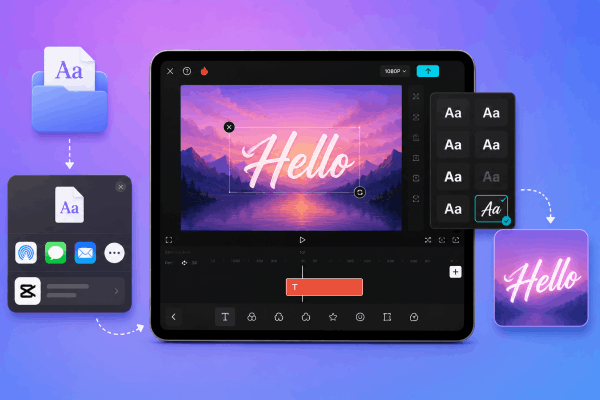
When managing complex timelines on tablet setups like an iPad, file organization saves immense amounts of time. AirDropping organized font folders from a desktop asset kit directly into the mobile Files app keeps your creative resources accessible.
Additionally, pay attention to licensing laws. Free download websites frequently separate personal use files from commercial use assets. If you monetize your video creations, filter your asset searches explicitly for open-source or commercial-friendly options to keep your channels completely safe.
May you like this:
- Best CapCut Alternative Apps To Try: Every Creator Should Know
- CapCut Pro Yearly vs. One Year Plan: What’s the Difference and Which Should You Choose?
FAQs about how to import custom fonts into CapCut
What font formats does CapCut support?
The app officially accepts .ttf and .otf files across all platforms, including mobile, tablet, and desktop versions.
Why isn’t my imported font showing up in the app?
This usually happens if the downloaded folder is still zipped. Make sure to unzip or extract the download package within your device storage files before attempting to import the file through the editor.
Do I have to re-upload my custom text styles for every new project?
No. Once you import a custom asset into the app, it remains saved under the My fonts or Add font tab across all future projects on that specific device.
Final thought
Personalizing your video projects with custom text assets transforms standard footage into highly polished, branded content.
By taking less than two minutes to install custom typography on your iPad, phone, or computer, you immediately separate your visual production quality from the sea of generic creators using default application templates. Find a signature style that matches your creative tone, load it into your editor, and start elevating your timeline graphics today.






