
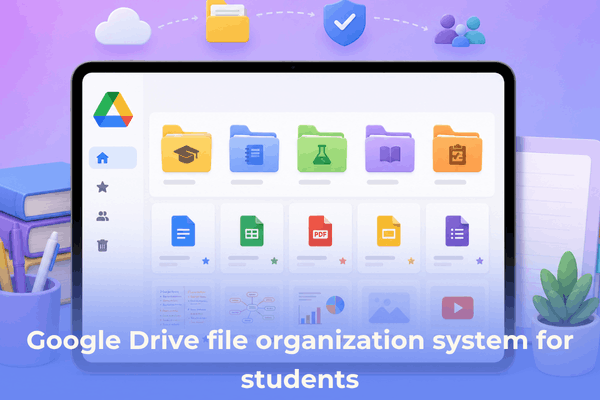

Build a stress-free Google Drive file organization system for students. Learn practical naming rules, folder structures, and tips to ace your semester.
Every student knows the mid-semester panic. You are sitting at your desk, trying to finish an assignment due in exactly twenty minutes, but you cannot find the primary research PDF or the draft you started last week. Your main dashboard is a chaotic sea of “Untitled Documents,” random screenshots, and poorly labeled downloads.
When your digital workspace is messy, your brain feels messy too. Transitioning your cloud storage from a cluttered dumping ground into a high-performance productivity asset takes less than an hour. A structured framework saves hours of frantic searching and helps you maintain focus when managing high-volume coursework, study notes, and group assignments.
CONTENTS:
Google Drive file organization system for students
Building a bulletproof storage layout relies on keeping the top tier broad and letting subfolders handle the granular details. If your root drive contains more than seven main folders, your digital architecture is too wide, making rapid navigation difficult.
To set up a highly efficient environment, begin by creating a clear chronological framework that isolates old semesters from your immediate, active daily responsibilities.
The tier-based folder architecture
Structuring your cloud space using a nested hierarchy ensures that every file has an intuitive, logical home. Instead of scattering files everywhere, group your assets into a clean, multi-tiered system.
Create a root folder named 00_Academic Archive. This acts as the permanent home for all completed classes. Inside, create subfolders for past academic years (e.g., 2024-2025, 2025-2026). At the end of every term, move your completed work here so it stays searchable but out of your daily sightline.
Create a second root folder named 01_Current Semester (or use the specific term, like Fall 2026). Placing a number prefix like 01_ forces Google to pin this folder right at the top of your dashboard list, regardless of alphabetical order.
Inside your active semester folder, create individual folders for each class you are currently taking. Use short, recognizable course codes or names (e.g., MKT 301 - Marketing Principles, ENG 102 - Composition).
Inside each individual class folder, establish exactly four uniform subfolders to sort incoming materials: 01_Notes, 02_Assignments, 03_Readings, and 04_Syllabus & Admin. Keeping these subfolders identical across all your classes creates muscle memory when saving files.

Master digital naming conventions
A great folder framework fails if the individual files inside are named randomly. If you name three different files Draft, Final Draft, and Actual Final Draft, you create immediate confusion. Implementing a uniform naming convention allows you to find any file instantly using the search bar without even opening a folder.
The most reliable digital formula for student paperwork follows a predictable sequence:
For example, a marketing case study uploaded on October 15, 2026, should be labeled:
MKT301_2026-10-15_NikeCaseStudy.pdf
Using the reverse date format (YYYY-MM-DD) ensures that when you sort files alphabetically inside a folder, they automatically arrange themselves in perfect chronological order. Keep descriptors short, use capital letters for course codes, and avoid spaces by using underscores or camel case (LikeThis) to prevent broken link formats when sharing assets with classmates.
Discover More:
- Can you use Word, Excel, Google Docs, Sheets on iPad?
- How to share your screen in Google Meet on iPad: A complete guide
Visual cues and inbox management workflows
Maintaining a digital space requires reducing cognitive friction. Using smart visual shortcuts and routine clean-up habits keeps your system running smoothly without becoming a chore.
-
Color-code by theme: Right-click your active course folders and assign distinct colors to them. For instance, make all your data-heavy courses blue, literature courses green, and creative projects orange. This provides a split-second visual landmark when navigating on a mobile phone or tablet dashboard.
-
The inbox method: Create an entry folder at the root level named
_Inbox. Whenever you are rushing during a lecture and do not have time to file a downloaded reading or a quick scan, dump it into the inbox. -
The weekly reset: Set a recurring calendar reminder every Sunday afternoon for ten minutes. Open your entry inbox, file the loose documents into their correct course subfolders, delete unnecessary screenshots, and rename poorly labeled items. Keeping loose files cleared out prevents clutter from piling up.

Group assignments are where cloud storage often falls apart because you cannot control how disorganized your peers might be. When someone shares a massive, chaotic folder with you, it automatically lands in your Shared with me tab—a section that cannot be rearranged or organized.
To fix this, right-click the shared item and select Organize > Add shortcut. Place that shortcut directly into the 02_Assignments subfolder of that specific course. This allows you to access the shared group materials within your own neat folder layout without altering the original file locations for the rest of your team.
FAQs about Google Drive file organization system for students
Should I organize my files by topic or by file type?
Always organize by topic, class, or project function rather than file type. Keeping a spreadsheet, a text document, and a lecture PDF all inside a single Week 3 Project folder is far more useful than separating them into generic Documents and Spreadsheets folders.
How do I handle files that apply to two different classes?
Do not duplicate the file, as editing one copy will leave the other outdated. Instead, store the original document in the primary folder where it belongs, right-click it, select Add shortcut, and place the shortcut in the secondary class folder.
What should I do with my drive setup during summer break?
Take fifteen minutes at the close of the term to run your archive routine. Select your entire current term folder and drag it directly into your main academic archive folder. Then, create your new empty structure for the upcoming semester so you can start day one completely fresh.

Final thought
A functional cloud organization system is not about creating a visually perfect, complex masterpiece; it is about reducing the energy it takes to do your daily work.
By setting up a clear nested hierarchy, utilizing consistent naming patterns, and dedicating a few minutes each week to clearing out temporary files, you eliminate digital distraction. This simple structure ensures that your course materials remain instantly accessible, allowing you to focus your energy entirely on learning and achieving your academic goals.





