


Stop typing delays! Learn how to fix iPad keyboard lag in Google Docs with proven tips from iPad users. Boost your speed now.
Living the iPad-only life is a dream for many of us. You’ve got the power of a laptop with the portability of a tablet, until you open Google Docs and realize your typing is three words ahead of the screen.
If you are experiencing iPad keyboard lag in Google Docs, I know exactly how frustrating that stutter can be. Whether you’re using the sleek Magic Keyboard, a Bluetooth Logitech setup, or even the on-screen keys, that “sticky” typing feel can kill your productivity.

As a fellow tech enthusiast who has spent way too many hours scouring Reddit threads and Apple support forums, I’ve rounded up the most practical, real-world fixes to get your workflow back to lightning speed.
CONTENTS:
Why does my iPad keyboard lag in Google Docs?
Before we dive into the fixes, it helps to understand why this happens. Unlike Apple’s native apps like Notes or Pages, Google Docs is essentially a web-based tool wrapped in an app. It requires a constant “handshake” between your iPad, the app’s code, and Google’s servers.
Common culprits include:
-
Large file sizes: Docs with 50+ pages or heavy images struggle to sync in real-time.
-
Third-party interference: Extensions like Grammarly (if used in Safari) or even certain Accessibility settings.
-
Software optimization: Google doesn’t always optimize the iPad app as quickly as Apple updates iPadOS.
7 practical fixes for iPad keyboard lag in Google Docs
1. Switch to Safari
This is the number one tip from the Reddit community. If the Google Docs app is lagging, stop using it. The iPad Pro’s Safari is a “desktop-class” browser.
Open docs.google.com in Safari, log in, and use it there. Many users find that the browser version handles memory better and offers a smoother typing experience than the standalone app.

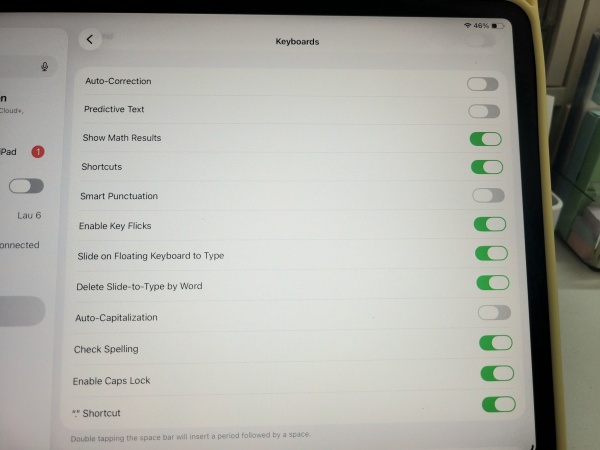
2. Disable predictive text and auto-correction
Sometimes the lag isn’t Google’s fault, it’s iPadOS trying too hard to help you. The system’s predictive engine can “stutter” while trying to guess your next word in a complex app like Docs.
-
Go to Settings > General > Keyboard.
-
Toggle off Auto-Capitalization, Auto-Correction, and Predictive.
-
Bonus: Reset your Keyboard Dictionary under Settings > General > Transfer or Reset iPad > Reset.
3. Check your Accessibility settings
A weird but common fix involves “Key Repeat” settings. If these are misconfigured, your iPad might be waiting too long to register a keystroke.
-
Go to Settings > Accessibility > Keyboards.
-
Tap Key Repeat and ensure it’s turned On.
-
Set a short Repeat Interval and a fast Delay Until Repeat.

4. Break up large documents
Google Docs starts to “choke” once a document exceeds a certain word count or contains many tables. If you’re working on a thesis or a long novel, try splitting the file into chapters.
Quick Tip: If you notice the lag specifically when typing inside a table, try moving that text to a standard paragraph. Tables are notoriously resource-heavy on the mobile app.
5. Disable “Check spelling as you type”
In Google Docs (on the web version), go to Tools > Spelling and grammar and uncheck Check spelling. Constant background scanning for typos is a massive CPU hog.
Read more:
- iPad is stuck on update progress bar: Here is how to actually fix it
- iPad Wifi dropping randomly? Here’s the ultimate fix
6. Clean your Smart Connector
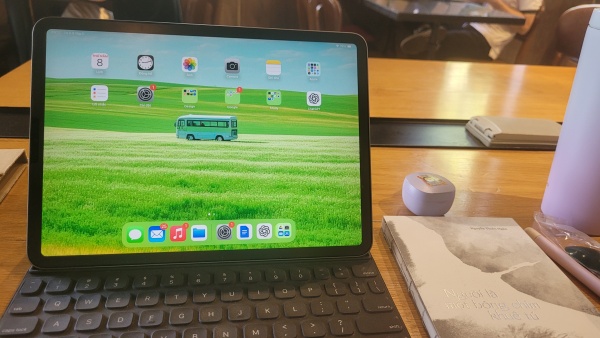
If you are using the Apple Magic Keyboard or Smart Keyboard Folio, the lag might be physical. Dust or oils on the three small gold dots (the Smart Connector) on the back of your iPad can cause intermittent connection drops. Wipe them down with a dry microfiber cloth.
Similarly, if you’re using an external keyboard, try testing it with other apps or devices to isolate the problem. If the lag persists across the board, it might be time to consider a replacement for your accessory.
7. Manage your background apps
The iPad Pro is a multitasking beast, but even an M4 chip has limits. If you have 20+ tabs open in Chrome and a video editing app running in the background, Google Docs will lose priority. Swipe up and close apps you aren’t currently using.
Comparison: App vs. Safari for iPad productivity
| Feature | Google Docs App | Google Docs (Safari) |
| Typing Latency | High (Often Lags) | Low (Smoother) |
| Offline Mode | Excellent | Limited |
| Formatting Tools | Basic | Full Desktop Version |
| Battery Impact | Moderate | Higher |
FAQs about iPad keyboard lag in Google Docs
Does the Magic Keyboard cause more lag than Bluetooth?
Actually, the Magic Keyboard usually has less lag because it uses a direct physical connection via the Smart Connector. If you’re experiencing lag here, it’s almost certainly a software issue within the Google Docs app.
Will updating to the latest iPadOS fix the lag?
Usually, yes. Apple frequently releases “point updates” (like iPadOS 18.1 to 18.2) that fix HID (Human Interface Device) bugs. However, always check the Google App Store for a Docs update immediately after updating your OS.
Can I use Grammarly with Google Docs on iPad?
Using the Grammarly browser extension in Safari is a known cause of typing delays. If you need to edit, we recommend typing your draft first, then turning on Grammarly for a final “clean-up” pass.

Final thoughts: Prioritize your flow
At the end of the day, technology should work for you, not against you. If Google Docs continues to be a headache, don’t be afraid to draft your content in a more optimized app like Apple Notes, then copy-paste it into Docs for final sharing.
I hope this guide helps you iPad keyboard lag in Google Docs so you can get back to your seamless workflow on the iPad Pro.






