


Is Safari not working on your iPad? From crashing to pages not loading, here are 10 practical, expert-tested tips to fix Safari issues fast.
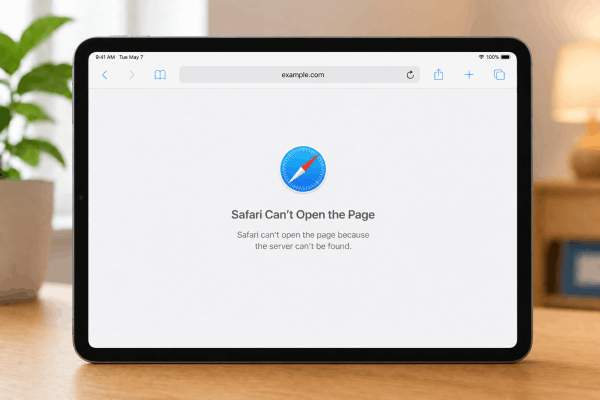
Safari not working on iPad is so annoying. Maybe it crashed mid-session. Maybe it just stares at a blank screen no matter what URL you type. Or maybe it won’t even open. Whatever’s going on, the good news is that it’s almost always a software hiccup, not a sign that your iPad is dying.
This guide covers the fixes that actually work, in the order you should try them.
CONTENTS:
Safari not working on iPad: Practical solutions for every user
Here are some tips you can try if Safari not working on iPad:
1. Force quit and restart Safari
Sometimes, the simplest fix is the most effective. If Safari has frozen or isn’t responding to your taps, the app’s processes might have hit a snag.
-
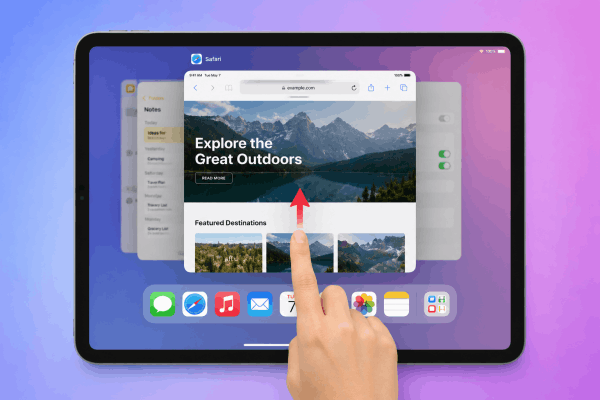
How to do it: Swipe up from the bottom of your screen (or double-click the Home button) to enter the App Switcher. Find the Safari window and swipe it up and off the screen to close it completely.
-
Why it works: This clears the app’s temporary memory without affecting your data, giving it a “fresh start” the next time you tap the icon.
2. Check your internet connection
It sounds obvious, but you’d be surprised how often a spotty Wi-Fi connection is the reason Safari isn’t loading pages.
-
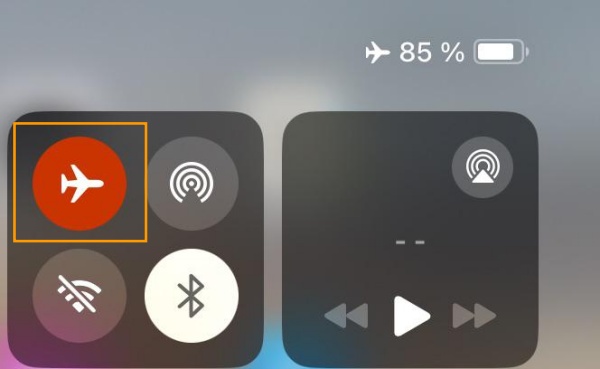
Try this: Toggle your Airplane Mode on for 10 seconds, then turn it off. This forces your iPad to reconnect to the nearest Wi-Fi router or cellular tower.
-
Pro Tip: If you’re on a public network, Safari might not load because you haven’t “signed in” on the provider’s landing page. Open a simple site like
google.comto see if a login prompt appears.
3. Clear history and website data
Over time, Safari accumulates “cache” and “cookies” – small files from websites that help them load faster. However, if this data becomes corrupted or too bulky, it can cause Safari to crash or behave erratically.
-
The Steps:
-
Go to Settings.
-
Scroll down and tap Apps, then select Safari.
-
Tap Clear History and Website Data.
-
Choose “All History” and confirm.
-
-
Note: This will log you out of most websites, so make sure you have your passwords handy!

4. Disable Safari extensions
With the recent iPadOS updates, we now have powerful browser extensions. While great for productivity, a poorly coded extension can prevent Safari from loading pages correctly.
-
The Fix: Go to Settings > Apps > Safari > Extensions. Turn off all your extensions and try loading a page. If it works, turn them back on one by one to find the “troublemaker.”
Read more:
- This connection is not private in Safari on iPad: 10 easy fixes
- iPad Can’t Connect to App Store? 10 Quick Fixes
5. Turn off iCloud Private Relay
If you are an iCloud+ subscriber, you likely have Private Relay enabled. While this is great for privacy, it acts like a VPN and can occasionally slow down or block your connection to certain websites.
-
How to disable: Go to Settings > [Your Name] > iCloud > Private Relay and toggle it Off temporarily to see if Safari starts working again.

6. Update your iPadOS
Apple frequently releases patches for Safari bugs through system updates. If you haven’t updated your iPad in a while, your browser might be struggling with a bug that has already been fixed.
-
Check for updates: Go to Settings > General > Software Update. If an update is available, plug in your charger and hit “Download and Install.”
7. Check Screen Time restrictions
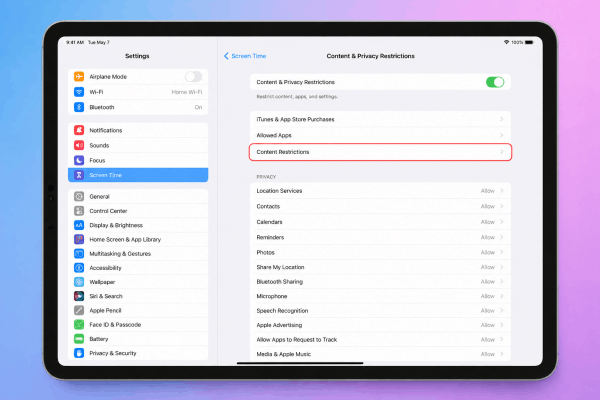
Is Safari completely missing from your home screen? Or are specific websites refusing to load? You might have “Content & Privacy Restrictions” turned on.
-
The Fix: Go to Settings > Screen Time > Content & Privacy Restrictions. Check if Safari is allowed under “Allowed Apps” or if specific websites are restricted under “Content Restrictions”.
8. Turn on JavaScript
Many modern websites rely heavily on JavaScript to function. If this setting was accidentally turned off, you might see blank pages or broken buttons.
-
How to enable: Go to Settings > Apps > Safari > Advanced. Ensure the toggle for JavaScript is green (On).
9. Reset network settings
If Safari still isn’t working, and other apps like Mail or YouTube are also struggling with the internet, the issue might be deeper in your iPad’s network configuration.
-
Warning: This will erase your saved Wi-Fi passwords and Bluetooth pairings.
-
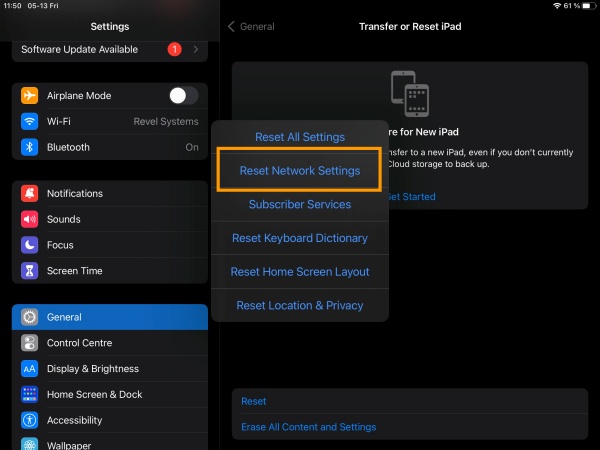
The Steps: Go to Settings > General > Transfer or Reset iPad > Reset > Reset Network Settings.
10. Restart iPad
If none of the software settings seem to do the trick, a standard restart is often the “magic button” that fixes mysterious glitches. It gives the entire operating system a chance to refresh.
-
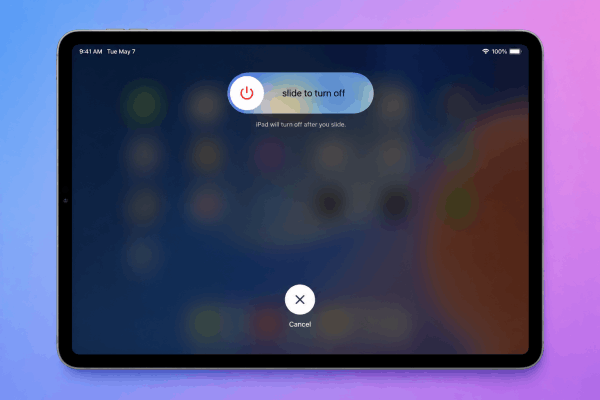
How to do it (Models without Home button): Press and hold either volume button and the top button until the power-off slider appears. Drag the slider, wait 30 seconds for the device to turn off, then press and hold the top button again to turn it back on.
-
How to do it (Models with Home button): Press and hold the top button until the power-off slider appears. Slide it to turn off, then hold the top button again until you see the Apple logo.
Frequently asked questions about Safari not working on iPad
Q: Why does Safari keep crashing on my iPad?
A: This is usually due to high memory (RAM) usage. Try closing unnecessary tabs or clearing your website data as described in Step 3.
Q: Can I delete and reinstall Safari?
A: No, Safari is a built-in system app on iPadOS and cannot be deleted. However, you can reset its settings or try using a different browser like Chrome or Firefox as a temporary workaround.
Q: Why won’t Safari open specific websites?
A: This is often caused by an ad-blocker or a “Content Blocker” extension. Try disabling your extensions or checking if your “Hide IP Address” setting is interfering with the site’s security.
Extra tips for a smoother Safari experience
-
Close your tabs: We’re all guilty of having 50+ tabs open. On older iPad models, this can significantly slow down Safari. Set your tabs to close automatically after one week in Settings > Safari > Close Tabs.
-
Use “Reading List” for later: Instead of leaving tabs open, save them to your Reading List. It syncs across your Apple devices and stays out of your active memory.
-
Check Apple’s System Status: Sometimes, it’s not you, it’s them. Check the official Apple System Status page to see if services like iCloud or Safari Suggestions are experiencing an outage.

By following these steps, you’ll likely find that your Safari not working on iPad issue is a thing of the past. Keep your device updated, clear your cache occasionally, and you’ll enjoy a much smoother browsing experience!







