


Getting the “This connection is not private” error on your iPad? Learn why it happens and how to fix Safari security warnings with these 10 practical tips.
If you are a dedicated iPad user like me, you probably rely on your tablet for everything—from professional work and creative projects to browsing the web in your downtime. There is nothing quite like the smooth experience of iPadOS, until you hit a sudden roadblock.
One of the most frustrating interruptions is the dreaded message: “This connection is not private.” It pops up in Safari, blocking your access to a website and warning you that attackers might be trying to steal your information. While it sounds scary, this isn’t always a sign of a hacker; often, it’s just a technical glitch or a settings mismatch.
In this guide, I’ll walk you through why this happens and provide practical, real-world solutions to get you back to browsing safely.
CONTENTS:
- Why you see this connection is not private in Safari on iPad
- How to fix this connection is not private in Safari on iPad
- 1. Refresh the page and try again
- 2. Check your date and time settings
- 3. Clear Safari history and website data
- 4. Use Private Browsing mode
- 5. Restart your iPad and Router
- 6. Disable VPN or Third-party security software
- 7. Check for a Wi-Fi captive portal
- 8. Manage your DNS settings
- 9. Update iPadOS
- 10. The “Proceed Anyway” (Use with caution)
- Pro tips for a smoother iPad experience
- Frequently asked questions about this connection is not private in Safari on iPad
- Final thoughts
Why you see this connection is not private in Safari on iPad
At its core, this error is about SSL (Secure Sockets Layer) certificates. When you visit a website, Safari checks if the site has a valid security certificate issued by a trusted authority. This certificate ensures that the data sent between your iPad and the website is encrypted.
If Safari can’t verify that certificate, perhaps because it’s expired, incorrectly configured, or your iPad’s internal clock is off, it triggers the “This connection is not private” warning. It is essentially your iPad’s way of saying, “I can’t guarantee this site is who they say they are.”
How to fix this connection is not private in Safari on iPad
Before you panic, let’s go through the most effective ways to resolve this. These steps range from simple refreshes to deeper setting adjustments that have helped countless users in tech communities.
1. Refresh the page and try again
It sounds overly simple, but sometimes the SSL handshake fails due to a temporary glitch in your internet connection. Tap the refresh icon in the Safari address bar. If it was just a minor hiccup, the site might load perfectly on the second try.
2. Check your date and time settings
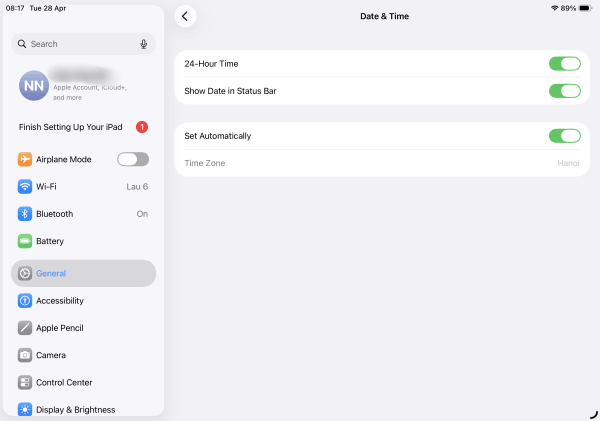
This is the most common “hidden” culprit. SSL certificates have a specific validity period. If your iPad’s date and time are incorrect, Safari will think the certificate is either not yet valid or already expired.
-
Go to Settings > General > Date & Time.
-
Ensure Set Automatically is toggled ON.
-
If it’s already on, toggle it off and back on again to force a sync with Apple’s servers.
3. Clear Safari history and website data
Old, cached data can sometimes conflict with new security certificates. Cleaning out your “digital closet” can often solve the problem.
-
Open Settings > Safari.
-
Scroll down and tap Clear History and Website Data.
-
Confirm your choice. Note that this will close your open tabs and log you out of most websites.

4. Use Private Browsing mode
Open a Private window in Safari and try to access the site. Private mode doesn’t use your existing cache or cookies. If the site works here, it’s a definitive sign that you need to clear your browser data (Step 3).

5. Restart your iPad and Router
If the issue persists across multiple websites, the problem might be your network equipment. Restart your iPad first. If that doesn’t work, unplug your Wi-Fi router for 30 seconds and plug it back in. A fresh IP assignment can sometimes clear up DNS or connection errors.
6. Disable VPN or Third-party security software
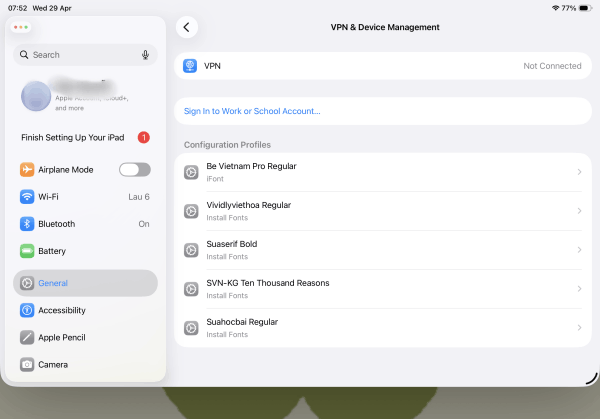
While VPNs are great for privacy, they can sometimes interfere with SSL verification. If you are using a VPN, turn it off and try reloading the page. The same applies to third-party “Ad-blockers” or firewall apps that might be inspecting your traffic too aggressively.
7. Check for a Wi-Fi captive portal
If you are at a coffee shop, airport, or hotel, you might see this error because the public Wi-Fi is trying to redirect you to a login page. Safari sees this redirection as an “interception” and flags it. Try going to a simple, non-HTTPS site like example.com to force the login screen to appear.
8. Manage your DNS settings
Sometimes the DNS provided by your ISP is slow or outdated. Switching to a public DNS like Google or Cloudflare can resolve many connectivity issues.
-
Go to Settings > Wi-Fi.
-
Tap the (i) icon next to your network.
-
Tap Configure DNS and select Manual.
-
Add
8.8.8.8or1.1.1.1.

9. Update iPadOS
Apple frequently releases security patches and updates for Safari. If you are running an older version of iPadOS, your tablet might lack the latest root certificates needed to verify modern websites.
-
Go to Settings > General > Software Update.
10. The “Proceed Anyway” (Use with caution)
If you are 100% sure the website is safe (for example, an internal work site or a local router configuration page), you can bypass the warning.
-
On the error page, tap Show Details.
-
At the bottom, tap visit this website.
-
You will have to confirm your choice. Warning: Never do this on banking, shopping, or social media sites.

Pro tips for a smoother iPad experience
Beyond just fixing errors, maintaining your iPad’s “health” ensures you run into fewer issues like this in the future:
-
Audit your Extensions: Safari on iPad now supports extensions. If you have many installed, try disabling them one by one to see if one is causing the “not private” error.
-
Avoid Public Wi-Fi for sensitive tasks: Always use a trusted VPN if you must use public Wi-Fi, but remember to toggle it off if you encounter certificate errors.
-
Regular Reboots: I recommend restarting your iPad at least once a week. It clears out system RAM and refreshes background processes.
May you need this:
- iPad Can’t Connect to App Store? 10 Quick Fixes
- iPad overheating while charging: Is it normal and how to fix it?
Frequently asked questions about this connection is not private in Safari on iPad
Is it safe to ignore the “This connection is not private” warning?
In most cases, no. It is a security feature designed to protect your passwords and credit card info. Only bypass it if you are certain the site is safe and you aren’t entering sensitive data.
Does this error mean my iPad has a virus?
Almost certainly not. iPadOS is very secure. This error is typically about the communication between the browser and the web server, not a local infection on your device.
Why does this only happen on Safari and not Chrome?
Each browser has its own way of verifying certificates and its own internal “trust store.” However, on iPad, all browsers (including Chrome and Firefox) are forced to use the same underlying WebKit engine, so you will likely see the same error across all of them if the issue is system-wide.
Can a weak Wi-Fi signal cause this?
Yes. If the connection is unstable, the “handshake” between your iPad and the website’s server can be interrupted, leading the browser to assume the connection isn’t secure.
Final thoughts
Encountering the this connection is not private in Safari on iPad is a nuisance, but it’s usually a quick fix. By checking your clock settings, clearing your cache, or simply restarting your device, you can usually get back to your workflow in minutes.
Stay curious, stay updated, and keep exploring the amazing things your iPad can do!





