


Boost your productivity with time blocking with iPad calendar and widgets. Learn how to use Calendar and widgets effectively to manage your day and achieve your goals.
n an era of endless notifications and constant digital noise, finding focus feels like a superpower. If you are an iPad user, you are already holding one of the most versatile productivity tools ever created. Many people use their iPads purely for entertainment, but with the right workflow, it becomes a command center for your life.
The secret weapon to reclaiming your time? Time blocking. By assigning specific tasks to dedicated slots in your day, you stop reacting to urgent demands and start proactively managing your priorities. Let’s dive into how you can turn your iPad into the ultimate time-management machine using the native Calendar app and widgets.
CONTENTS:
Why time blocking with iPad calendar and widgets works
Time blocking is a simple concept: you divide your day into blocks of time. Each block is dedicated to accomplishing a specific task or group of tasks. Unlike a standard to-do list, which just tells you what to do, time blocking tells you when to do it.

When you use your iPad for this, the experience is elevated by the screen real estate and the interactive nature of iPadOS. By leveraging native widgets, you keep your most important tasks front and center, reducing the cognitive load of constantly switching apps.
Setting up your digital canvas
Before you start filling in your schedule, you need a system. The beauty of the iPad is that you don’t need complex, expensive software to start.
-
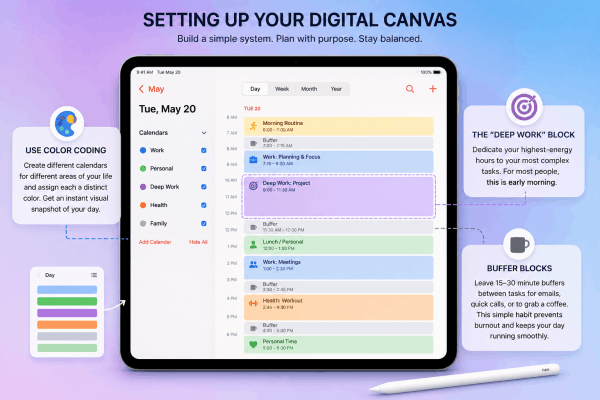
Use color coding: In the Calendar app, create different calendars for different areas of your life (e.g., Work, Personal, Deep Work, Health). Use distinct colors for each. This gives you an instant visual snapshot of how your day is balanced.
-
The “deep work” block: Dedicate your highest-energy hours of the day to your most complex tasks. For most people, this is early morning.
-
Buffer blocks: Never schedule your day back-to-back. Leave 15–30 minute buffers between tasks for emails, quick calls, or simply to grab a coffee. This is a common mistake that leads to burnout.
You may need this: How To Customize Google Calendar Colors and Add Backgrounds
How to use widgets to supercharge your workflow
Widgets are the unsung heroes of iPadOS. They allow you to see your schedule without ever opening the Calendar app. To get the most out of them, follow these practical steps:
-
Place the widget on your home screen: Don’t hide your schedule in a “Today View” sidebar. Add a large Calendar widget directly to your primary Home Screen. This forces you to acknowledge your scheduled blocks every time you unlock your device.
-
Use the stack feature: If you are worried about screen clutter, use a “Smart Stack.” You can stack your Calendar widget with a Reminders widget or a Notes widget. With a quick swipe, you can see your time-blocked schedule and your specific task list in the same spot.
-
The “Up Next” view: Use the medium or large Calendar widget to see not just the current hour, but the next three or four tasks. This helps you mentally prepare for what is coming next, reducing the friction of starting new tasks.
Practical tips for consistent success
Theory is great, but implementation is where most people struggle. Based on real-world experiences from power users, here are some actionable tips to keep your time-blocking habit alive.
1. The Friday review
Spend 15 minutes every Friday afternoon reviewing the upcoming week. Did you struggle to finish tasks? Did you overschedule yourself? Adjust your blocks for the following week based on what actually happened, not what you hoped would happen.
2. Respect the block
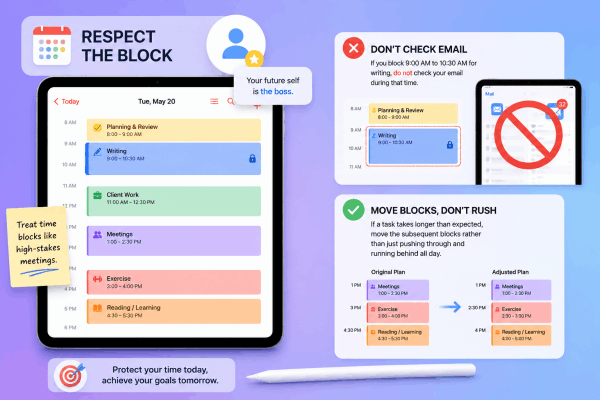
Treat your time blocks like high-stakes meetings with your boss, except in this case, the “boss” is your future self. If you block 9:00 AM to 10:30 AM for writing, do not check your email during that time. If a task takes longer than expected, move the subsequent blocks rather than just pushing through and running behind all day.
3. Sync across devices
Ensure your iPad is synced with your iPhone and Mac via iCloud. Having your time blocks appear everywhere ensures you are never out of the loop, even when you are away from your desk.
FaQs about time blocking with iPad calendar and widgets
Does time blocking work if my schedule is unpredictable?
Yes. If your day changes frequently, focus on “theme blocking” instead of task blocking. For example, assign the 9:00 AM-11:00 AM block to “Client Communication” instead of a specific project. This gives you enough structure to stay productive while allowing flexibility for specific tasks.
Should I include breaks in my time blocks?
Absolutely. Treating rest as a non-negotiable block, just like a meeting, is essential for long-term consistency. Schedule your lunch and short movement breaks in the Calendar app to ensure you actually take them.
Is the native Calendar app enough?
For 90% of users, yes. The integration between native widgets, Siri, and Apple Pencil makes the stock Calendar app extremely efficient. Only upgrade to third-party apps if you find yourself needing highly specific features like automated habit tracking or complex recurring task templates.

Final thoughts
Time blocking is not about creating a rigid, military-style schedule. It is about creating boundaries that protect your time and energy. By using your iPad’s Calendar and widgets, you gain the visual clarity needed to focus on what truly matters. Start small, try blocking just your mornings next week, and watch how your productivity transforms.
Read More: 7 Proven Fixes to Stop Chrome From Draining the Battery on iPad






