


Is your Apple TV app not working on iPad? From playback errors to sign-in loops, learn how to fix Apple TV streaming issues with these expert tips.
Nothing ruins a cozy evening faster than settling in with your iPad to watch the latest episode of Severance or Foundation, only to find the Apple TV app not working. Whether the app won’t open, the video is stuck on a spinning wheel, or you’re seeing the dreaded “Content Unavailable” error, it’s incredibly frustrating, especially when you know your internet is fine.
As an iPad enthusiast who lives and breathes the Apple ecosystem, I’ve encountered these glitches more times than I’d like to admit. The good news? Most of these issues aren’t hardware failures; they are usually small software hiccups or “handshake” errors between your device and Apple’s servers.
In this guide, we’ll skip the generic “restart your device” (though we will mention it) and dive into the practical, community-tested solutions that actually get your shows back on screen.
CONTENTS:
Why is the Apple TV app not working on my iPad?
Before we jump into the fixes, it helps to understand what’s likely going wrong. Based on common user experiences in 2026, the culprits usually fall into three categories:
-
Server-Side Outages: Apple’s servers are down (it happens more often than you’d think!).
-
Authentication Glitches: Your Apple Account (formerly Apple ID) is having a “moment” and can’t verify your subscription.
-
Network/Software Conflicts: New features like “Continuous Audio Connection” or VPNs are interfering with the stream.

7 practical fixes for the Apple TV app not working on iPad
Here are some tips help you fix the Apple TV app not working on iPad error:
1. Check the Apple system status first
Before you start digging through your settings, make sure the problem isn’t on Apple’s end.
-
Visit the official Apple System Status page.
-
Look for Apple TV+ and Apple TV Channels.
-
If the circle isn’t green, no amount of troubleshooting on your iPad will fix it. You just have to wait it out.
2. The “hard” close and cache clear
Sometimes the app just gets “stuck.” Swiping it up to close it isn’t always enough.
-
Force Close: Swipe up from the bottom of your iPad screen and hold to see the App Switcher. Swipe the Apple TV app card all the way up to kill the process.
-
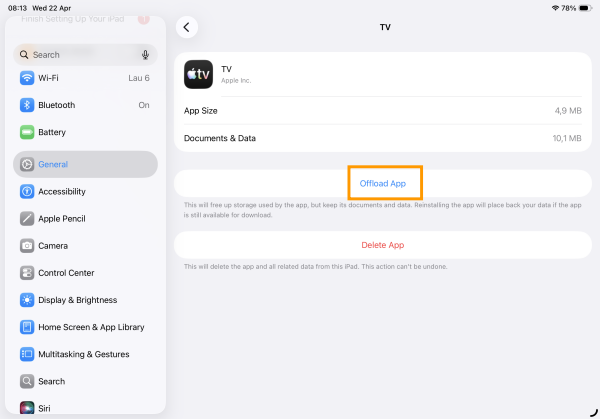
Offload the App: If it still won’t open, go to Settings > General > iPad Storage > Apple TV. Tap Offload App. This deletes the app’s temporary files but keeps your data. Then, tap Reinstall App. This often clears corrupted cache files that a simple restart misses.
3. Sign out of your Apple Account and back in
This is the “magic bullet” for many users experiencing “Content Unavailable” errors. It forces a fresh authentication with Apple’s DRM (Digital Rights Management) servers.
-
Go to Settings > [Your Name].
-
Scroll down and tap Sign Out.
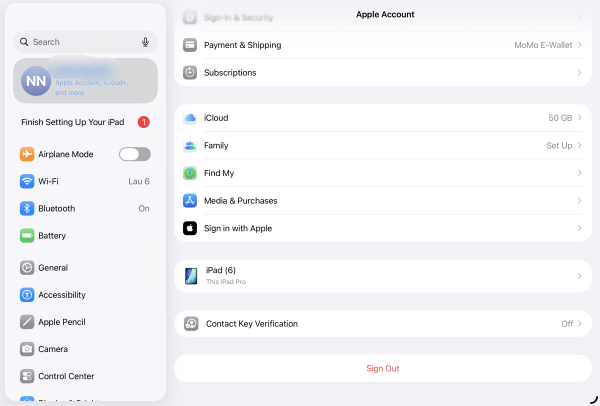
Pro Tip: Restart your iPad before signing back in. This ensures all old session tokens are purged. Make sure you remember your password before signing out of your Apple Account; things will get incredibly messy if you don’t.
4. Toggle “Use Cellular Data” for downloads
If you are trying to watch a downloaded show and it won’t play, the app might be trying to “check in” with the server via data even though the file is local.
-
Go to Settings > TV.
-
Ensure Use Cellular Data is toggled on (if you have a cellular iPad) or try toggling it off and on again to reset the app’s networking preferences.
5. Disable VPNs and Private Relay
Apple is very strict about regional content. If you are using a VPN or iCloud Private Relay, the Apple TV app might block playback to prevent “location spoofing.”
-
Turn off your VPN completely.
-
Go to Settings > [Your Name] > iCloud > Private Relay and turn it off temporarily.
-
Try playing your video again. If it works, you’ve found your culprit.

6. Adjust Audio settings
A common issue reported recently involves a conflict with new audio features. If your video is “stalled” or shows a black screen:
-
Go to Settings > Video and Audio.
-
If you see an option for Continuous Audio Connection (often used for HomePods), try turning it off.
-
Some users have found that this feature can cause playback errors on iPadOS when the system tries to “hand off” audio to a device that isn’t there.
Read More:
- Autofill passwords not working on iPad? 7 pro fixes
- iPad stuck on Siri suggestions screen? Here are 5 practical fixes
7. Reset Network Settings
If you’ve tried everything and the app still says “Network Connection Lost,” it might be a deeper issue with your iPad’s Wi-Fi configuration.
-
Go to Settings > General > Transfer or Reset iPad > Reset.
-
Choose Reset Network Settings.
-
Warning: This will wipe your saved Wifi passwords, so make sure you have them handy!

Bonus: Troubleshooting specific Apple TV app errors
| Error Message | Likely Cause | Quick Fix |
| “Content Unavailable” | Authentication error | Sign out and back into your Apple Account. |
| “Playback Stalled” | Network or Audio conflict | Turn off VPN or “Continuous Audio” settings. |
| “Verification Failed” | Date/Time mismatch | Go to Settings > General > Date & Time > Set Automatically. |
Frequently asked questions (FAQs)
Why is my Apple TV app showing a black screen on iPad?
This is often related to HDCP (High-bandwidth Digital Content Protection). If you are using an adapter to connect your iPad to a monitor, the cable might not be compatible. If you’re not using a cable, it’s likely a software glitch that can be fixed by a Force Restart (Volume Up, Volume Down, then hold Power).
Do I need an active subscription to open the app?
No. The Apple TV app also acts as a library for your purchased iTunes movies and shows. However, if the app won’t even open, it’s a software issue, not a subscription one.
Does the Apple TV app work offline?
Yes, but only for content you have specifically downloaded. If the app is “not working” while you’re on a plane, ensure you downloaded the content successfully while you had Wi-Fi.

Final tips for a smooth viewing experience
-
Keep iPadOS Updated: Apple frequently pushes “silent” patches for the TV app through iPadOS updates.
-
Check Storage Space: The TV app needs at least 2-3GB of “breathing room” to buffer high-quality 4K or HDR content. If your iPad is 99% full, expect crashes.
-
Check your Router: Sometimes the 5GHz band on a router can get “clogged.” Switching to the 2.4GHz band (or vice versa) can sometimes fix weird streaming stutters.
By following these steps, you should be back to binge-watching your favorite series in no time. If all else fails, a quick chat with Apple Support is your next best bet, but 9 times out of 10, the “Sign Out/Sign In” trick will save your night!
Is your Apple TV app still acting up? Mention the specific error code in the comments and let’s figure it out together!






