


Is your iPad stuck on Siri suggestions after an update? Learn how to unfreeze your screen with these proven and practical tips.
We’ve all been there. You’ve just finished a software update or are trying to get through the initial setup, and suddenly, your iPad decides it just wants to hang out on the Siri suggestions screen. It doesn’t respond to swipes, the “Continue” button is a ghost, and you’re left wondering if your expensive tablet has become a very sleek paperweight.

As a tech enthusiast who lives and breathes iPadOS, I know how frustrating when your iPad stuck on Siri suggestions. This “freeze” often happens because the setup process hits a background sync error or the UI thread hangs during the transition. But don’t worry, this is a common software glitch, not a hardware death sentence.
In this guide, I’ve pulled together the most effective, real-world solutions to help you get back to your apps.
CONTENTS:
How to fix an iPad stuck on Siri suggestions
The good news is that you rarely need a computer to fix this. Here are the steps, ranked from the quickest “quick fix” to the more thorough solutions.
1. Perform a forced restart
This is the number one solution recommended on Apple Community forums. A forced restart cuts the power to the processor for a split second, clearing out the “stuck” temporary files causing the hang.
-
For iPads without a Home Button (Face ID or Touch ID in the top button):
-
Press and quickly release the Volume Up button.
-
Press and quickly release the Volume Down button.
-
Press and hold the Top Button (Power button).
-
Crucial: Keep holding even when you see the “Slide to power off” slider. Don’t let go until you see the Apple Logo appear on the screen.
-

-
For iPads with a Home Button:
-
Press and hold both the Home Button and the Top Button at the same time.
-
Keep holding until the Apple Logo flashes on the screen.
-
2. Use Siri to bypass the screen
If your iPad is responsive to voice but not touch, you can actually use Siri to “kick” the OS out of its frozen state.
-
Say “Hey Siri, open Settings” or “Hey Siri, power off.”
-
Sometimes, forcing a different app to open or triggering the power-off slider manually (after Siri brings it up) can break the UI loop.
3. Connect to power and wait
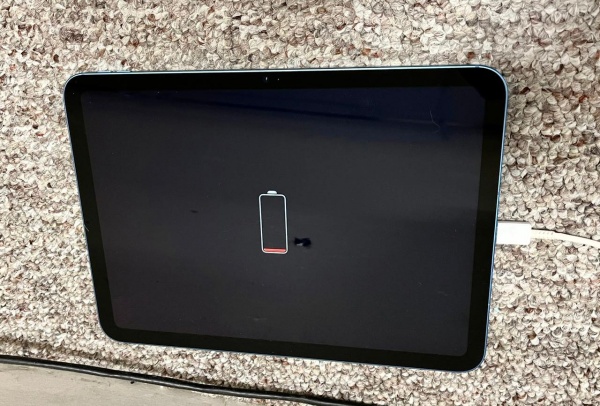
According to several Reddit threads, the Siri suggestions screen often hangs because the iPad is trying to download assets or sync with iCloud in the background.
-
Plug your iPad into a wall charger (not a computer port).
-
Leave it for 15-20 minutes.
-
Often, once the background task finishes, the “Continue” button suddenly becomes active.
4. Toggle the screen wake/sleep
It sounds too simple to work, but quickly tapping the Power button to put the iPad to sleep and then waking it back up can sometimes “refresh” the touch digitizer’s connection to the software. Try doing this 3-4 times in quick succession.
Discover more:
- Google Docs on iPad not working: How to fix it like a pro
- Microsoft Word not opening on iPad? Here are 7 proven fixes
5. Drain the battery
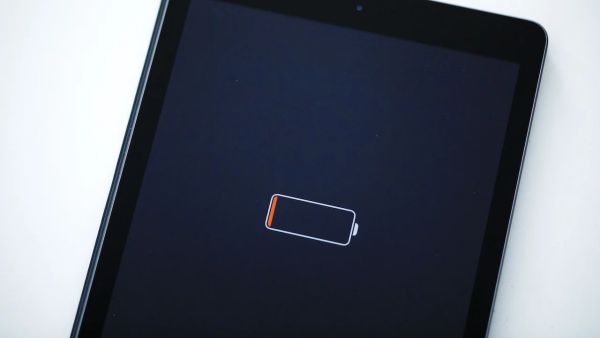
If a forced restart refuses to trigger, some users on the Apple Support forums have found success by simply letting the iPad battery die completely.
-
Leave the screen on until the iPad shuts itself down.
-
Charge it for an hour, then turn it back on. This forced a “cold boot” which often bypasses the setup hang.
Practical tips to prevent future freezes
Getting your iPad back is great, but let’s make sure it doesn’t happen again.
-
Update via a Mac or PC: If you consistently have issues with “Over-the-Air” (OTA) updates, try updating your iPad while it’s plugged into a computer using iTunes or Finder. This is a much “cleaner” way to install iPadOS.
-
Declutter Siri suggestions: Once you’re back in, go to Settings > Siri & Search. You can turn off “Suggestions while Searching” or “Suggestions on Lock Screen” for specific apps. This reduces the processing load on the Siri engine.
-
Check your storage: iPads act weird when they are low on space (less than 5-10%). If you’re near the limit, your iPad might struggle to process the complex animations of the setup screen.

Frequently asked questions (FAQs)
Will a forced restart delete my data?
No. A forced restart is just like pulling the plug on a desktop computer and plugging it back in. It clears the RAM but does not touch your photos, apps, or files.
Why does my iPad get stuck after every update?
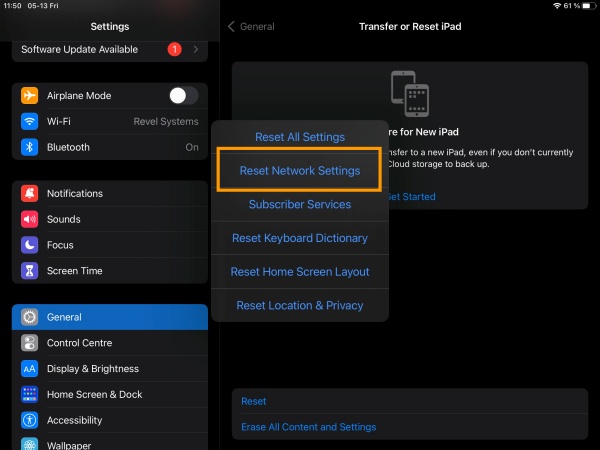
This is usually a sign of a “corrupt” update file or an issue with your network during the download. Try resetting your Network Settings (Settings > General > Transfer or Reset iPad > Reset > Reset Network Settings) once you get past the frozen screen.
My screen is still black after the forced restart. What now?
Plug it into a charger for at least 30 minutes. If the Apple logo doesn’t appear after the “Volume Up, Volume Down, Hold Power” sequence, you may need to enter Recovery Mode and restore via a computer.
A final thought on iPad productivity
Dealing with tech glitches is part of the “pro” life, but don’t let a frozen screen ruin your flow. When your iPad is stuck on Siri suggestions, remember that 90% of the time, the software is just “thinking” too hard. Give it a forceful nudge with a restart, or give it some space (and power), and you’ll be back to your creative work in no time.





