


Frustrated with your Apple Pencil double tap not working? Discover practical ways to fix the gesture and get back to your seamless digital workflow.
Few things disrupt a smooth digital drawing or note-taking session quite like a sudden hitch in your hardware. You’re deep in the zone, sketching out a new design or mapping out your personal growth goals on your iPad, and you double-tap the side of your pencil to switch to the eraser. Nothing happens. You try again, a bit harder this time. Still nothing.
When your seamless workflow hits a wall, it’s incredibly frustrating. The double-tap gesture on the Apple Pencil 2 and Apple Pencil Pro is supposed to feel like second nature. Luckily, if you are dealing with your Apple Pencil double tap not working, the issue is rarely terminal. Most of the time, it’s just a minor communication breakdown between iPadOS and your stylus, a hidden settings tweak, or a slight habit adjustment.
Let’s look at how to identify the root cause and walk through the actual, hands-on solutions that real daily users swear by to get that quick-switch feature working perfectly again.
CONTENTS:
Why is your Apple Pencil double tap not working?
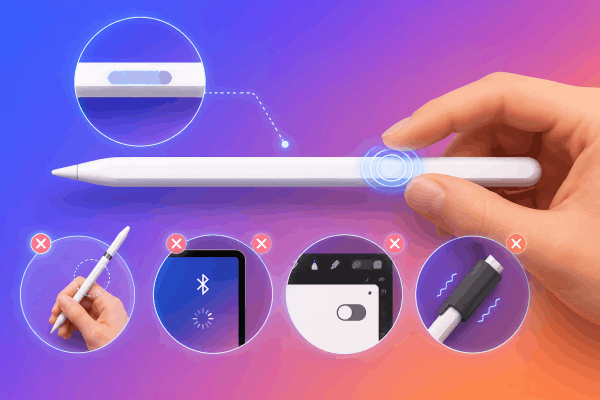
Before diving into the technical steps, it helps to understand why this happens. Unlike the physical screen of your iPad, the Apple Pencil doesn’t use a traditional touch-sensitive display surface. Instead, it relies on an internal sensor area located near the flat edge where you rest your index finger.
The most common reasons for this feature going quiet include:
-
The “grip shift” issue: Holding the stylus too high or missing the precise sensor zone.
-
Software stumbles: A minor glitch in Bluetooth connectivity or iPadOS.
-
App-specific restrictions: Certain drawing or note-taking apps turning off the gesture by default.
-
Physical interference: Thick silicone protective sleeves dampening the tap vibration.
Simple steps to fix an Apple Pencil double tap not working issue
If you want to move past the generic troubleshooting guides and get right to what actually fixes this device in daily use, follow this step-by-step sequence.
1. Check your precise finger placement
The sensor area is located specifically on the flat side of the Apple Pencil, right around where your index finger naturally rests near the tip.
If you tend to choke up on the pencil or hold it higher toward the middle, the internal sensors won’t register the tap. Try shifting your grip slightly downward and tap directly on that flat plane.
2. Adjust your rhythm and force
The stylus looks for a very specific mechanical vibration pattern. If your double taps are too slow, it registers as two separate single rests.
If they are too soft, the internal sensor ignores them to prevent accidental triggers while you roll the pencil in your hand. Try a slightly faster, more distinct “rap-rap” movement with the pad of your finger.
Discover more:
- Apple Pencil hover features explained: The ultimate practical guide for iPad users
- iPad screen not responding to Apple Pencil but works with finger? Here’s why
3. Inspect your protective sleeve
Silicone cases and cute ergonomic sleeves are fantastic for comfort, but extra-thick designs can absorb the impact energy of your finger.
If you use a sleeve, slide it completely off and try tapping the bare matte plastic. If it works perfectly without the sleeve, you may need a thinner skin or one with a dedicated cutout for the sensor window.
4. Verify your iPadOS system settings
Sometimes a system update can silently toggle features off. Go to your iPad Settings, scroll down to Apple Pencil, and look under the Double Tap section.
Ensure it isn’t set to “Off”. If it’s already set to “Switch Between Current Tool and Eraser”, try toggling it to a different action, waiting ten seconds, and toggling it back to reset the system logic.

5. Execute a hard Bluetooth re-pair
Go to Settings > Bluetooth, find your Apple Pencil, and tap the “i” icon to select Forget This Device. Next, attach your pencil magnetically to the side of your iPad.
Wait for the pairing prompt animation to appear on screen, tap pair, and test the gesture again. This forces a clean handshake between the hardware firmware and iPadOS.
Advanced adjustments for a seamless workflow
If the standard sequence didn’t quite fix the problem, the issue might lie in how your iPad registers your personal motor skills. Everyone taps at a different speed. Fortunately, iPadOS includes a deep accessibility setting that lets you change how responsive the hardware needs to be.
Adjusting double tap duration
If your natural tapping cadence is a bit slower than the Apple factory default, your iPad might be ignoring your inputs. You can easily expand the acceptance window:
-
Open your iPad Settings.
-
Navigate to Accessibility, then select Apple Pencil.
-
Under the Double Tap Duration section, switch the setting from Default to Slow or Slower.
This forces the tablet to wait a fraction of a second longer between your first and second strike before it dismisses the action, which is a massive quality-of-life upgrade for many creators.

Frequently asked questions about Apple Pencil double tap not working
Does the original Apple Pencil 1 support the double-tap gesture?
No. The first-generation Apple Pencil (the glossy one with the lightning connector cap under the top) does not have the internal touch sensors required for gestures.
This feature is exclusively available on the Apple Pencil 2, Apple Pencil USB-C (limited context), and the Apple Pencil Pro.
Why does double tap work in Procreate but not in Apple Notes?
Many professional creativity apps feature their own internal gesture mapping overrides. Open the settings menu inside the specific app that is giving you trouble (for example, Actions > Preferences > Gesture Controls in Procreate) to ensure that the app hasn’t reassigned the pencil double tap to a custom tool or disabled it entirely.
Could a cracked iPad screen cause this gesture to fail?
Surprisingly, yes. While the tap sensor lives inside the pencil body, the pencil constantly transmits that gesture data to the iPad screen digitizer via high-frequency Bluetooth signals.
If your screen is severely cracked near the magnetic charging strip or if you are using an extraordinarily thick tempered glass screen protector, it can occasionally interfere with data transmission.

Final thought
Fixing an Apple Pencil double tap not working issue is almost always a matter of fine-tuning your software preferences or adjusting your physical grip rhythm. These devices are highly sophisticated pieces of engineering, but they rely heavily on clean software handshakes and distinct physical feedback.
By taking a few minutes to clean up your Bluetooth connections, checking your app-specific settings, and adjusting the tap duration via accessibility options, you can easily restore your digital flow state. Keep creating, keep organizing your digital space, and let your tools work seamlessly alongside your ideas!






