


Fixe Apple Books not syncing between iPhone and iPad. Learn how to sync PDFs, reading progress, and collections with these practical tips.
If you’ve ever searched for “Apple Books Not Syncing Between iPhone and iPad” chances are you were mid-chapter on your iPhone during the commute, then picked up your iPad at home only to find your progress completely gone, no bookmarks, no reading position, sometimes not even the book itself.
Apple Books is supposed to make all of this invisible. The whole promise of iCloud is that you never have to think about where your library lives. But every so often the cloud needs a little nudge, and when it doesn’t cooperate, it’s genuinely maddening.
Whether it’s a PDF that refuses to appear on your other device or a reading position frozen somewhere in the past, what follows are the most practical, community-tested fixes to get everything back in sync.
CONTENTS:
Apple Books not syncing between iPhone and iPad: The ultimate fix guide
Before we dive into the deep tech repairs, let’s start with the “is it plugged in?” equivalent for Apple Books. Most syncing issues stem from a simple toggle that got switched off during an update.
1. The iCloud “Master Switch”
For Apple Books to talk to your other devices, iCloud Drive must be active. This is the bridge that carries your data.
-
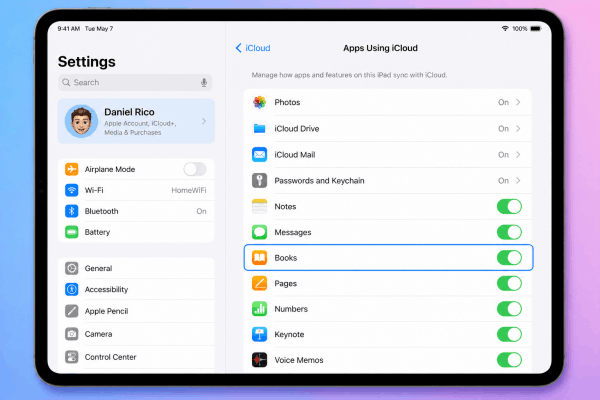
Go to Settings > [Your Name] > iCloud.
-
Tap See All under “Apps Using iCloud.”
-
Ensure the toggle for Books is turned ON.
-
Pro Tip: Even if it’s on, try toggling it off and then back on. This often forces the system to re-index your library.
2. Check your App-specific sync settings
Sometimes iCloud is working, but the Books app itself is told not to share.
-
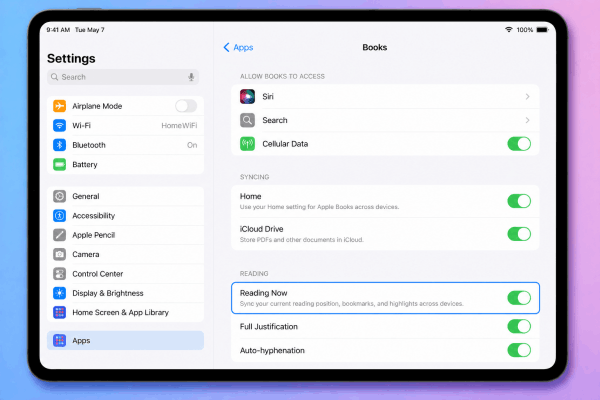
Go to Settings > Apps > Books.
-
Under the Syncing section, ensure both Home and iCloud Drive are enabled.
-
Crucially, scroll down and make sure Reading Now is on. This is what syncs your current page across devices.
3. Sign Out and Sign In
If the settings look correct but nothing is moving, your Apple ID session might be “stale.”
-
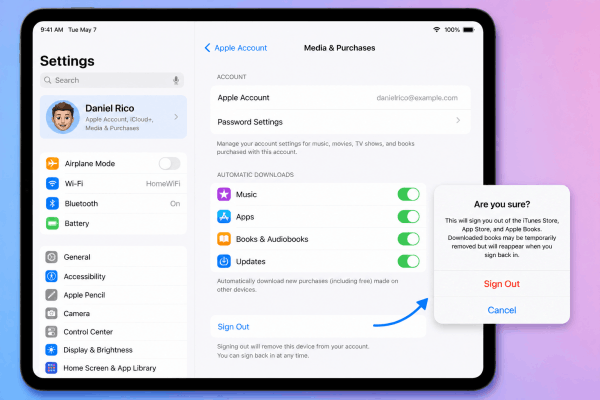
Go to Settings > [Your Name] > Media & Purchases.
-
Tap Sign Out, then sign back in.
-
Warning: This might temporarily remove downloaded books, but they will reappear once you sign back in. This is a classic “power move” that fixes 90% of syncing glitches.
4. Force a manual sync
This is a legendary tip from power-user forums that actually works. If the interface seems frozen or won’t update:
-
Open the Books app.
-
Tap any of the icons in the bottom menu (like “Reading Now” or “Library”) 10 times rapidly.
-
This forces the app’s cache to reset and triggers an immediate refresh of the UI. It’s like a “hidden” refresh button for your library.

5. Managing non-purchased PDFs and ePubs
Are your store-bought books syncing but your personal PDFs aren’t? This is a common pain point.
-
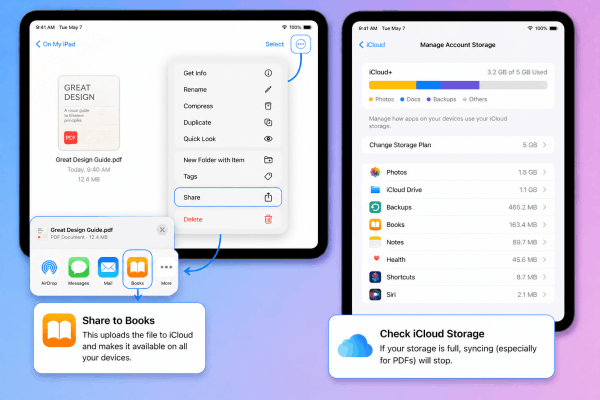
Use the Share Sheet: If a PDF isn’t appearing, try “sharing” it from the device it is on. Tap the three dots on the file, hit Share, and select the Books app again. This often re-uploads it to the cloud.
-
Check Storage: PDFs take up actual iCloud space. If your 5GB free tier is full, sync will stop immediately. Check Settings > iCloud > Manage Account Storage.
6. The “AirDrop Wake-up” method
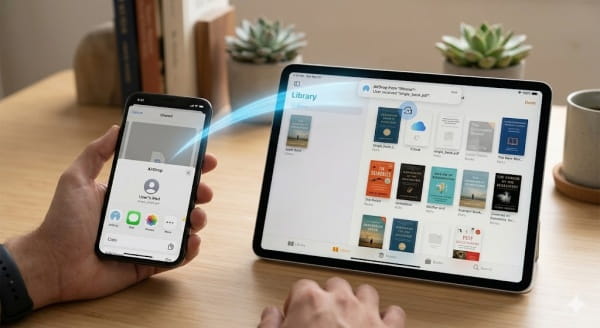
If one device is stubborn, AirDrop a single book or PDF from your iPhone to your iPad. This often “wakes up” the syncing service on the receiving device, prompting it to check the cloud for the rest of your library. It sounds like magic, but it’s a great way to kickstart the background processes.
Practical tips for a better Apple Books experience
-
Update Everything: Apple frequently pushes small “stability” fixes for the Books app. Ensure both devices are on the latest iOS/iPadOS version.
-
Unhide your purchases: If a book is missing entirely, you might have accidentally hidden it. Tap your Profile Icon in the Books app > Manage Hidden Purchases.
-
Wait for the “Spinning Wheel”: When you add a large PDF, look for the small circular progress icon. Don’t close the app until it finishes uploading, or the sync will hang.
May you like this:
- Where to Find Downloaded Files on iPad: A Quick & Easy Guide
- 10 Easy Ways To Fix Safari Not Working on iPad
FAQs about Apple Books Not Syncing Between iPhone and iPad
Why is my reading progress not syncing?
This is usually because the Reading Now toggle is off in Settings > Books. Also, ensure you are not in “Airplane Mode” and have a stable Wi-Fi connection, as progress data is tiny but requires an active ping to Apple’s servers.
Do I need iCloud+ to sync books?
No, the standard free 5GB iCloud plan supports Apple Books sync. However, if you have a massive library of 300MB+ PDFs, you might hit that limit quickly.

Can I sync books without iCloud?
Technically, you can manually sync via a Mac using a USB cable (Finder sync), but this won’t sync your “current page” or “highlights” in real-time. For a modern experience, iCloud is the way to go.
My iPad says “Updating Library” forever. What do I do?
Delete the Books app and reinstall it from the App Store. Since your books are tied to your Apple ID/iCloud, you won’t lose your library, but it will clear the “stuck” cache that causes the infinite loading screen.





