

Is your iPad microphone not working? Discover practical solutions to fix muffled audio or total silence on iPad.
It is so frustrating when you’re about to jump into a Zoom call or record a quick voice note but your iPad’s microphone has gone completely silent.
Since I spend a lot of time troubleshooting these devices for my own blogs, I’ve put together a comprehensive, fluff-free guide to getting your audio back. We aren’t just looking at the “restart your device” basics (though that helps!); we’re diving into real-world fixes that actually work. So now, let’s dive into how to fix microphone not working on iPad.
CONTENTS:
Microphone not working on iPad and 7 practical fixes
Before you book an expensive repair appointment, let’s go through the practical steps that solve 90% of microphone issues on your device:
1. Identify which microphone is failing
Did you know your iPad likely has multiple microphones? Depending on your model (like the iPad Pro M4 or iPad Air 13), there’s usually a mic near the rear camera, one near the front-facing camera, and sometimes one on the side.
-
Test the rear mic: Open the Camera app and record a video using the back camera while speaking.
-
Test the front mic: Switch to the front (selfie) camera and record another clip.
-
Test the bottom/side mic: Open the Voice Memos app and record a short snippet.
If the audio works in one app but not another, you’ve just ruled out a hardware failure. It’s likely a software or permission issue!

2. The “Bluetooth Ghost” fix
This is a huge one in 2026. With so many of us using wireless earbuds, your iPad might still be “connected” to a pair of headphones sitting in your bag.
Go to Settings > Bluetooth and toggle it off entirely. If your microphone suddenly starts working in Voice Memos, you know your iPad was simply trying to use a remote mic that wasn’t near your mouth.
3. Check app-specific permissions
If your mic works for Siri but not for Zoom or TikTok, the app simply doesn’t have “permission” to listen.
-
Open Settings.
-
Tap on Privacy & Security.
-
Select Microphone.
-
Ensure the toggle is Green for the specific app you are trying to use.

4. Clean the ports
Forget specialized cleaning kits. Most long-term iPad users find that a clean, dry, soft-bristled toothbrush is the best tool for the job.
Gently brush the small microphone holes. Over time, these tiny openings collect dust and skin oils that create a “muffled” sound.
5. Check for “Case Interference”
I’ve seen many beautiful third-party cases that look great but don’t quite align with the iPad’s microphone ports. If your audio sounds distant, try removing the case and recording a test clip. If it sounds better, it’s time for a new case, or a very careful DIY adjustment with a hole punch.
Discover more:
- Apple Books Not Syncing Between iPhone and iPad? 7 Pro Fixes
- Where to Find Downloaded Files on iPad: A Quick & Easy Guide
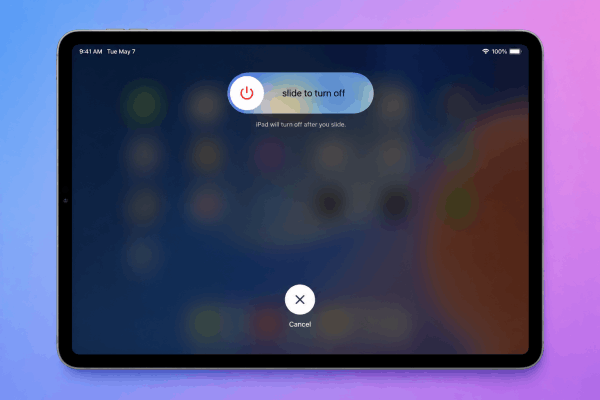
6. Force restart
A standard “slide to power off” doesn’t always clear the deep-seated cache issues. In newest iPadOS versions, the force restart is your best friend:
-
Press and quickly release the Volume Up button.
-
Press and quickly release the Volume Down button.
-
Press and hold the Top (Power) button until the Apple logo appears.
7. Reset all settings
If you’ve updated to the latest iPadOS and the mic stopped working immediately after, a setting might have been corrupted.
-
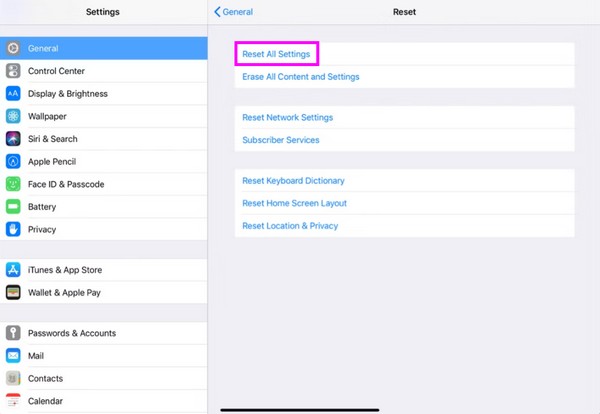
Go to Settings > General > Transfer or Reset iPad > Reset.
-
Tap Reset All Settings.
Note: This won’t delete your photos or apps, but it will reset your Wi-Fi passwords and wallpaper.
Practical tips for better iPad audio
While you’re troubleshooting, here are a few “pro-level” tips to ensure your iPad stays a high-quality recording machine:
-
Avoid the “Rice Myth”: If your iPad got wet, rice actually slows down the drying process and can get stuck in the ports. Use a fan and a cool, dry place instead.
-
The External Mic Hack: If you have a critical meeting and the built-in mic is dead, plug in any USB-C headphones or a dongle with a 3.5mm jack. The iPad will almost always prioritize the external hardware over the faulty internal one.
-
Disable Noise Cancellation: Sometimes, the “Phone Noise Cancellation” feature (found in Accessibility settings) over-processes the sound, making you sound like a robot. Try turning it off to see if clarity improves.
Frequently asked questions about microphone not working on iPad
Why is my iPad microphone so quiet?
This is usually caused by physical blockage. Check if your screen protector is slightly overlapping the front mic near the camera. Even a millimeter of plastic can cut your volume by 50%.
Can a software update fix my microphone?
Yes. Apple frequently releases “point” updates (like 26.1.1) to fix audio driver bugs. Always check Settings > General > Software Update if you notice widespread audio glitches.
How do I know if my iPad microphone is physically broken?
If you have cleaned the ports, reset the settings, and tested the mic in multiple apps (Voice Memos, Camera, FaceTime) with no luck, it is likely a hardware issue involving the internal flex cable.
Does the iPad Pro have a different microphone setup?
Yes, iPad Pro models feature “Studio Quality” microphones. If one fails, the system usually tries to compensate with the others, which can result in a weird, “echoey” sound.

Final thoughts
Having a microphone fail on your iPad can feel like losing a limb when you’re a digital creator or a student. However, more often than not, it’s just a bit of dust or a rogue Bluetooth connection causing the drama.
Try the cleaning and the Bluetooth toggle first – they are the “secret” winners in the community for a reason. Good luck, and may your next Zoom call be crystal clear!





