


Boost your productivity with these iPad multitasking tips. And you’ll realize your iPad is more magical than you think.
When I first bought my iPad Pro 2020, I thought of it as a device mainly for drawing and taking notes. But over time, I realized the iPad could be so much more, especially when it comes to multitasking. Once I learned the tricks of Split View, Slide Over, Stage Manager, and Picture in Picture, my iPad truly became a productivity machine.

In this post, I’ll share my favorite iPad multitasking tips, based on real everyday use. If you’re trying to get the most out of your iPad for studying, side hustles, or creative work, these tips are for you.
CONTENTS:
What makes multitasking on iPad useful?
Multitasking on the iPad lets you combine work and play without constantly jumping between apps. For me, that means:
-
Taking notes in GoodNotes while researching in Safari.
-
Watching YouTube tutorials in a floating window while drawing in Procreate.
-
Checking emails in Gmail while planning projects in Notion.
It feels almost like having a laptop and phone merged into one screen—compact, portable, and surprisingly powerful.

My multitasking setup (iPad Pro 2020)
I use an iPad Pro 2020, 11-inch with a Magic Keyboard and Apple Pencil. The screen is big enough to comfortably run two apps side by side, but not so large that it feels overwhelming.
Here’s my daily setup:
-
Work mode: Notes + Safari in Split View, with Slack in Slide Over.
-
Creative mode: Procreate full screen, YouTube in Picture in Picture.
-
Study mode: GoodNotes on one side, PDF or textbook on the other.
This flexibility is exactly why I’ve stuck with the iPad Pro as my main on-the-go device.

iPad multitasking tips that actually work
Here are some iPad multitasking tips that have made a real difference for me. Let’s start with the one I use the most.
1. Master Split View
-
Open your first app, swipe up for the Dock, and drag a second app to the left or right.
-
Adjust the divider to choose how much space each app takes.
- My experience: I usually make Notes larger than Safari because I type more than I read.
Try this guide: How to Split Screen on iPad: My Simple Guide
2. Use Slide Over for quick tasks
-
Drag an app onto the screen but don’t push it to the edge, it’ll float in a small window.
-
I keep Mails or Calculator here for quick replies without leaving my main apps.
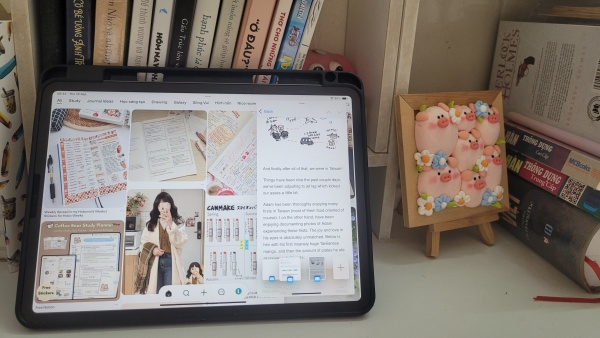
3. Don’t forget Picture in Picture (PiP)
-
Start a video in Safari, YouTube, or Apple TV, then swipe to home, it’ll shrink into a floating window.
-
I often let a podcast or lecture run in PiP while sketching in Procreate.
4. Try Stage Manager (if supported)
-
Available on newer iPadOS versions. It lets you resize apps more like a desktop.
-
On my iPad Pro 2020, it works, but I prefer it for work sessions where I need three or four apps grouped.

5. Customize Gestures and Shortcuts
-
Three-finger swipe switches apps instantly.
-
With a keyboard, ⌘ + Tab feels just like Mac multitasking.
-
These shortcuts save me from tapping around endlessly.
6. Check your settings
-
Go to Settings => Multitasking & Gestures to enable Split View and Slide Over.
-
Without this, I once thought multitasking was broken, turned out the setting was just off.

Things I don’t like about iPad multitasking
As much as I love it, multitasking on iPad isn’t perfect:
-
Not all apps support Split View (looking at you, Instagram).
-
Stage Manager sometimes feels buggy, especially after updates.
-
On smaller screens, two apps can feel cramped.
-
Battery drains faster when running three or four apps.
Still, the benefits outweigh the annoyances for me.
FAQs about iPad multitasking
Q: Can I multitask on any iPad model?
A: No, older iPads don’t support Split View or Stage Manager. You’ll need at least iPadOS 15, and some features are limited to newer models.
Q: Why can’t I use Split View on my iPad?
A: Check if your model supports it, make sure the setting is enabled, and remember that some apps just don’t allow it.
Q: How do I split screen on iPad iPadOS 26?
A: Tap the three dots at the top of the app, select Split View, and choose another app. It’s smoother than dragging apps.
Q: Can I run more than two apps at once?
A: Yes, Split View for two, Slide Over for a third, and Picture in Picture for video. That’s four apps at the same time.
Q: What’s the best multitasking layout for studying?
A: Personally, I use GoodNotes + Safari in Split View, with Youtube in Picture in Picture for background music.

Final Thoughts
The iPad Pro 2020 might be a few years old, but with these iPad multitasking tips, it still feels powerful and relevant. Whether you’re a student, freelancer, or just someone who likes mixing entertainment with work, multitasking unlocks a whole new level of efficiency.
If you haven’t tried using Split View, Slide Over, and Picture in Picture together, give it a shot. Your iPad might just replace your laptop for more tasks than you expect.







