
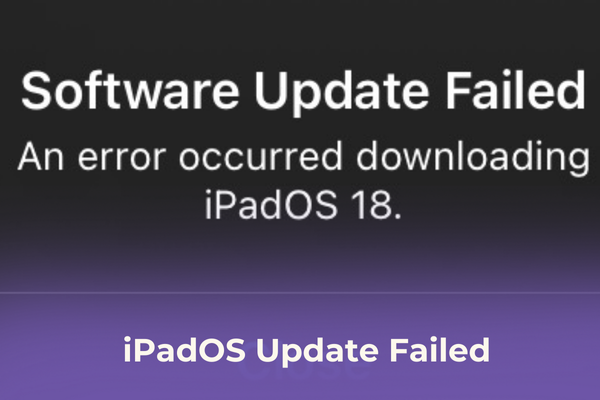

Struggling with iPadOS update failed messages? Fix “Unable to install update iPad” and other update issues with simple solutions.
Imagine you’re all excited: your iPad pings that a new iPadOS update is ready to install. You tap install, go grab a snack, but when you return, the update has failed. Utterly deflating, right? But hey, it’s more common than you think, and usually fixable with a few simple tricks.

Here’s a quick checklist before diving deeper:
-
Is your iPad compatible with the latest iPadOS?
-
Do you have a stable internet connection-preferably Wifi?
-
Is there enough free space on your iPad?
-
Are Apple’s update servers up and running?
Now, let’s walk through the causes and solutions step by step when your iPad software update fail.
CONTENTS:
Why Does iPadOS Update Fail?
The issue of being unable to update your iPad usually comes down to the following reasons:
1. Compatibility Issues / Dropped Support
Some older iPads simply can’t run the newest software. Double-check if your model is still supported. For instance, iPadOS 18 dropped support for certain older iPads while still supporting others with similar chips.
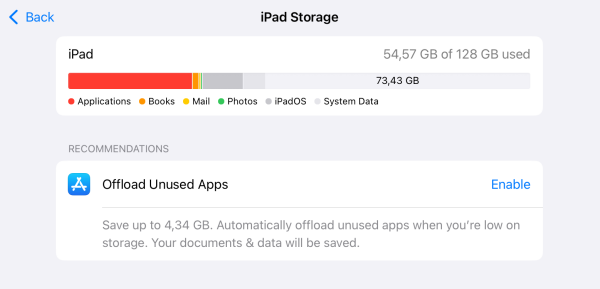
2. Not Enough Storage Space
Large updates need space to download and install. If you’re low on storage, your iPad may fail mid‑install.
3. Internet Woes or Apple Server Problems
A slow or spotty Wifi can kill an update. Sometimes, the issue is with Apple’s own update servers.
4. A Corrupted Update File
Sometimes the downloaded update just goes bad. It might fail during verify, install, or get stuck mid‑progress.
5. Odd Bugs (Verifying, Bricking,…)
Reddit users report quirky but real issues, like getting stuck on “Verifying update…”, “Unable to install update iPad”, or worse, your device becoming brick‑like after iPadOS 18 on some M4 Pro models.
Read More:
How to Fix an iPadOS Update That Failed (or Won’t Install)
| Problem Description | Quick Fix |
|---|---|
| Unable to install update iPad or installation hangs | Go to Settings => General => iPad Storage, delete the update, reboot, and retry. |
| Unable to check for update iPad | Check Apple System Status, Wifi, or reboot your router. Try another network if needed. |
| Update stuck on “Verifying update…” | Quit Settings, force restart iPad, reset network settings, delete the update, reinstall. |
| Still failing after all else | Use a Mac (Finder) or PC (iTunes) to perform the update over cable. |
| Bricking issue (e.g. iPad Pro M4 after iPadOS 18) | Seek help from Apple, some affected updates were pulled and later fixed. |
Real Reddit Voices: “Yes, It Happens to Real People Too”
“I keep getting … ‘unable to verify update. iPadOS 18 is temporarily unavailable, try again later.’ … uninstalled it and restarted my iPad.”
“Go to Settings => General => iPad Storage and find iOS 17.2 – delete that. Restart iPad and try update again.”
“Connected my iPad via a USB‑A to C cable instead of C to C, using USB‑A => Update works.”
Their solutions – from deleting and redownloading updates, rebooting, or switching cables – really do help.
Bonus Tips & Notes
-
Restart your iPad before anything else, you’d be surprised how often it resolves glitches.
-
Reset Network Settings can help when Wi‑Fi misbehaves (but you’ll need to rejoin networks afterward).
-
More advanced options: tools like ReiBoot or AnyFix can help if the iPad is stuck or update errors persist. (Be cautious, and back up first!)
-
As a last resort, resetting to factory settings and restoring from backup might clear stubborn issues.

Q&A Section
Q: Why do I get “Unable to install update iPad”?
A: That usually means the update file is corrupt or your iPad can’t process it, especially if storage is low or the download failed. Try deleting the update under Storage, rebooting, and retrying.
Q: What if I see “Unable to check for update iPad”?
A: Start by checking if Apple’s servers are up, ensuring Wi-Fi is solid, or switching networks. If it still fails, update via computer – Finder or iTunes often bypasses the hurdle.
Q: Update stuck on “Verifying update…”, any hope?
A: Yup! Force restart the device, go delete the update in settings, reset network, then redownload and install. That sequence solves loads of stuck verify issues.

Final Thoughts
Facing an iPadOS update failure is never fun, but it’s rarely the end of the road. Whether it’s a storage snag, download glitch, or quirky bug, most issues can be fixed with some patience and these handy steps. Ditch the frustration; give the fixes a go, your iPad will be running smoothly in no time.
Let me know if you’d like visuals, expanded troubleshooting, or a localized version. Happy to help further!






