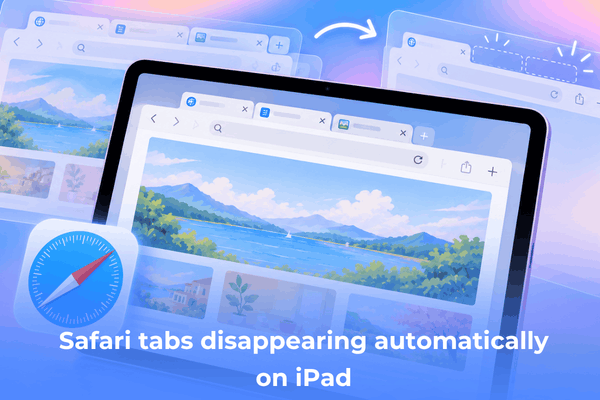

Learn how to stop Safari tabs disappearing automatically on iPad with simple settings tweaks, memory tips, and easy iPadOS fixes.
Having open tabs vanish without warning while browsing on an iPad creates unnecessary friction. You might leave a recipe, a work article, or a shopping list open in the background, only to return minutes later and find a blank start page.
When facing Safari tabs disappearing automatically on iPad, the issue usually traces back to specific system settings or temporary system memory constraints. Fortunately, adjusting a few native settings restores normal browsing behavior quickly.
CONTENTS:
Why Safari iPad tabs keep closing unexpectedly
Safari relies on iPadOS settings to dictate how long inactive pages remain open. When specific automated cleanup toggles are enabled, the browser routinely closes background pages to save storage or clear clutter.

Another major culprit involves device RAM management. When multiple heavy apps run simultaneously, iPadOS reclaims memory by closing background processes, which often leads to background pages shutting down without manual input.
How to fix Safari tabs disappearing automatically on iPad
Here are the most effective methods to ensure your open pages stay intact while navigating on iPadOS.
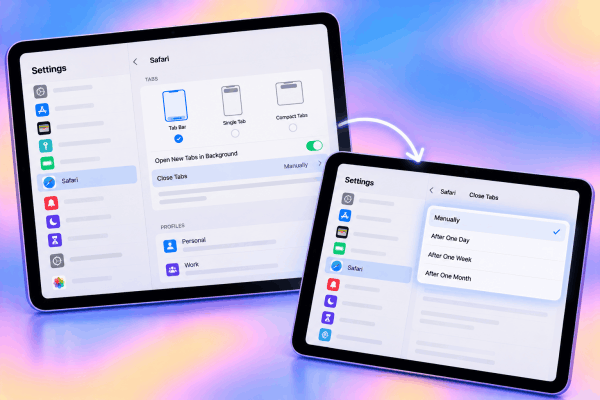
1. Check your automatic tab closing settings
iPadOS features a built-in feature designed to clean up old pages automatically after a designated timeframe. If set to daily or weekly, your open pages will vanish routinely.
-
Open Settings on your iPad.
-
Scroll down and select Safari.
-
Tap Close Tabs under the Tabs section.
-
Select Manually to ensure pages remain open until you close them yourself.
2. Disable Safari tab group sync toggles
If you sync browsing data across multiple Apple devices via iCloud, closing a page on an iPhone or Mac can trigger the same action on your tablet.
-
Open Settings and tap your Apple ID banner at the top.
-
Select iCloud, then tap Show All under Saved to iCloud.
-
Locate Safari and toggle off sync if unwanted tab closures occur across devices.
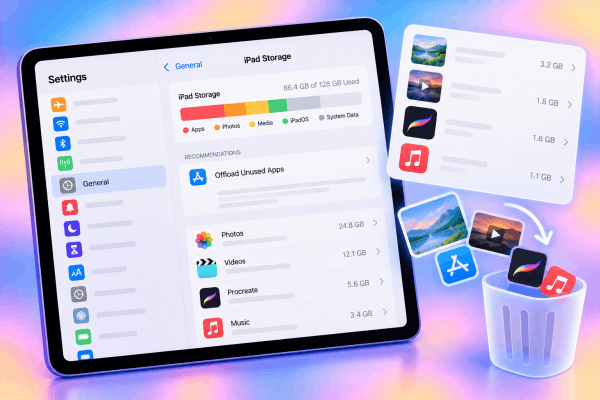
3. Clear storage space to prevent aggressive background drops
When an iPad runs low on internal storage, iPadOS aggressively terminates background app states to conserve system resources. Freeing up storage helps preserve active browsing sessions.
-
Navigate to Settings > General > iPad Storage.
-
Review large video files, unused apps, or heavy media caches.
-
Delete unnecessary files to ensure at least 3-5 GB of free space remains available.
4. Adjust RAM-heavy browsing habits
Opening dozens of media-heavy web pages can overwhelm device memory, forcing the browser to reload or discard background pages.
-
Avoid keeping dozens of streaming or interactive web apps open at once.
-
Bookmark important pages or save them to your Reading List instead of leaving them perpetually open.
-
Use Tab Groups to organize topics into manageable sets without overloading active RAM.
5. Perform a standard device restart
A simple software refresh resolves temporary background system glitches that cause background processes to drop unexpectedly.
-
Press and hold the Top button along with either Volume button until the power-off slider appears on screen.
-
Drag the slider to turn off your iPad completely.
-
Wait approximately 30 seconds, then press and hold the Top button again until the Apple logo appears to turn it back on.

6. Update iPadOS to the latest version
Software bugs in older iPadOS releases can cause native apps to misbehave. System updates frequently include stability fixes for native apps.
-
Open Settings and select General.
-
Tap Software Update.
-
Download and install any available system updates.
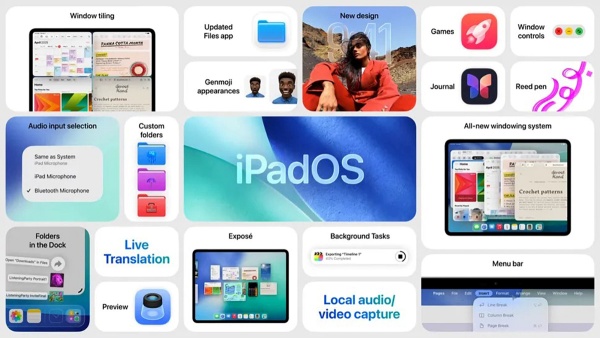
Additional tips for reliable browsing on iPadOS
-
Save essential pages to Reading List: If you frequently keep articles open for later, saving them to your Reading List preserves offline access regardless of browser resets.
-
Use Private Browsing cautiously: Pages opened in Private Browsing Mode do not always persist after long periods of inactivity or app switches.
-
Limit background app refreshes: Turning off background refresh for non-essential apps in Settings > General > Background App Refresh frees up additional RAM for web browsing.
See More:
- How to fix Safari Private Browsing not available on iPad
- Safari not loading pages on your iPad? Here is how to get back online
Frequently asked questions
Why do my Safari iPad tabs disappearing automatically after restarting?
If pages disappear after turning off your tablet, check if Private Browsing Mode was active. Private browsing sessions reset automatically when system resources refresh or when the app closes entirely.
How many tabs can Safari keep open on an iPad?
Safari supports up to 500 open tabs per window. However, performance depends on device memory, and keeping hundreds of active pages open increases the likelihood of background reloads or closed pages.
Can a corrupted cache cause tabs to close on their own?
Accumulated web cache can lead to browser instability. Clearing cache via Settings > Safari > Clear History and Website Data often resolves unexpected crashes or tab drops.

Final thought
Dealing with Safari tabs disappearing automatically on iPad is usually a matter of adjusting auto-close preferences or freeing up system memory. Setting tab management to manual, monitoring storage, and keeping iPadOS updated ensures a smooth and uninterrupted browsing experience.