


Discover practical learning a new language on iPad tips. Master multitasking, Apple Pencil hacks, and the best apps to reach fluency faster.
Becoming a polyglot is a dream for many, but the journey can often feel like an uphill battle. If you are an iPad owner, you aren’t just holding a tablet; you’re holding perhaps the most powerful language-learning tool ever created.
Forget the theoretical advice. Between the Apple Pencil’s precision and the “Stage Manager” multitasking features of 2026, your iPad can transform from a Netflix machine into a dedicated digital language lab. Whether you are tackling Japanese Kanji or perfecting your French “R,” here is how to maximize your device.
CONTENTS:
Learning a new language on iPad tips: The ultimate setup
To start, we need to treat the iPad as an extension of the target language. Most learners treat their device as a passive screen, but the magic happens when you use the iPad’s unique hardware.
1. Leverage the Stage Manager for immersive study
In 2026, multitasking is no longer just “Split View.” Using Stage Manager, you can group your learning apps into a single workspace.
-
The Power Group: Keep Duolingo (for gamified practice), Anki (for flashcards), and YouTube (for native listening) open in a single window group.
-
The Benefit: You can watch a video and instantly drag-and-drop a new word into your flashcard app without losing your place.
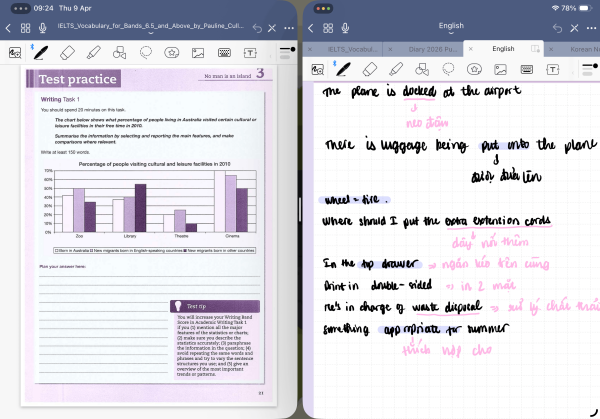
My personal workflow: The power of split-screen learning
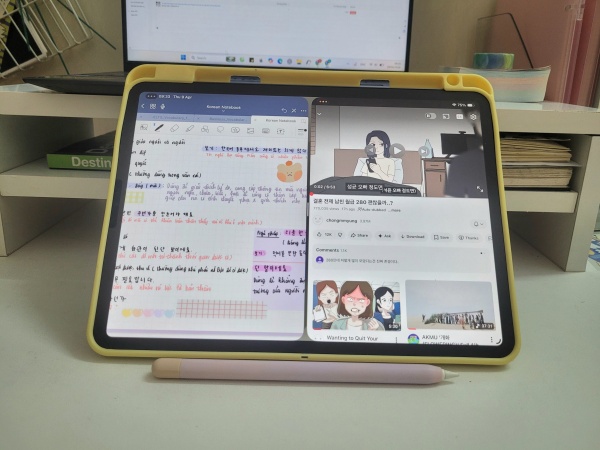
As a tech enthusiast who lives on my iPad, I’ve found that the real “game changer” isn’t just the apps, but how you use them together. I personally rely on Split View and Stage Manager to create a high-efficiency environment.
For instance, I often have YouTube open on one side to listen to English podcasts while keeping Goodnotes open on the other to jot down new idioms. But here is my favorite pro-tip: you can actually open two instances of Goodnotes side-by-side.
I usually open the same textbook in both windows—one for the exercise page and the other for the Answer Key. This allows me to check my work instantly without constant scrolling back and forth. Alternatively, you can have your digital textbook on the left and a dedicated vocabulary notebook on the right. It’s this kind of seamless workflow that makes the iPad far superior to any traditional laptop for language students.
2. The Apple Pencil: Your secret weapon for retention
Studies and Reddit threads alike agree: writing by hand creates better neural connections than typing.
-
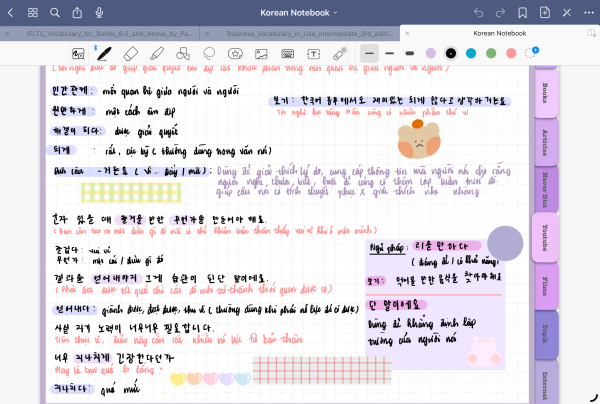
Scribble to Learn: Turn on Scribble in your settings. Instead of using the keyboard, write your answers in your language app using the Apple Pencil. It forces your brain to recall character strokes (essential for Chinese or Arabic).
-
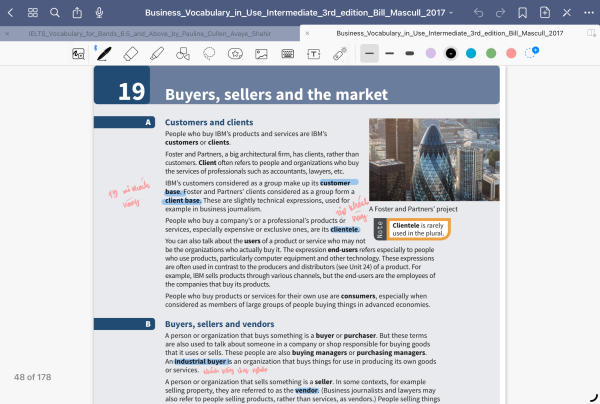
Annotating PDFs: Use apps like GoodNotes 6 or Notability to import foreign language news articles. Highlight grammar patterns and write definitions in the margins. It feels like a physical workbook but with the power of an instant dictionary.
3. Master the “Hold-to-Translate” feature
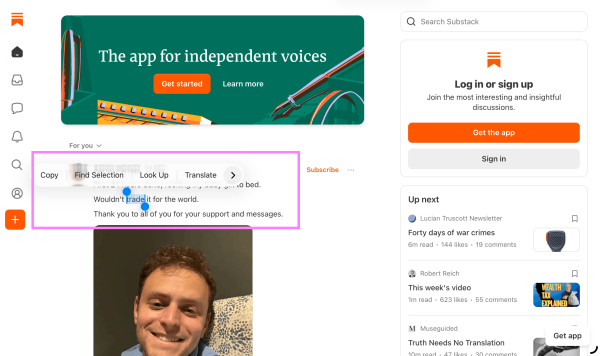
One of the most underused iPad features is the system-wide translation.
-
How to use: While browsing a foreign website in Safari, simply long-press any word or highlight a sentence. Tap “Translate” in the pop-up menu.
-
Pro Tip: You can also use the Live Text feature. If you’re watching a movie and see text on the screen, pause it, hold your finger over the text in the video, and the iPad will let you copy or translate it instantly.
Practical apps that go beyond the basics
While everyone knows the “green bird” app, 2026 has brought some specialized tools to the iPad ecosystem that you shouldn’t ignore:
| App Type | Recommended App | Why it’s great for iPad |
| Immersion | LingQ | Turns any web content/ebook into a lesson with integrated tracking. |
| Speaking | HelloTalk | Uses the iPad’s large screen for clear video calls with native partners. |
| Writing | Goodnotes | The best handwriting-to-text engine, perfect for practicing scripts. |
| Memory | AnkiMobile | The gold standard for spaced repetition (SRS) and heavy custom decks. |
Read More:
- How to Watch YouTube Videos with Dual Subtitles on iPad
- Inspiring Lessons From Taylor Swift That Changed The Way I See Life
Tips for self-development through language
Learning a language isn’t just about vocabulary; it’s about discipline. Use your iPad to build a “Learning Identity”:
-
Focus Modes: Create a “Language Focus” on your iPad. When active, it should hide distracting apps like Instagram and only show your language folder. You can even set it to trigger automatically at 7:00 PM every day.
-
The 15-Minute Rule: Use the iPad Lock Screen Widgets to show your daily streak. Seeing that “0” on your lock screen is a powerful psychological nudge to do at least one lesson before bed.
FAQs about learning a language on iPad
Q: Is the iPad Pro necessary, or will a basic iPad work?
A: A basic iPad or iPad Air is more than enough. The most important feature is Apple Pencil compatibility, which all modern iPads support. You don’t need a M4 chip to learn Spanish!
Q: How do I stop getting distracted by other apps?
A: Use Guided Access. This “locks” you into a single app (like Duolingo) and disables the home gesture until you enter a passcode. It’s perfect for forcing a 20-minute deep-work session.
Q: Can I learn two languages at once on iPad?
A: Technically yes, but users on the Apple Support forums suggest “laddering.” This means learning your second foreign language (e.g., Italian) using your first foreign language (e.g., French) as the base. The iPad makes this easy by letting you change the “primary” language for specific apps.
Final thoughts
The iPad is the ultimate “portable classroom,” but only if you move beyond passive tapping. Start writing with the Pencil, use Stage Manager to link your tools, and let the system-wide translation do the heavy lifting.
If you found these learning a new language on iPad tips helpful, try setting your iPad’s system language to your target language today. It’s a scary jump, but it’s the fastest way to turn your device into a true immersion tool!


