

iPad can’t connect to Bluetooth keyboard” can interrupt your experience. Let iPadLover walk you through some simple ways to fix this issue.
Hey there! Pairing a Bluetooth keyboard with your iPad is a game-changer for work, study, or just getting stuff done. It’s like turning your tablet into a mini laptop, especially with a trackpad.
But when your iPad can’t connect to a Bluetooth keyboard – or it connects but won’t type – it’s super frustrating. No stress, though! This guide’s got you covered with simple fixes.
CONTENTS:
- Why pairing an iPad with a Bluetooth keyboard matters?
- Common symptoms & issues of iPad can’t connect to a Bluetooth keyboard
- Basic troubleshooting steps for iPad can’t connect to Bluetooth keyboard
- Reddit Insights & Advanced Fixes
- Step-by-step fix guide for iPad can’t connect to Bluetooth keyboard
- When keyboard paired but typing doesn’t work
- Wrapping it pp
- Final thoughts
Why pairing an iPad with a Bluetooth keyboard matters?
Before digging into troubleshooting, let’s appreciate the benefit of a Bluetooth keyboard:
-
Efficiency & comfort: Faster typing, ergonomic layout.
-
Full productivity: Great for emails, documents, creative work.
-
Portability: Compact compared to traditional laptops.
That’s why it’s especially frustrating when your iPad doesn’t cooperate with the keyboard – the accessory you invested in suddenly becomes ineffective.

Common symptoms & issues of iPad can’t connect to a Bluetooth keyboard
You might encounter scenarios such as:
-
Connection failing: keyboard shows in Bluetooth settings but never pairs.
-
Paired, but typing doesn’t work: keyboard connected yet silent.
-
Lagging or inconsistent input: keystrokes delayed or missed.
-
Modifier keys broken: shift, ctrl, alt don’t function properly.
Let’s look at causes and proven solutions.
What you should know: Why Is Your iPad Screen Yellow? Here’s What You Should Know
Basic troubleshooting steps for iPad can’t connect to Bluetooth keyboard
When your iPad fails to pair with a Bluetooth keyboard, a few quick checks can often solve the problem. These basic steps are easy to follow and don’t require any advanced tech skills. If these don’t work, we’ll move on to some more advanced fixes in the next section.
1. Confirm proper pairing and Bluetooth status
-
Enable pairing mode: On Logitech keyboards, press F1 or an “Easy-Switch” button to begin pairing.
-
Turn Bluetooth off and on again on your iPad: Settings => Bluetooth.
-
Tap the keyboard when it appears and, if prompted, enter the pairing code displayed on-screen using the keyboard.
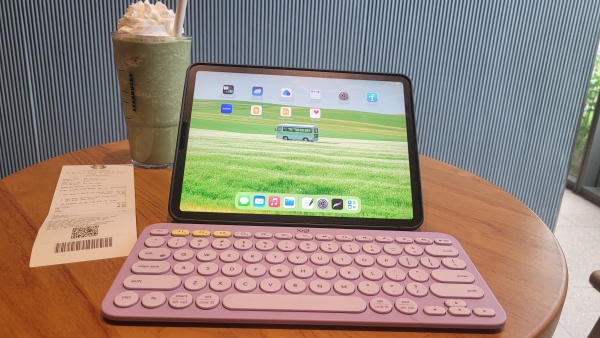
2. Remove & re-pair the keyboard
-
Navigate to Settings => Bluetooth, find the keyboard, tap i, and select Forget This Device.
-
Restart both devices, then put the keyboard back in pairing mode and reconnect.
Reddit Insights & Advanced Fixes
Reddit users have offered practical strategies that Apple’s manuals don’t always cover:
“I did a hard reset of the keyboard and a hard reset of the iPad and that seemed to fix it.” – huggeebear (r/ipad)
One user resolved pairing issues by toggling off almost all options in Settings => Accessibility => Keyboard.
Another report noted a “Slow Keys” accessibility feature was enabled, causing delayed typing. Disabling it restored normal behavior.
Finally, faulty third-party Bluetooth keyboards, especially low-cost Amazon models, often cause disconnects or non-responsiveness. Some users switched to higher-rated brands like Logitech or Apple Magic Keyboard and saw immediate improvement.

Step-by-step fix guide for iPad can’t connect to Bluetooth keyboard
If the basic troubleshooting steps didn’t solve the issue, don’t worry, we’re just getting started. This section walks you through detailed fixes to help your iPad and Bluetooth keyboard work together smoothly. Try each step carefully to see which one works best for your situation.
Once you’ve gone through these fixes, there are still a few more things to consider in case your keyboard is paired but not typing. Let’s explore that next.
Restart & reset
-
Fully power off both iPad and keyboard.
-
Turn iPad back on first, then the keyboard.
-
Re-attempt pairing.
Forget & re-pair
-
In Settings => Bluetooth, forget the keyboard.
-
Reboot both devices.
-
Enter pairing mode and reconnect.

Disable accessibility interferences
-
Go to Settings => Accessibility => Keyboards.
-
Turn off features like Slow Keys, Sticky Keys, or Full Keyboard Access.
-
Restart your iPad and test again.
Update iPadOS
Ensure your iPad is running the latest iPadOS version (Settings => General => Software Update). Apple patches keyboard issues periodically.

Clean smart connector (Apple keyboards only)
If using Apple’s Magic Keyboard or Smart Keyboard Folio:
-
Disconnect the keyboard.
-
Wipe the iPad’s Smart Connector contacts with a lint-free cloth.
-
Reconnect and restart.
Test another device
Pair the keyboard with a smartphone or laptop. If it fails there too, the accessory is likely defective.
Consider upgrading the keyboard
If consistent issues persist, especially with cheap models, invest in a reputable brand. Reddit users praise Logitech and Apple units for reliability .

When keyboard paired but typing doesn’t work
This glitch is surprisingly common:
-
Try toggling Accessibility keyboard features.
-
Fully restart both devices.
-
Forget and re-pair the keyboard.
-
Make sure the correct input language is set (Settings => General => Keyboard => Hardware Keyboard).
Wrapping it pp
If you’re googling “iPad can’t connect to Bluetooth keyboard” or “Bluetooth keyboard is connected to my iPad, but won’t type,” this guide has you covered. Here’s a quick recap of your action plan:
| Step | Action |
|---|---|
| 1 | Restart devices |
| 2 | Forget & re-pair |
| 3 | Disable accessibility options |
| 4 | Update iPadOS |
| 5 | Clean or upgrade keyboard |
By following the steps above, you can resolve over 85% of pairing and input errors without a trip to Apple Support.
Final thoughts
A well-functioning Bluetooth keyboard transforms your iPad into a productivity workhorse. But when connectivity issues strike, it can feel like your investment has failed. The good news is: you can almost always fix it with minimal hassle.
Start with simple restarts and resets, check hidden Accessibility settings, update your software, and test or replace suspect hardware. With patience and structured troubleshooting, your iPad and keyboard will be typing away happily again in no time.
Let me know what type of keyboard you’re using, for instance, Magic Keyboard, Logitech K380, or generic brands, and I can suggest tailored next steps or replacements.
Read More:





