


Learn how to password protect notes app on iPad using Face ID, Touch ID, or a custom password to keep sensitive thoughts and personal data secure.
The Apple Notes app on iPadOS has evolved from a basic scratchpad into a full-fledged productivity hub. Today, millions of users rely on it to organize journal entries, store project ideas, and keep track of personal passwords. However, sharing your iPad with family members or colleagues opens the door to accidental privacy breaches.
Locking sensitive information keeps your personal thoughts and confidential data secure from prying eyes. Apple offers native security tools directly inside iPadOS that allow you to safeguard specific notes using your device passcode, Face ID, Touch ID, or a custom password.
Setting up these boundary measures takes less than two minutes and grants immediate peace of mind whenever you hand your tablet to someone else.
CONTENTS:
Why securing your digital notes matters for personal privacy
Digital security often centers around locking whole devices, yet granular, item-level privacy remains equally critical. Securing individual entries inside your notes application creates a strong defense layer against casual privacy intrusions.
-
Protects sensitive personal data: Financial details, identity document scans, and medical logs stay strictly confidential even when your iPad is unlocked.
-
Encourages unrestricted journaling: Knowing that your private thoughts remain encrypted helps you write freely without fear of external judgment.
-
Prevents accidental edits: Locking key notes prevents children or guest users from accidentally modifying or deleting important work files.
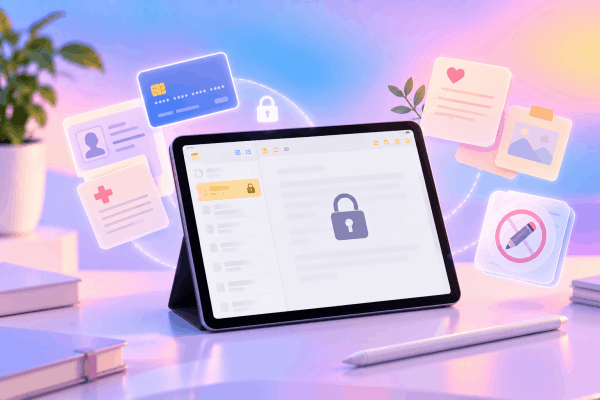
How to password protect notes app on iPad step by step
Apple provides two primary ways to protect your notes: using your iPad’s lock screen passcode or creating a separate, custom password dedicated exclusively to the Notes app.
Method 1: Setting up your default note locking method
Before locking an individual note, configure your preferred security method in the system settings.
-
Open Settings on your iPad.
-
Scroll down the left sidebar and tap Notes.
-
Tap Password.
-
Select between Use Device Passcode or Use Custom Password.
-
Toggle on Use Face ID or Use Touch ID for faster biometric access.
Using your device passcode offers seamless convenience because you only need to remember one combination. Choosing a custom password provides tighter security if other family members regularly know your primary iPad passcode.

Method 2: Locking an individual note
Once your global settings are configured, locking a specific entry takes just a few quick taps.
-
Launch the Notes app and open the specific note you want to secure.
-
Tap the three-dot menu icon located in the top-right corner of the screen.
-
Tap Lock.
-
Enter your chosen password or use Face ID / Touch ID to confirm the action.
-
Tap the padlock icon at the top of the screen to lock the note immediately.
A closed padlock icon will appear next to the note title in your sidebar list, indicating that the content inside is now encrypted and hidden behind a security shield.

Essential requirements and limitations when locking notes
While Apple’s native encryption works reliably, certain technical limitations exist within iPadOS that every user should keep in mind before organizing sensitive data.
-
Media compatibility limits: Notes containing attached audio files, PDFs, videos, or shared collaborative documents cannot be locked. Remove these unsupported attachments if the lock option appears grayed out.
-
First line visibility: The title and first line of a locked note remain visible in the list view sidebar. Avoid typing sensitive passwords or names in the very first sentence of your note.
-
Sync consistency across devices: Locked notes sync seamlessly across iCloud, but viewing them on a Mac or iPhone requires those devices to run updated operating system versions.
Practical tips for managing locked notes effectively
Applying a few smart workflow habits ensures your sensitive information stays locked down tight without creating daily friction.
1. Store a hint for custom passwords
If you decide to set a custom password instead of using your iPad passcode, always create a memorable password hint during the initial setup. Apple cannot reset or recover forgotten custom passwords for locked notes. If you lose the password and forget the hint, the encrypted contents remain permanently inaccessible.
2. Lock all protected notes simultaneously before walking away
Unlocking one note does not automatically open the rest, but leaving an unlocked note open on screen leaves it exposed. Whenever you finish editing a sensitive entry, tap the Lock Now button at the very bottom of the Notes sidebar list, or simply lock your iPad screen to secure all open entries instantly.

3. Move critical scans out of native camera uploads
When scanning physical documents like passports or contracts using the built-in iPad camera scanner inside Notes, lock the note right after finishing the scan. This prevents the generated preview images from appearing in general search results or file managers across your connected Apple devices.
Read more:
- How to transfer photos from iPad to PC wirefree: 4 fast ways
- How to use background sounds on iPad for focus
Frequently asked questions
Can I lock the entire Notes app on iPad at once?
iPadOS does not feature a native switch to lock the entire Notes application folder simultaneously. Instead, Apple requires users to lock notes individually. If you want to block access to the entire app, consider setting up a Screen Time app limit with a distinct passcode.
What happens if I forget my custom notes password?
Forgetting a custom notes password means you will lose access to those specific locked entries permanently. While you can reset your Notes password in Settings to create a new key for future notes, the reset will not unlock entries created with the old password.
Does Face ID work automatically when opening locked notes?
Yes, enabling Face ID or Touch ID inside your iPad Notes settings allows you to unlock protected entries in less than a second without manually typing out your full password every single time.

Final thought
Securing your personal notes on iPad transforms a simple daily app into a safe, reliable digital vault. Taking a few moments to configure your preferred password settings ensures that your private journals remain strictly under your control.
Test out the locking process on a sample note today and build a digital environment that supports both productivity and absolute privacy.






