


Learn how to create a carousel post on Pinterest step-by-step. Discover the hidden trick to put multiple photos in one pin for free using desktop and mobile.
Have you ever scrolled through Pinterest and noticed a single post featuring multiple swipeable images? These interactive multi-image pins – known as carousel posts – are absolute engagement magnets. They give your audience a reason to slow down, swipe through, and spend extra time interacting with your brand.
If you have tried to upload multiple photos standardly through the normal pin builder recently, you might have noticed something frustrating, the option to create a multi-image carousel seems completely hidden. It’s tucked away in a place most people don’t think to look.
In this guide, you will learn how to create a carousel post on Pinterest step-by-step using both free and practical methods on desktop and mobile.
CONTENTS:
- How to create a carousel post on Pinterest without paying for ads
- How do I put multiple photos in one pin on Pinterest using mobile?
- Recommended specs for high-performing carousel posts
- Practical tips for designing viral Pinterest carousels
- Why can you see Pinterest carousels with more than 5 photos?
- Frequently asked questions
- Final thought
How to create a carousel post on Pinterest without paying for ads
The most reliable way to unlock multi-image carousel pins today is through the Ads Manager workspace. Don’t worry, you do not need to spend a single penny or run an active paid campaign to do this.
By accessing the ad-creation tool suite, Pinterest unlocks the legacy multi-image builder for your account for free.
Here is the exact step-by-step workflow:
Step 1: Switch to a free business account
Carousel features require access to Pinterest’s professional tools. If you are using a personal account, navigate to your settings and click Convert to Business Account. It takes 30 seconds and is completely free.
-
Log into Pinterest on your desktop browser.
-
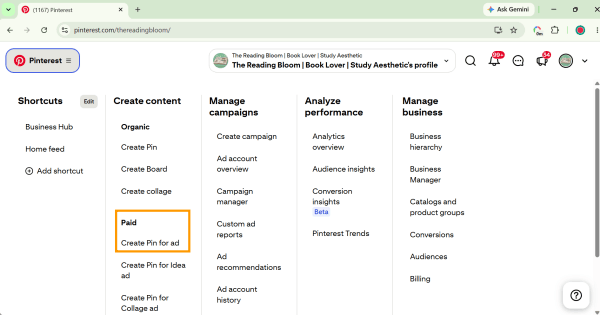
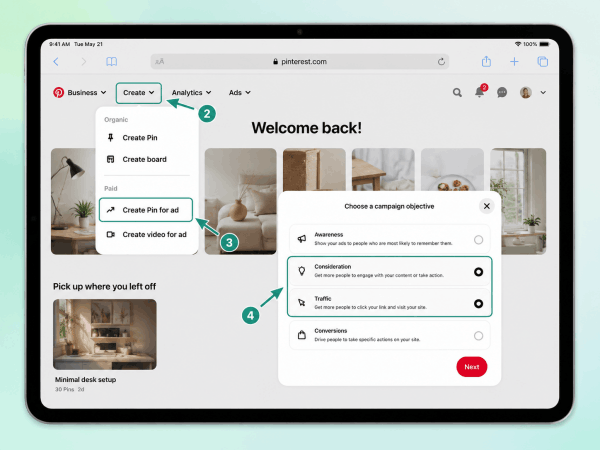
Click on Create in the top-left navigation menu.
-
Instead of selecting the standard Create Pin option, look for Create pin for ad (or open the menu dropdown in the top corner to find it under Paid / Create content).
-
If prompted to select a campaign objective, choose Consideration or Traffic, then proceed to the ad setup area.
Step 3: Upload your multiple images
-
Inside the ad creation builder, select the Carousel post format.
-
Upload 2 to 5 images.
-
Drag and drop your thumbnail cards to arrange the slide sequence in the exact order you want viewers to swipe through.

Step 4: Add titles, descriptions, and destination links
One of the best practical perks of a carousel pin is customization:
-
Global details: You can apply one overarching title, description, and link to the entire post.
-
Per-slide details: You can add unique titles and custom outbound links to each individual card. If card #1 is a product preview and card #2 is a tutorial, you can link each card directly to its specific landing page!
Step 5: Save as an organic pin (no ad spend required)
When you reach the final step, simply publish your pin to one of your public boards. Do not enter payment details or set an ad budget unless you intend to run a paid campaign. Your multi-photo carousel will now live organically on your board for all your followers to see!
How do I put multiple photos in one pin on Pinterest using mobile?
Creating carousel pins directly inside the mobile app can sometimes feel restrictive depending on your app version. However, you can easily put multiple photos in one pin on mobile using these real-world workarounds:
Method A: Mobile Web Browser (Recommended)
-
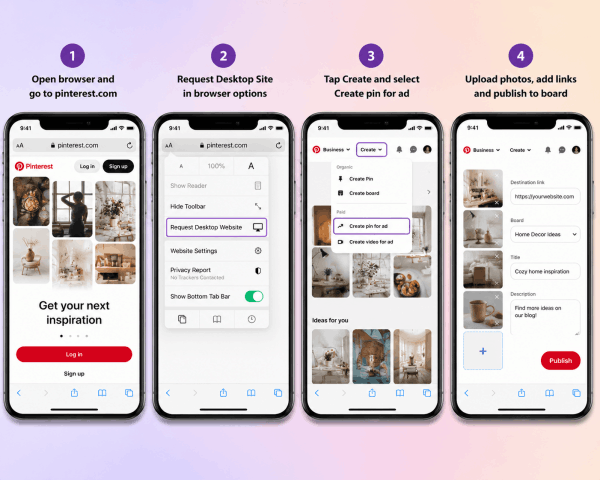
Open your mobile browser (Safari, Chrome, or your favorite mobile browser) and navigate to
pinterest.com. -
Request the Desktop Site version in your browser options.
-
Log in, tap Create, and select Create pin for ad.
-
Upload 2-5 photos directly from your phone’s photo library, set your links, and publish to your board.
Method B: The Collage / Grid Alternative
If you prefer using the native Pinterest app without jumping through ad builder steps, consider building a Collage Pin:
-
Open the Pinterest app and tap the + button at the bottom.
-
Choose Collage instead of standard Pin.
-
Select multiple images from your phone gallery to combine them into an aesthetic, multi-photo single layout. While this won’t be swipeable, it showcases multiple images effortlessly.
Recommended specs for high-performing carousel posts
To keep your carousel posts crisp and professional across both desktop monitors and mobile devices, follow these formatting rules:
| Element | Recommended Specification |
| Image Count | 2 to 5 images per carousel |
| Aspect Ratio | 2:3 ratio (1000 × 1500 pixels) |
| File Formats | .JPG or .PNG |
| File Size Limit | Up to 20MB per image |
| Title Length | Up to 100 characters |
| Description Length | Up to 500 characters |
Creating the post is only half the battle – making people actually swipe is where the magic happens. Here are battle-tested strategies to boost your click-through rates:
-
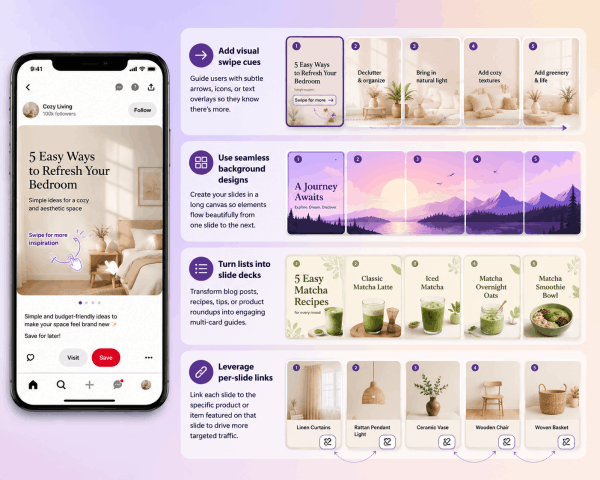
Add visual swipe cues: Don’t assume users know there are more photos! Place a subtle arrow, hand icon, or “Swipe for step 2” text overlay on your cover slide.
-
Use seamless background designs: Design your slide deck in tools like Canva using a long canvas split into 2-5 panels. When uploaded to Pinterest, the visual elements will appear to flow continuously from one slide into the next as the user swipes.
-
Turn lists into slide decks: Convert blog summaries, step-by-step recipes, or top 5 product recommendations into multi-card visual mini-guides.
-
Leverage per-slide links: If you are showcasing an outfit or an aesthetic room setup, link each individual slide to the specific product item featured on that slide.
Why can you see Pinterest carousels with more than 5 photos?
If you spend time on Pinterest, you have likely scrolled through pins containing 7 to 10 swipeable slides, only to hit a hard limit of 5 images when creating your own.
This difference comes down to how Pinterest handles distinct post formats and creation tools:
-
Legacy Idea Pins (Multi-page pins): Pinterest previously offered Idea Pins, which allowed creators to upload up to 20 slides of mixed images and videos. While Pinterest has unified standard pins and Idea Pins in recent interface updates, legacy multi-page content created under the older format still displays more than 5 slides.
-
Collage Pins & Shuffles: Pinterest actively promotes its interactive Collage feature (integrated into the mobile app and the standalone Shuffles app). Collages allow creators to layer dozens of photos into a single dynamic post. While these look like massive multi-image carousels on the feed, they are built using collage elements rather than standard carousel cards.
-
Pinterest Ads Manager & Catalogs: Large enterprise brands creating paid campaigns through the Pinterest API, CSV bulk uploads, or external partner tools (like Shopify or Tailwind) get access to dynamic product catalogs. These catalog carousels display extensive product lineups that exceed the 5-card restriction found in the basic ad builder interface.
Discover More:
- How to fix Goodnotes brush stroke glitching and jagged lines easily
- Fix Lightroom iPad Stuck on Importing Photos: Quick Solutions
Frequently asked questions
Why can’t I see the carousel option on Pinterest?
Pinterest frequently tests and updates its user interface. The standard organic pin creation tool periodically removes direct carousel buttons. Accessing the builder via the “Create pin for ad” route bypasses this issue and opens full multi-image support.
Is creating a carousel post on Pinterest free?
Yes! As long as you publish the content to your boards without setting up an active paid campaign budget, using the business workspace tools to build organic carousel pins is 100% free.
Can I add videos to a Pinterest carousel?
Currently, standard Pinterest carousel pins support static images (.JPG and .PNG). If you want to combine multi-slide video and image content in one post, consider creating an Idea Pin or video ad campaign instead.
Final thought
Carousel posts are easily one of Pinterest’s most underutilized features for driving traffic and user engagement. While the standard interface makes finding the feature tricky, using the “Create pin for ad” workaround lets you publish beautiful, swipeable, multi-photo pins in just a few minutes.
Batch-design your next tutorial or product showcase into a 3-to-5 image slide deck, head over to your Pinterest Business suite, and publish your first carousel pin today!





