


Is Lightroom iPad stuck on importing photos? Discover practical fixes to resolve import loops, freezing, and cloud sync issues fast.
Few things are more frustrating for mobile photographers than prepping a fresh batch of RAW shots, opening Adobe Lightroom on your iPad, and getting stuck on the dreaded “Importing photos…” screen. The loading spinner turns infinitely, the app freezes, or the process simply stops halfway through.
If you are facing this issue, you are not alone. This is a remarkably common glitch among iPadOS users, often triggered by iPadOS memory management bugs, corrupt cache files, or conflicts between iCloud Photos and Lightroom’s local storage.
Below is a practical, step-by-step troubleshooting guide based on real-world solutions that actually work.
CONTENTS:
Lightroom iPad stuck on importing photos fix and practical solutions
When Lightroom gets stuck while importing photos on your iPad, the issue usually stems from background sync conflicts, temporary cache build-up, or file permissions. Try these community-tested solutions in order.
1. Close all background apps and perform a regular restart
iPadOS aggressively manages RAM, and when multiple heavy apps (like Procreate, Photoshop, or Safari with dozens of tabs) run in the background, Lightroom may run out of working memory during large photo imports.
-
Force close apps: Swipe up from the bottom of your home screen, hold in the middle to bring up the App Switcher, and swipe up on Lightroom and all other open apps to close them completely.
-
Restart your iPad normally:
-
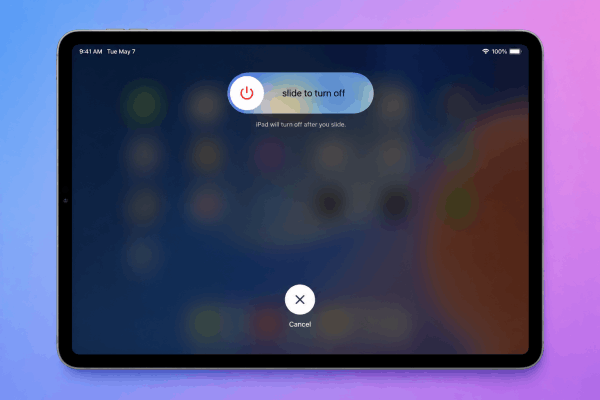
For iPads without a Home button: Press and hold either Volume button and the Top button together until the power-off slider appears.
-
For iPads with a Home button: Press and hold the Top button until the slider appears.
-
Drag the Slide to power off slider, wait 30 seconds for the screen to go completely dark, then press and hold the Top button again to turn your iPad back on.
-
-
Relaunch Lightroom and try importing a smaller batch of photos first.
2. Disable auto-sync and offline storage temporarily
Lightroom tries to sync imported photos to the Creative Cloud in real time while reading them from your storage or SD card. A weak Wi-Fi connection or server latency can cause the import process to hang indefinitely.
-
Open Lightroom and tap the Cloud icon in the top-right corner.
-
Tap Pause Syncing.
-
Go to Settings (gear icon) > Cloud Storage & Sync.
-
Turn off Sync Over Cellular (if applicable) and temporarily disable auto-add features.
-
Import your photos offline first. Once the files appear in your library, re-enable sync to let them upload gradually.
Keep reading:
- Fix PDF Files Not Opening or Showing Blank Pages on iPad
- iPad Scribble Not Working with Apple Pencil? 8 Easy Fixes That Work
3. Change the import source (Files App vs. Camera Roll)
If importing directly from the Camera Roll gets stuck, the issue might be Apple’s iCloud Photos “Optimize Storage” feature. If your high-resolution photos are stored in iCloud rather than locally on the device, Lightroom struggles to fetch them in bulk.
-
Workaround A (Use the Files App): Save your images into a folder inside the Files app (or on an external drive/SD card) instead of Photos. In Lightroom, select Import > From Files instead of “From Camera Roll.”
-
Workaround B (Download originals first): Open Apple Photos, tap the images you want to import, and ensure the full-resolution versions are downloaded to your iPad before starting the Lightroom import.

4. Clear Lightroom app cache
A bloated temporary cache can corrupt the queue during file transfers.
-
Inside Lightroom, tap the Settings icon (gear icon).
-
Go to App Info & Storage.
-
Tap Clear Cache. (Rest assured: This deletes temporary preview files only and will not delete your original photos or edited catalog).
5. Check iPad storage and free up space
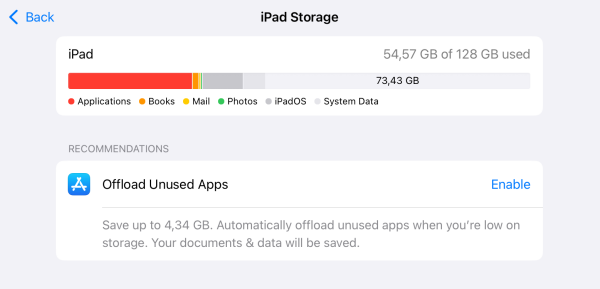
Lightroom requires at least twice the storage space of the photos you are importing to create working previews and temporary swap files. If your iPad has less than 10-15 GB of free space, the OS will restrict background file creation, freezing the import loop.
-
Go to iPad Settings > General > iPad Storage.
-
Delete unnecessary local files or large app caches to ensure you have ample headroom.
Additional tips to prevent Lightroom import bugs
-
Avoid importing massive batches at once: Instead of importing 1,000 RAW photos in one go, split them into smaller batches of 150–200 photos.
-
Keep Auto-Lock disabled during large transfers: Go to iPad Settings > Display & Brightness > Auto-Lock and set it to Never while importing large shoots to prevent iPadOS from cutting off network throughput or background processing.
-
Update iPadOS and Lightroom regularly: Adobe frequently releases stability patches specifically addressing iPadOS memory leak issues.

Frequently asked questions about Lightroom iPad Stuck on Importing Photos
Why does Lightroom on iPad freeze when importing RAW files?
RAW files carry large amounts of uncompressed data. If your iPad is low on RAM, low on local storage, or simultaneously trying to download the file from iCloud, the application may lock up attempting to render the initial preview.
Will deleting the Lightroom app erase my photos?
If your photos have already synced to Adobe Creative Cloud, deleting and reinstalling the app will not erase them. However, if your photos are stuck in the import stage and haven’t synced yet, reinstalling the app will permanently delete those unsynced local files. Always backup your unimported photos to the Photos app or an external drive first.
Can I import photos directly from an SD card reader on iPad?
Yes. Plug your SD card or USB-C hub into the iPad, open Lightroom, tap Add Photos, and choose From Device / Files. Navigating directly to the SD card directory often bypasses iCloud-related import freezes entirely.
Importing issues on mobile photo editors are almost always related to memory limits or background cloud conflicts rather than permanent file corruption. Following the steps above—especially starting with a clean app state, verifying local file availability, and doing a basic device restart—will get your editing workflow back on track.

Final thought
Applying these simple steps will quickly resolve the Lightroom iPad stuck on importing photos and keep your mobile workflow smooth and stress-free. With a few quick adjustments to your settings and device habits, you can get right back to editing your favorite shots without missing a beat!







