


Fix Affinity Photo crashing on big files on iPad. Simple solutions to manage RAM, canvas limits, and keep projects running smoothly.
Working with large high-resolution canvases on iPad can test the limits of mobile photo editing. Opening a heavy file only to have Affinity Photo unexpectedly close without saving progress disrupts creative momentum.
While iPads featuring M1, M2, or M4 chips deliver desktop-class processing power, iPadOS enforces strict Unified Memory (RAM) limits per application. When Affinity Photo exceeds these memory thresholds, the operating system instantly terminates the process to protect system stability.
Fortunately, adjusting a few key app settings and altering image processing techniques resolves these crashing issues and maintains smooth performance.
CONTENTS:
- Why Affinity Photo crashes on large iPad projects
- 7 practical solutions to stop Affinity Photo from crashing
- 1. Adjust RAM usage limit and undo history
- 2. Disable Hardware Acceleration
- 3. Clear app cache and purge undo history manually
- 4. Optimize canvas dimensions, DPI, and layer management
- 5. Restart your iPad to refresh active RAM
- 6. Free up internal storage space on iPadOS
- 7. Export files to .afphoto format and relink assets
- Pro tips for handling huge digital projects on iPad
- Frequently asked questions
- Final thought
Why Affinity Photo crashes on large iPad projects
Understanding what triggers these crashes helps prevent them during heavy editing tasks.
-
Unified Memory (RAM) limits: Unlike macOS, iPadOS limits the maximum memory allocated to any individual app. Extremely large canvas sizes, high DPI settings, and hundreds of unflattened layers rapidly consume available RAM.
-
Hardware acceleration glitches: Metal hardware acceleration boosts processing speed, but certain complex filter chains, large brushes, or live masks can trigger memory leaks and crash the app.
-
Accumulated undo history and memory cache: Every action, stroke, and adjustment layer stores history states in system memory. Extended editing sessions accumulate temporary data until the buffer overflows.
-
High brush RAM usage: Custom brush engine settings, active live previews, and large dynamic textures demand heavy real-time GPU and RAM processing.

7 practical solutions to stop Affinity Photo from crashing
Don’t let unexpected crashes ruin your creative workflow. Try these step-by-step fixes to restore stability and handle heavy projects with ease.
1. Adjust RAM usage limit and undo history
Fine-tuning internal memory management within Affinity Photo prevents memory allocation overflows during heavy editing sessions.
-
Open Affinity Photo on your iPad.
-
Tap the Gear icon in the top corner to open Settings.
-
Select Preferences > Performance.
-
Slide the RAM Usage Limit up to allow maximum available memory for heavy project processing.
-
Lower the Undo History Limit (e.g., from 100 down to 20 or 30). Retaining fewer undo steps frees up memory for active canvas rendering.
2. Disable Hardware Acceleration
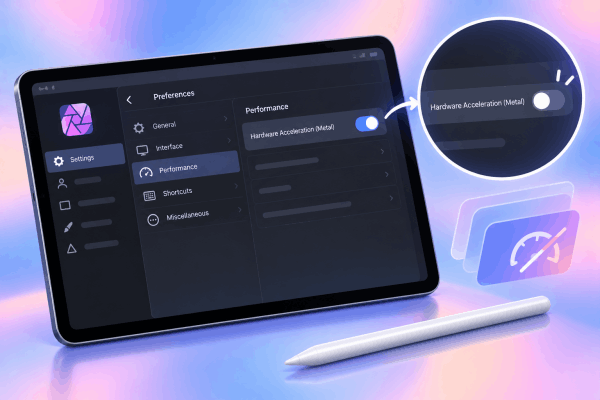
Hardware acceleration speeds up graphics operations, but complex live filters on large files can sometimes cause rendering crashes. Disabling or toggling this setting offers an immediate fix.
-
Go to Settings > Preferences > Performance.
-
Locate Hardware Acceleration (Metal).
-
Toggle the setting Off.
-
Close Affinity Photo completely, then reopen your canvas to check for improved stability.
3. Clear app cache and purge undo history manually
When working on large multi-layered documents for extended periods, manually clearing undo states restores system memory.
-
Purge Undo History: Go to the Document menu and select Clear History. This instantly releases memory consumed by previous brush strokes and adjustments.
-
Reset App Cache: If the app consistently freezes on launch, double-tap the splash screen while Affinity Photo is opening to trigger the application reset menu, then choose Clear User Data.

4. Optimize canvas dimensions, DPI, and layer management
Extremely large canvas dimensions combined with high DPI values multiply RAM consumption exponentially.
| Document Parameter | High Risk Configuration | Recommended Stable Setting |
| Resolution/DPI | 600+ DPI on large canvases | 300 DPI for print / 72-150 DPI for digital |
| Layer Structure | Dozens of unexploded Live Adjustment layers | Group and Merge non-essential layers |
| Smart Objects / Linked Files | Embedded heavy external RAW files | Convert linked assets to rasterized layers |
-
Rasterize live filters: Merge or rasterize adjustment layers once edits are finalized to remove real-time background rendering.
-
Flatten complex vector groups: Converting intricate vector groups into pixel layers reduces CPU calculation overhead.
5. Restart your iPad to refresh active RAM
If background system processes clog up active memory, performing a standard device reboot clears temporary cache files across iPadOS.
-
Press and hold the Power button and either Volume button until the power-off slider appears on screen.
-
Drag the slider to power down the iPad completely.
-
Wait 10 to 15 seconds, then press and hold the Power button until the Apple logo appears.

6. Free up internal storage space on iPadOS
iPadOS relies on available internal disk space as virtual swap memory (Virtual Memory Swap) when running demanding creative software.
-
Keep at least 15% to 20% of your total iPad storage free.
-
Go to Settings > General > iPad Storage to clear out unused videos, large app caches, or temporary downloads.
7. Export files to .afphoto format and relink assets
Corrupted layer states or broken external asset links can trigger immediate app termination upon opening.
-
Export your canvas as a native
.afphotodocument to consolidate linked assets into a clean, localized file. -
Store active project files directly on local iPad Storage rather than editing live files directly from cloud locations like iCloud Drive, Dropbox, or Google Drive.
-
Import external textures and assets into local storage before linking them within your project.

Pro tips for handling huge digital projects on iPad
-
Save incremental copies: Use “Save As” periodically to create sequential project backups (e.g.,
Project_v1.afphoto,Project_v2.afphoto). -
Close background applications: Swipe up from the bottom of the screen to open the App Switcher and close memory-heavy apps (such as Procreate, LumaFusion, or Safari) before opening large Affinity projects.
-
Work in smaller modular files: Break massive illustrations or multi-page layouts into separate localized documents, then merge them into a master canvas upon final export.
Find out more:
- Goodnotes lasso tool selection not working? Try these fixes
- iPad Magic Keyboard not typing in Split View? Easy fixes that work
Frequently asked questions
Why does Affinity Photo crash only when opening specific large files?
Individual project files can accumulate corrupted cache states, broken cloud asset links, or excessive undo histories. Try duplicating the file in the Files app or opening it on a desktop version to re-save it as a clean .afphoto file.
Does upgrading to an M-series iPad eliminate crashes completely?
While M1, M2, and M4 iPads offer significantly more RAM and support Apple’s Virtual Memory Swap feature, soft memory limits still exist within iPadOS. Following proper layer management and canvas optimization remains essential for handling multi-gigabyte project files.
Will reinstalling Affinity Photo delete local project files?
Yes. Deleting the app directly removes all files stored within the app’s local folder. Instead of deleting, go to Settings > General > iPad Storage > Affinity Photo and choose Offload App. This removes the application binary while preserving your documents and presets intact.
Final thought
Managing Affinity Photo crashing on big files on iPad comes down to understanding how memory allocation works on iPadOS. Optimizing your editing environment transformed how your iPad handles complex files. A few strategic tweaks to your everyday process are all it takes to maintain a stable and completely crash-free workspace.





