

Suddenly, Face ID is not working on your device? In this article, you can find some effective ways to fix “Face ID has been disabled on iPad Pro” error.
Personally, I think Face ID isn’t as convenient or important on the iPad compared to the iPhone. However, if something goes wrong with this feature, it still annoys users. One day, I opened my iPad Pro 2020 but was unable to use Face ID. Instead, I received a message that said, “A problem was detected with the TrueDepth camera. Face ID has been disabled.” I felt both worried and upset.
Next, I calmly attempted a few methods and effectively resolved the issue without needing to send the iPad for warranty or repair. If you’re encountering the error “Face ID has been disabled” on iPad Pro, I believe my experience can assist you.

CONTENTS:
Face ID has been disabled on iPad Pro – This is how I fixed it
Face ID not available error appears unexpectedly on my iPad, even though I hadn’t dropped it or exposed it to any unusual impact before the error popped up. I was unable to use Face ID or adjusted any settings associated with this feature.
Here are a few tips that I applied to fix the problem:
1. Restart my iPad
Restarting the iPad is a common fix for various issues, particularly those related to software. That’s why I decided to try this simple step as my first approach.
To restart iPad, you need:
✤ Press and hold the Side (Power) button and Volume button (Volume Up or Volume Down) until the Power Off Slider appears => Drag the slider to turn off your iPad.
✤ Press and hold the Side button again to restart the device.

2. Update iPadOS
Unfortunately, restarting my iPad didn’t work in my case (although I still recommend trying this step first). Therefore, I decided to update my iPad to the latest iPad version (Apple had released a new version but I had not updated it yet).
After updating, the Face ID settings appeared again, so I was able to use the feature. If you have not yet updated to iPadOS, I recommend doing so as soon as possible if you encounter the “Face ID has been disabled on iPad” error.

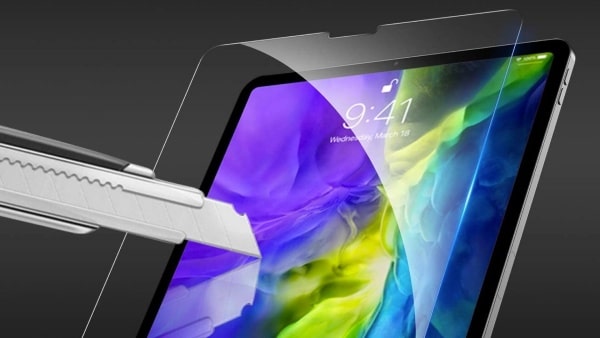
3. Remove the screen protector
Updating iPadOS only provides a temporary solution. After a few days, the Face ID issue on my iPad Pro persisted, with the recurring message “A problem was detected with the TrueDepth camera. Face ID has been disabled.”
I sought advice from similar cases on the Reddit forum, and many users indicated that the unavailability of Face ID on the iPad Pro could be linked to hardware damage. Initially, I believed I couldn’t resolve it independently.
However, it was around that time when I decided to switch to a paperlike screen protector. Although the previous protector covered the front camera area, Face ID had previously functioned properly with it, so I didn’t consider it as the cause.
Surprisingly, after applying the paperlike screen protector, which doesn’t cover the front camera area, an interesting outcome unfolded. The “Face ID has been disabled” error was resolved, enabling me to reconfigure Face ID and use the feature normally since then.
Does the screen protector also block the Truedepth camera area on your iPad Pro? Don’t forget to try removing it!
4. Is Face ID still not working on your iPad Pro?
If you’re not as fortunate as I am, remember to reach out to Apple support. If your iPad is no longer under warranty, you’ll need to take it to a reliable repair center. Be prepared for potential hardware repairs or the need to replace specific components.
These are some methods to fix Face ID has been disabled on iPad Pro based on my personal experience. I hope this information proves helpful to you.
Read more:





