


Troubleshoot the Canva undo button missing or not working issue with these practical fixes. Get back to designing smoothly without losing your work.
When you are in the middle of a creative flow on Canva, one wrong click can mess up a carefully aligned layout. Naturally, your hand reaches for the undo function to reverse the mistake. However, discovering that the Canva undo button is missing or simply not responding brings everything to a sudden halt.
This issue happens more often than you might think across desktop browsers, iPad apps, and mobile devices. Fortunately, getting your controls back is usually straightforward. Here is a practical troubleshooting guide to restore your undo feature and keep your design process running smoothly.
CONTENTS:
Understanding why this glitch happens helps you choose the right fix immediately. Based on real-world usage and user experiences across various platforms, a few common factors usually cause this problem:
-
Unsaved changes or sync delays: A spotty internet connection prevents Canva from syncing your actions to the cloud, temporarily disabling the action history.
-
Corrupted browser cache: Accumulated temporary files can interfere with Canva’s web interface script.
-
Incompatible browser extensions: Ad blockers, password managers, or grammatical tools often block critical interface scripts.
-
Zoom level glitches: Setting your browser or iPad viewport zoom too high or low can push the top navigation bar off-screen.
-
App software bugs: Outdated versions of the Canva app on iPadOS, iOS, or Android may experience UI rendering glitches.

When the top toolbar loses its action arrows, shortcut keys offer the fastest workaround. Keyboard shortcuts communicate directly with the operating system, bypassing minor visual bugs in the web interface.
-
Windows: Press
Ctrl + Zto undo, orCtrl + Yto redo. -
Mac & iPad (with hardware keyboard): Press
Cmd + Zto undo, orCmd + Shift + Zto redo. -
On-screen gestures (iPad & Tablets): Tap the screen with two fingers simultaneously to perform a quick undo.
If these shortcuts work, your design history remains intact, meaning the issue is purely a visual glitch with the interface buttons.
Read More:
- How to Fix Canva Elements Not Loading with Proven Fixes
- Fix Canva App Black Screen on Start: Practical Workarounds for iPad
If shortcuts fail or you prefer using on-screen buttons, try these practical steps to restore full functionality.
1. Check canvas focus and active elements
Canva disables the undo feature if no active element or page is selected, or if you clicked outside the canvas area. Click directly on an empty space on your current design page to re-establish workspace focus. This simple action often re-activates grayed-out navigation icons instantly.

2. Adjust browser zoom settings
A high zoom scale frequently forces Canva to compact its top toolbar, hiding less critical icons behind a three-dot menu or pushing them entirely off-screen.
Press Ctrl + 0 on Windows or Cmd + 0 on Mac to reset your browser display scale to 100%. Alternatively, open your browser menu and adjust the zoom level manually. Once the layout resets, the left-pointing curved arrow should reappear in the top navy banner.
3. Clear browser cache and disable extensions
Persistent script errors usually stem from cached conflicts or extension interference.
-
Open your browser settings and navigate to privacy or history options.
-
Clear cached images and files for the past 24 hours.
-
Turn off third-party browser extension, especially ad blockers, and refresh Canva.
-
If the button returns, turn your extensions back on one by one to isolate the culprit.

4. Manage connection and version history
Canva tracks your edits sequentially through an active internet connection. If your network drops briefly, the server pauses your edit stack.
Check your connection status near the top menu. If it displays “Unsaved changes,” wait a moment for the sync to complete. If you accidentally refreshed or closed the tab, standard undo memory clears. In this case, navigate to File in the top left corner, select Version history, and restore a previously autosaved state.
5. Restart your tablet or phone
App-based glitches on iPad or mobile devices usually stem from temporary system memory leaks.
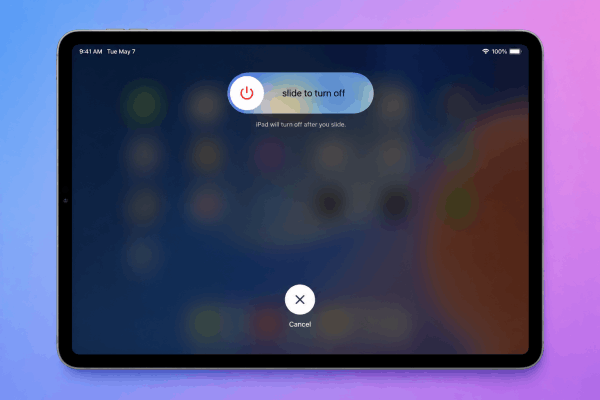
Instead of performing a force restart, give your device a standard power cycle:
-
Press and hold the power button (or power button alongside a volume button on newer iPad models) until the power-off slider appears.
-
Drag the slider to turn off your device completely.
-
Wait about 30 seconds for all background processes to close.
-
Press and hold the power button again until the screen lights up to turn your device back on.
Opening Canva after a clean reboot clears system memory conflicts and usually restores missing UI elements.
Proactive tips to prevent design loss on Canva
While technical glitches happen, taking a few precautions ensures your work remains safe even when interface buttons play up.
-
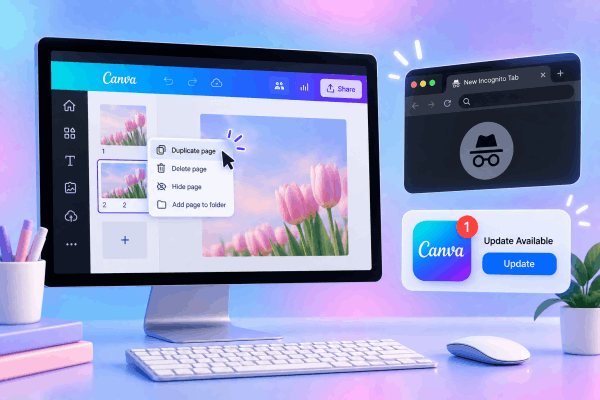
Duplicate working pages: Before making dramatic layout adjustments, duplicate your current page within the project. This gives you a manual fallback without relying on history buttons.
-
Work in Incognito mode for critical projects: Private windows run without third-party extension interference, delivering a much cleaner interface environment.
-
Keep your Canva app updated: If you work primarily on an iPad or mobile device, regularly update the app through your app store to patch known interface bugs.
Frequently asked questions
Where did the undo button go in the new Canva layout?
The undo arrow sits on the top left side of the screen, right next to the File menu within the main top bar. If it is invisible, your display resolution might be too low, hiding extra buttons behind a three-dot menu icon.
Why is my Canva undo button grayed out?
A grayed-out arrow means there are no recent actions recorded in the current session memory. This happens right after opening a design, refreshing the web page, or when your internet connection temporarily disconnects.
Can I undo changes after closing and reopening a Canva tab?
No, closing or refreshing a browser tab clears the short-term action history stack. To recover earlier edits after reopening a file, you must use the Version History feature available on Canva Pro plans.

Final thought
Facing a Canva undo button missing or not working scenario can interrupt your creative momentum, but the fix is almost always quick and painless. Hope these simple tech tips help you fix the issue quickly and get back to your smooth design workflow!





