


Fix Canva app black screen on start easily. Discover proven workarounds to get back to designing seamlessly.
Opening your favorite design application only to be greeted by a frozen, blank canvas is one of the most frustrating experiences for creators. When the Canva app black screen on start occurs, it halts your creative momentum in an instant. This problem frequently surfaces on portable workstations, where high-res graphics and heavy memory demands can push system resources to their limits.
If you are dealing with a Canva iPad app black screen on start, the root cause usually boils down to corrupt temporary files, network handshakes, or memory management conflicts. Here is a clear guide to fixing the black screen issue and ensuring your digital workspace stays smooth and reliable.
CONTENTS:
Why does Canva display a black screen on launch?
Before jumping into the troubleshooting steps, it helps to understand what is happening behind the scenes when your app refuses to display its interface.
-
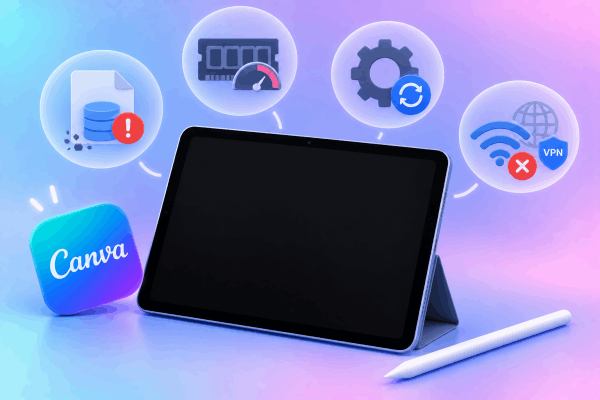
Corrupted Local Cache: Graphic design tools store temporary cache files locally to load your recently used elements, custom fonts, and templates faster. If one of these files gets corrupted during an abrupt app shutdown or system crash, the startup script gets stuck, leading to a blank visual display.
-
RAM Bottlenecks: Digital canvases demand significant memory resources, particularly on devices running multi-tasking windows or background background utilities. If system RAM is exhausted during startup, the application fails to render its user interface.
-
Outdated Software Handshakes: Newer app updates frequently adjust how graphics interfaces interact with operating system rendering engines. Running an outdated OS alongside a recently updated app, or vice versa, can cause visual rendering errors.
-
Network and Proxy Interruptions: Because the platform relies heavily on cloud server synchronization, active Virtual Private Networks (VPNs) or weak network handshakes can cause the app to hang on a blank interface while attempting to communicate with server assets.
Step-by-step solutions to fix Canva app black screen on start
If you are currently stuck facing a dark display upon opening the app, follow these practical troubleshooting steps in order.
1. Force close background applications and retry
When your device runs low on accessible memory, graphics-heavy software will struggle to load its main window components.
-
Swipe up from the bottom of your screen (or double-click your home button) to reveal the app switcher.
-
Swipe up on the design tool to completely shut it down.
-
Swipe away other resource-intensive background software like video editors, games, or browser tabs.
-
Relaunch the application to test if it loads correctly.

2. Offload the app to clear corrupted cache
Unlike standard desktop browsers where clearing cache is straightforward, mobile and tablet operating systems do not always feature a dedicated “Clear Cache” button inside app settings. The most effective way to clear corrupt data without losing your personal projects is using the “Offload” feature.
-
Navigate to your device’s Settings > General > Storage.
-
Scroll through the list until you locate the design app and select it.
-
Tap Offload App. This action deletes the application’s core temporary files while keeping your account login details and personal data untouched.
-
Once offloaded, tap Reinstall App directly from the same menu screen.
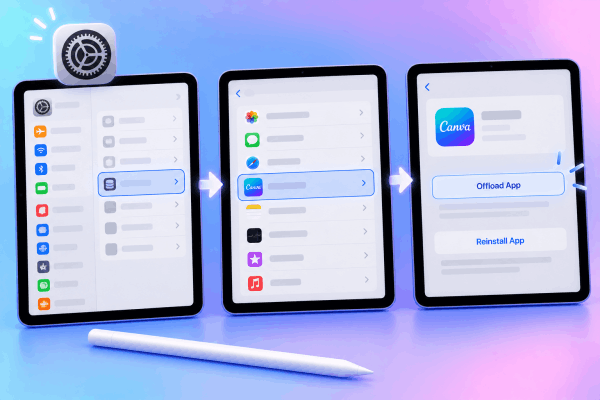
This process refreshes system binary files and clears corrupted cached elements that cause startup rendering failures.
3. Check network stability and disable active VPNs
The editor must verify active subscriptions, user profile assets, and dynamic cloud templates upon launch. Network friction can lead to infinite startup loops.
-
Toggle your Wi-Fi off and on, or switch over to a reliable mobile hotspot connection.
-
If you utilize a active VPN or custom DNS proxy service, toggle it off temporarily. VPN protocols frequently block real-time cloud sync scripts or cause API timing conflicts during launch.
Keep Reading:
- Canva App Crashing When Exporting High Res PDF on iPad? Fix It Fast
- How to fix Procreate brush pressure delay on iPad
4. Free up local device storage
Graphics applications require headroom to expand compressed files and generate draft previews. If your internal storage space is nearly full (under 2GB to 3GB remaining), operating systems aggressively limit background memory allocations.
-
Go to Settings > General > Storage to check your available space.
-
Delete unused media files, clear old temporary project downloads, or remove unused applications.
-
Aim to keep at least 10% of your device storage free to maintain smooth rendering performance.

5. Perform a standard device restart
If background graphics threads are locked up, a simple restart clears system RAM and refreshes system services.
-
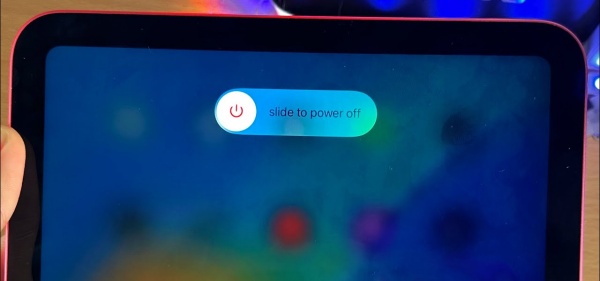
Press and hold the Power button along with either Volume button until the power-off slider appears on your screen.
-
Drag the slider to Slide to power off and wait for the display to turn completely black.
-
Wait approximately 30 seconds, then press and hold the Power button until the brand logo appears to turn your device back on.
-
Relaunch your app.
Pro tips for iPad users facing black screen issues
For creators who rely heavily on tablets and styluses for daily workflows, specific device settings can influence rendering stability:
-
Use Stage Manager Mindfully: If you run desktop-like multi-tasking windows, running multiple visual tools side-by-side can strain device RAM on base models. Try running your layout tool in full-screen mode when opening large projects.
-
Keep Software Updated: OS-level display drivers update frequently. Ensure your tablet software is updated by checking Settings > General > Software Update.
-
Utilize Desktop Browser Mode as a Backup: If an urgent project deadline approaches and the native application continues to show a dark display, open your browser (such as Safari or Chrome), visit the web application directly, and enable “Request Desktop Website.” The web version offers nearly identical features and functions seamlessly while you resolve native app issues.
Frequently asked questions (FAQs)
Will deleting or offloading the app erase my saved designs?
No. All your creations, uploads, and brand assets are linked directly to your cloud account rather than saved locally on your physical device. Reinstalling or offloading the app will not erase your ongoing work.
Why does the black screen happen only on large presentation files?
Large presentations containing high-resolution images, video background clips, and animated elements demand significant temporary memory upon launch. If your device cannot process the assets quickly enough, the interface defaults to a blank screen. Try opening large files through a web browser to reduce memory strain.
What should I do if the issue persists after a full reinstallation?
If the app still fails to start, verify whether server service outages are occurring on the official status page. Alternatively, check if your current operating system version meets the minimum software requirements for the latest app build.
Final thought
Encountering a Canva app black screen on start can certainly derail your creative workflow, but it is rarely a permanent issue. If you ever find yourself facing an immediate deadline when an app glitch hits, remember that logging into the web interface via a browser is your most reliable emergency workaround to keep creating without missing a beat.





