

Can’t save images from Google on your iPad? Discover practical fixes to get your downloads working again. Fast, easy, and iPadOS-friendly guide.
Have you ever found the perfect aesthetic wallpaper or a high-res reference photo on Google, only to find that your iPad refuses to save it? You long-press the screen, wait for the menu to appear, and… nothing happens. Or worse, you hit “Save to Photos,” but the image never actually shows up in your gallery.
The issue “can’t save images from Google on iPad” is surprisingly common, but the good news is that it is rarely a sign of a broken device. Usually, it is just a simple communication breakdown between Safari, Google’s interface, and your iPadOS privacy settings.
In this guide, we are going to move past the generic advice and dive into the practical steps that actually work, gathered from real-world user experiences and technical workarounds.
CONTENTS:
Why you can’t save images from Google on iPad
Before we jump into the fixes, it helps to understand why this happens. Often, the culprit is the way Google displays images in its “Preview” pane. Instead of interacting with the image file itself, your iPad might be trying to interact with the webpage’s code. Other times, it comes down to “Limit Ad Tracking” features or simple permission bugs within iPadOS.

The most effective ways to fix Google image download issues
If you are struggling to get that “Add to Photos” prompt to work, try these steps in order.
1. Master the “View Original Image” workaround
Many users fail to save images because they are trying to long-press the thumbnail in the search results or the preview window. Google often uses a “container” to show images, which prevents the iPad from recognizing the file.
Instead of long-pressing immediately:
-
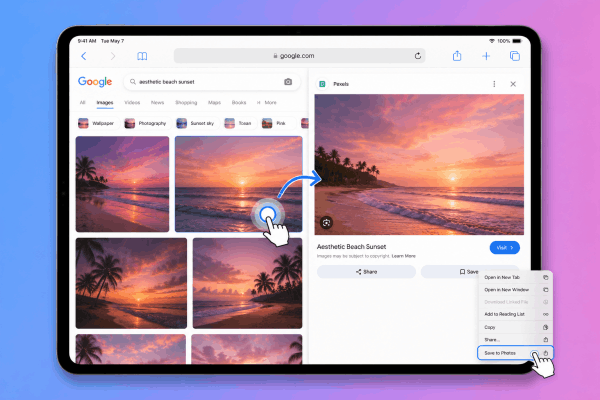
Tap the image to open the preview side pane.
-
Tap the image again or select the “Visit” button to go to the source website.
-
Once you are on the actual host site, long-press the image. You will almost always see the “Save to Photos” or “Add to Photos” option appear instantly.
2. Check your “Photos” privacy permissions
If you can see the “Save to Photos” option but the image doesn’t appear in your library, your iPad might be blocking Google or Safari from writing to your storage.
-
Open Settings.
-
Scroll down to Privacy & Security and tap on Photos.
-
Find Safari (or whichever browser you are using, like Chrome).
-
Ensure it is set to “All Photos” or “Add Photos Only.” If it is set to “None,” your iPad will silently ignore every save request you make.
3. Use the Drag and Drop feature
One of the best “hidden” features of iPadOS is the ability to drag and drop content between apps. This often bypasses the long-press menu entirely.
-
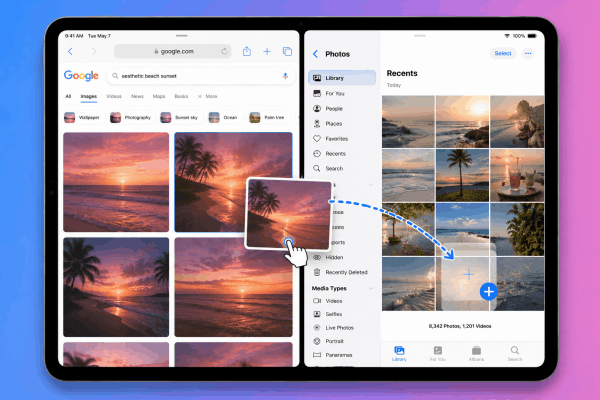
Open Safari and Photos in Split View.
-
Find the image you want on Google.
-
Tap and hold the image until it “lifts” off the screen.
-
Drag it directly into your Photos gallery or a specific album. This method is highly reliable because it forces the iPad to move the data directly from the web cache to your local storage.
Sometimes, a corrupted bit of data in your browser’s memory can cause the interface to hang.
-
Go to Settings > Safari.
-
Tap Clear History and Website Data.
-
Restart Safari and try the search again. You might find that the long-press menu is much more responsive afterward.

5. Disable “Request Desktop Website”
While the desktop version of Google looks great on a large iPad screen, the “right-click” logic of a desktop site doesn’t always translate well to touch-based long-pressing.
-
Tap the ‘AA’ icon in the Safari address bar.
-
Select Request Mobile Website. The mobile version of Google is optimized for touch, making the “Save Image” dialogue much more likely to trigger correctly.
Discover More:
- Safari not loading pages on your iPad? Here is how to get back online
- YouTube not working on iPad and 8 real fixes that actually work
Practical tips for high-quality downloads
Saving the image is only half the battle; you want to make sure you are getting the best version possible.
-
Wait for the blur to disappear: When you tap an image on Google, it usually loads a low-res version first. Wait 2-3 seconds until the image looks sharp before trying to save it. If you save it while it’s still blurry, you’ll likely end up with a pixelated file.
-
Check the file format: Some modern websites use .webp formats. While the iPad supports these, some older apps don’t. If you can’t find an image in a specific editing app, it might be saved in the “Files” app instead of “Photos.”
-
Screenshots as a last resort: If a site is specifically coded to prevent downloads (like some stock photo sites), you can always take a screenshot (Power button + Volume Up). However, be aware that this captures the screen resolution, not the original image quality.

Frequently asked questions about can’t save images from Google on iPad
Why is the “Save Image” option missing?
This usually happens because the website has a “transparent overlay” to protect their images. Use the “Visit” button to go to the actual page where the image lives, or try the Drag and Drop method mentioned above.
Where do my saved images go?
By default, they go to the Recents album in your Photos app. However, if you chose “Save to Files,” they will be located in the Downloads folder within the Files app.
Does using Google Chrome instead of Safari help?
Sometimes, yes. Chrome and Safari use different rendering engines on the iPad. If Safari is being stubborn, opening the same link in Chrome often solves the problem because the “Save Image” menu is handled differently.
Can I save multiple images at once?
Yes! Using the Drag and Drop method, you can hold one image with one finger and tap other images with another finger to “stack” them. You can then drop the entire stack into your Photos app at once.

Final thoughts on iPad productivity
Fixing the “can’t save images” issue is a small but essential step in mastering your iPad. As a digital creator, your device should work with you, not against you. By understanding the nuances of how iPadOS interacts with web content, you save time and reduce the friction in your daily workflow.
Whether you are building a mood board or just saving a meme for a friend, these steps ensure that you are never stuck behind a non-responsive screen again. Keep exploring your iPad’s settings, and don’t be afraid to try the multi-touch gestures—they are often the quickest “hack” to any software limitation.






