


App Store stuck on loading on iPad? Fix blank screens, endless spinning wheels, and connection issues quickly with these practical solutions.
An iPad with a bright Liquid Retina screen offers a smooth experience for a wide range of daily tasks. However, opening the App Store only to see an endless spinning indicator or a complete blank screen can bring productivity to a halt.
If your App Store stuck on loading on iPad, you are not facing an isolated glitch. This issue usually stems from temporary session timeouts, cached network conflicts, or Apple server hiccups. Fortunately, resolving it requires no deep technical expertise. Here is a practical, step-by-step troubleshooting guide to restore your App Store to working order.
CONTENTS:
Why your iPad App Store won’t load
When the App Store fails to open or remains blank, the underlying cause usually falls into one of a few categories:
-
Temporary App Cache Glitches: Background processes can stall, leaving the app trapped in an unresettable loading loop.
-
Apple Server Outages: On rare occasions, Apple’s internal services experience temporary downtime.
-
Network or DNS Conflicts: Unstable Wi-Fi, VPN configurations, or stale network cache can block the App Store from communicating with remote servers.
-
Date and Time Desynchronization: Secure connections (HTTPS) require accurate device timestamps. A mismatched date or time prevents secure handshake requests.
-
Account Verification Stalls: Outdated billing information or expired Apple Account security tokens can freeze the interface.

Quick fixes when iPad App Store stuck on blank screen
Work through these steps sequentially to resolve the loading issue.
1. Check Apple’s System Status
Before adjusting settings on your device, confirm whether the issue originates on Apple’s end.
-
Open Safari on your iPad and visit the official Apple System Status page.
-
Look for the indicator next to App Store.
-
If the circle shows red or yellow, Apple is performing maintenance. Access will restore automatically once service is maintained.
Explore more:
- iPad Can’t Connect to App Store? 10 Quick Fixes
- Fix LumaFusion rendering error and failing to export
2. Force close and reopen the App Store
A simple app refresh clears temporary memory state bugs.
-
Swipe up from the bottom edge of the screen and hold briefly to view the App Switcher. (If your iPad has a Home button, double-click it).
-
Swipe the App Store card upward to close it completely.
-
Wait 5 seconds, then tap the App Store icon on your Home screen.

3. Restart your iPad standard way
A basic power cycle clears temporary system caches and resets network sockets without deleting data.
-
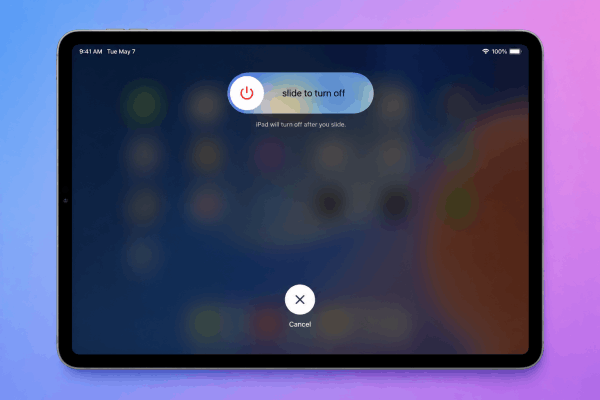
Press and hold the Top button alongside either Volume button until the power-off slider appears. (On Home button models, hold down just the Top button).
-
Drag the slide to power off control to the right.
-
Wait 30 seconds for the display to power down completely.
-
Hold the Top button again until the Apple logo appears to turn it back on.
4. Toggle Wi-Fi or switch DNS
The App Store relies on secure, continuous connections. A quick network toggle often clears local DNS hiccups.
-
Open Settings > Wi-Fi, turn it off for 10 seconds, and switch it back on.
-
If the loading wheel persists, tap the information icon (i) next to your connected Wi-Fi network.
-
Scroll down to Configure DNS, select Manual, and add reliable public DNS servers like Google (
8.8.8.8) or Cloudflare (1.1.1.1). -
Disconnect any active VPN apps temporarily, as strict tunneling parameters can intercept secure App Store verification servers.
5. Verify Date and Time settings
Secure App Store communication depends on precise time synchronization. If your iPad’s clock is even slightly off, SSL certificates will fail to validate.
-
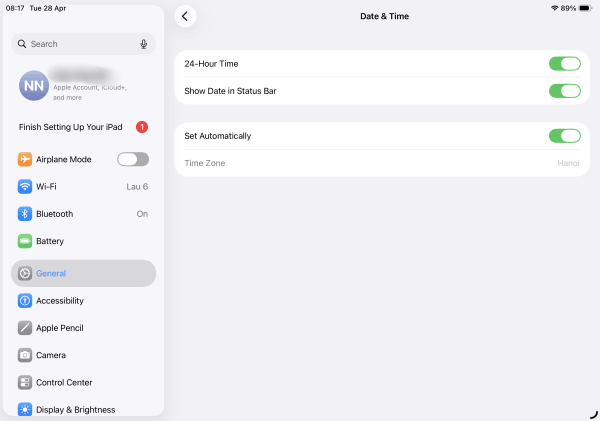
Navigate to Settings > General > Date & Time.
-
Enable Set Automatically.
-
If it is already enabled, toggle it off, wait 5 seconds, and switch it back on.
6. Sign out and back into your Apple Account
Re-establishing your Apple Account connection forces the App Store to generate new security tokens.
-
Go to Settings and tap your Name/Apple ID Banner at the top.
-
Scroll to the bottom and select Sign Out.
-
Enter your password to complete the sign-out process.
-
Restart your iPad normally, return to Settings, and sign back in.
7. Reset Network Settings
If the App Store continues showing a blank screen, resetting network settings will clear saved Wi-Fi credentials, Bluetooth pairings, and cellular network profiles.
-
Open Settings > General > Transfer or Reset iPad.
-
Tap Reset at the bottom of the screen.
-
Choose Reset Network Settings and enter your passcode.
-
Reconnect to your Wi-Fi network once the iPad powers back up.

Comparing common App Store symptoms
| Issue Description | Primary Cause | Recommended Quick Fix |
| Endless Spinning Wheel | Stalled app cache or active VPN background conflict | Force close app & disable VPN |
| Blank White / Black Screen | Apple ID session token expired or DNS resolution failure | Re-sign Apple ID & update DNS settings |
| “Cannot Connect to App Store” | Date/Time mismatch or server outage | Toggle “Set Automatically” in Date & Time |
Practical tips for long-term iPad performance
Keeping your iPad running smoothly prevents recurring app store glitches and general system slowdowns.
-
Maintain Adequate Free Storage: Ensure at least 10–15% of your iPad storage remains free. Go to Settings > General > iPad Storage to offload unused apps.
-
Keep iPadOS Updated: System updates regularly bundle stability patches for core services like the App Store. Go to Settings > General > Software Update to stay current.
-
Perform Monthly Network Refreshes: Restart your home Wi-Fi router periodically to keep network routes clean and prevent stale DNS connections.

Frequently asked questions about App Store stuck on loading on iPad
Will resetting network settings delete my iPad data?
No. Resetting network settings only erases saved Wi-Fi passwords, Bluetooth connections, and VPN profiles. Your personal photos, documents, and installed apps remain untouched.
Why does the App Store load over Cellular Data but not Wi-Fi?
This usually indicates a local DNS resolution issue or strict firewall settings on your Wi-Fi router. Changing your iPad DNS to Google (8.8.8.8) or restarting your home router typically resolves this.
What should I do if the App Store is still stuck after trying all fixes?
If none of these steps work, check Settings > Screen Time > Content & Privacy Restrictions. Ensure iTunes & App Store Purchases are allowed. If restrictions are turned off and the issue persists, contact official Apple Support for diagnostic assistance.

Final thought
Encountering an App Store stuck on loading on iPad can be frustrating, but it rarely signals a serious hardware problem. In most cases, applying the tips above will restore normal functionality within minutes. Taking a systematic approach to troubleshooting ensures your iPad remains a reliable tool for diverse user demands.





