

Experiencing Concepts app pen lag on iPad? Discover community-tested fixes to eliminate stylus lag and restore smooth drawing performance.
Few things disrupt a digital artist’s creative workflow faster than drawing a stroke and waiting half a second for the line to catch up. When the Concepts app exhibits pen lag on an iPad, precise sketching turns into a frustrating experience. While iPad hardware and Apple Pencil usually deliver industry-leading responsiveness, software interactions, canvas settings, and background processes can occasionally cause noticeable latency.
This guide breaks down why stylus lag happens in Concepts and outlines practical, user-tested steps to restore immediate stroke responsiveness.
CONTENTS:
- 1. Why Concepts app pen lag happens on iPad
- 2. Simple physical checkups for your Apple Pencil
- 3. In-app optimizations inside Concepts
- 4. iPad OS adjustments for smooth sketching
- 5. Restart your iPad the standard way
- 6. Practical comparison of latency causes and solutions
- 7. Frequently asked questions
- Final thought
1. Why Concepts app pen lag happens on iPad
Concepts relies on a vector-based rendering engine. Unlike raster-based drawing applications that manipulate fixed pixels, vector engines recalculate mathematical paths in real time as you sketch. This approach allows infinite zooming and adjustable vectors, but it demands significantly more processing power from the iPad’s processor and RAM.
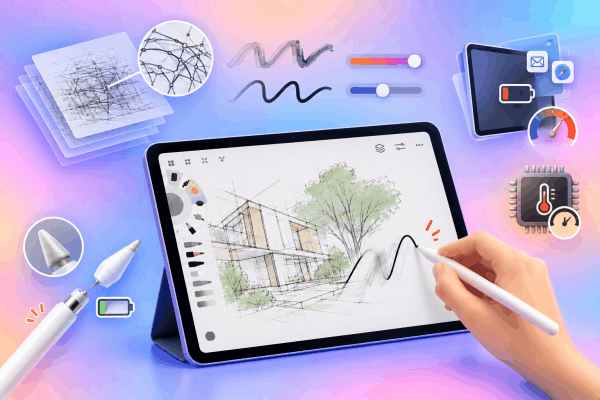
Several underlying factors usually trigger input delays:
-
Excessive vector complexity: Canvases containing tens of thousands of individual vector strokes require substantial processing power during live rendering.
-
High canvas smoothing settings: High brush smoothing values force the application to calculate mathematical curves before displaying the line, creating perceived latency.
-
Background resource pressure: Operating system background tasks, Low Power Mode, or insufficient free RAM throttle CPU performance.
-
Physical Apple Pencil issues: Loose nibs, worn tips, or low battery levels interrupt signal transmission between the Pencil and the screen display layer.
2. Simple physical checkups for your Apple Pencil
Before modifying software configurations, verify that the physical stylus hardware operates correctly. Signal interruption often mimics software latency.
Inspect and tighten the nib
Unscrew the tip of the Apple Pencil slightly, then screw it back on firmly. A slightly loose nib interrupts the capacitive connection with the screen, leading to dropped strokes and erratic delay. If the tip shows visible wear or flattened plastic, replacing it with a fresh tip eliminates input variance.

Check screen protector thickness
Thick tempered glass screen protectors increase the distance between the digitizer screen layer and the Apple Pencil tip. This added distance creates subtle parallax errors and input latency. Switching to a thinner matte screen protector improves tracking responsiveness.
Keep Reading:
- Fix Canva Text Box Disappearing When Editing on iPad
- Canva Lagging When Moving Large Images: Fix It in Minutes
3. In-app optimizations inside Concepts
Adjusting specific brush and canvas parameters within Concepts removes processing bottlenecks immediately.
Lower active brush smoothing
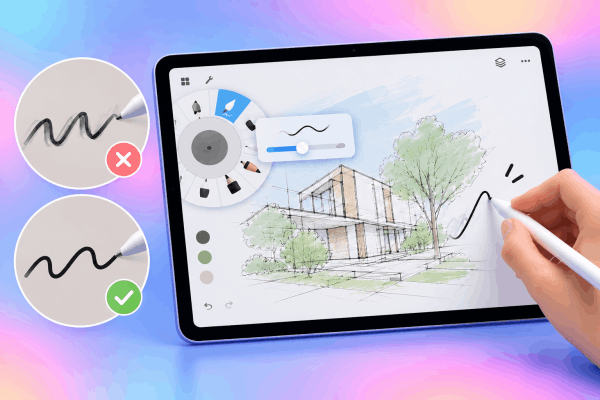
Concepts includes a smoothing slider in the brush tool wheel. While smoothing creates pristine curves, high values force the app to wait for trailing motion data before rendering the stroke. Lowering brush smoothing toward 0% reduces mathematical calculation time, providing instantaneous feedback.
Reduce canvas stroke density
Heavy sketches with thousands of overlapping vector strokes overload active memory. Convert completed sketch layers into static flattened images or move finalized elements to locked layers to free up active rendering threads.
4. iPad OS adjustments for smooth sketching
System-level settings can limit performance even when hardware runs properly. Tweaking these settings ensures Concepts gets maximum system resources.
Turn off Low Power Mode
Low Power Mode limits the CPU clock speed to save battery life. This frequency reduction directly slows down real-time vector rendering. Disable Low Power Mode through the Control Center or Settings menu while drawing.

Disable unnecessary background app refresh
Background processing consumes processing memory needed for real-time canvas updates. Turning off automatic updates for inactive applications reserves full system performance for your active workspace.
-
Open Settings.
-
Tap General, then select Background App Refresh.
-
Toggle off refresh permissions for non-essential applications.
5. Restart your iPad the standard way
A simple system reboot clears temporary cache files, closes stalled background processes, and refreshes system RAM.
To perform a standard restart on modern iPad models without a Home button:
-
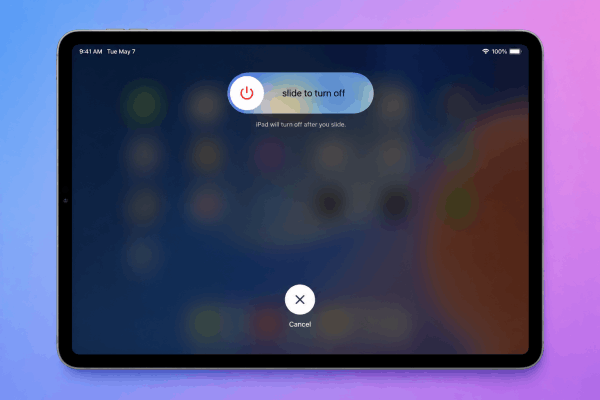
Press and hold either Volume button and the Top button simultaneously until the power-off slider appears.
-
Drag the slider Slide to power off from left to right.
-
Wait approximately 30 seconds for the device to shut down completely.
-
Press and hold the Top button until the Apple logo appears to turn the device back on.
On iPad models with a physical Home button, press and hold the Top button until the power slider appears, drag to power off, then press the top button again to turn it on.
6. Practical comparison of latency causes and solutions
| Latency cause | Impact level | Quickest solution |
| High brush smoothing | High | Reduce smoothing slider near 0% |
| Loose Apple Pencil nib | Medium | Untwist and firmly retighten the nib |
| Active Low Power Mode | High | Turn off Low Power Mode in Control Center |
| Overloaded vector layer | High | Split artwork into separate layers and lock completed work |
| Outdated app version | Low | Update Concepts via the App Store |
7. Frequently asked questions
Does canvas size affect pen lag in Concepts?
Yes. Because Concepts uses an infinite canvas, sketching across massive, sprawling areas with high stroke counts consumes significantly more memory, leading to stroke latency.
Why does my Apple Pencil lag only in Concepts and not other apps?
Raster apps handle pixels differently than vector apps. Concepts calculates mathematical lines continuously, making it more sensitive to complex stroke paths and smoothing settings than pixel-painting software.
Should I re-pair my Apple Pencil to fix lag?
Yes. Disconnecting the Pencil via Settings, turning Bluetooth off and on, and snapping the Pencil back onto the iPad magnetic connector rebuilds a clean connection.
Final thought
Concepts app pen lag on iPad usually stems from a combination of high vector calculation demands and background system throttling. Proper stroke optimization and active hardware checks will restore your iPad’s fluid drawing experience instantly.







