


Fix the Procreate memory limit error on iPad with these practical, community-tested tips. Learn how to manage layers, canvas size, and RAM.
If you use Procreate regularly for digital art, design, or hand lettering, encountering a “memory limit” warning can derail your creative flow. You might be mid-stroke when a pop-up suddenly warns you that Procreate is running low on available memory, or worse, the app prevents you from adding new layers or unexpectedly crashes.
This issue boils down to how your iPad manages Random Access Memory (RAM) relative to your canvas resolution and layer count. Luckily, resolving this does not mean you need to buy a brand-new iPad right away. Below is a practical guide featuring real-world fixes that digital artists rely on to keep Procreate running smoothly.
CONTENTS:
What causes the Procreate memory limit error?
Procreate relies heavily on your iPad’s available RAM to keep canvas interactions smooth and lag-free. Understanding a few technical factors helps prevent the error before it starts:
-
High-resolution canvas settings: A $4\text{K}$ or $8\text{K}$ canvas with a high DPI (dots per inch) requires significantly more memory per layer.
-
Excessive layer counts: Every active layer consumes active memory.
-
Background app usage: Other heavy applications running alongside Procreate consume shared system memory.
-
Low internal storage: When iPadOS runs extremely low on free storage, system performance drops and temporary memory management becomes unstable.
Practical steps to resolve Procreate memory errors
Instead of theoretical troubleshooting, here are actionable steps to clear memory bottlenecks and get back to drawing.
1. Optimize canvas dimensions and DPI
When creating a new canvas, avoid setting arbitrary high DPI values if they aren’t necessary.
-
For digital displays (social media, websites, portfolio sites), 72 to 150 DPI is sufficient.
-
For physical printing, 300 DPI is the standard standard. Setting it higher (e.g., 600 DPI) drastically reduces your maximum allowed layers and drains memory unnecessarily.

2. Flatten and group unused layers
Layers are the primary consumer of memory in Procreate.
-
Merge completed layers: Pinch two layers together to combine them, or select multiple layers and tap Flatten.
-
Clean up hidden layers: Unused sketch layers or invisible references still occupy memory. Delete them if they are no longer needed.
Keep Reading:
- Procreate Layers Invisible? Easy Ways to Get Them Back
- Procreate Selection Tool Not Working or Glitching? Here is the Fix
3. Clear background apps
iPadOS manages memory automatically, but resource-intensive apps (like video editors or heavy web browsers) can hold onto RAM in the background.
-
Swipe up from the bottom of your screen to open the App Switcher.
-
Swipe up on non-essential apps to close them before starting a large Procreate project.
4. Restart your iPad standardly
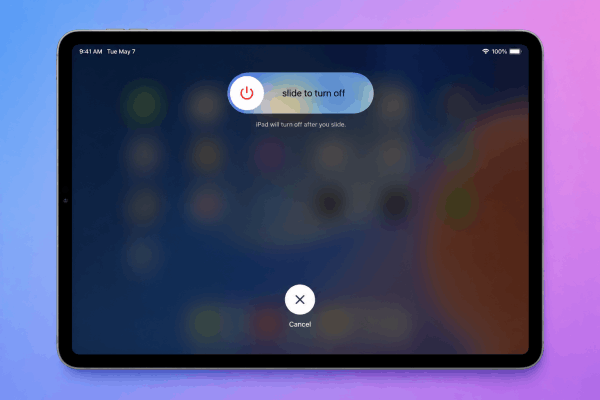
Clearing system cache often resolves temporary memory allocation bugs. You do not need to perform a hard factory reset or complex key-combination reset. A standard power restart is sufficient:
-
Press and hold the Top Power button (or Power button + Volume button depending on your iPad model) until the power off slider appears.
-
Drag the “Slide to power off” slider.
-
Wait about 30 seconds until the screen goes completely dark.
-
Press and hold the Top Power button again until the Apple logo appears.
Procreate memory limits by iPad model
To plan your projects effectively, it helps to understand how hardware impacts canvas limits:
| iPad Model | System RAM | Typical Max Layers (4000×4000px at 300 DPI) |
| iPad Base Model (9th / 10th Gen) | 3 GB – 4 GB | ~25 – 35 layers |
| iPad Air (4th / 5th Gen) | 4 GB – 8 GB | ~35 – 70 layers |
| iPad Pro (M1 / M2 / M4 – 128GB to 512GB) | 8 GB | ~70 – 90 layers |
| iPad Pro (M1 / M2 / M4 – 1TB+) | 16 GB | 150+ layers |
Frequently asked questions
Why does Procreate limit my layers?
Procreate limits layers to guarantee real-time brush rendering without latency or lag. The layer limit is determined directly by your canvas resolution combined with your specific iPad’s total RAM.
Dive Deeper: Procreate layer limit: Why it happens and how to fix it
Will upgrading iPadOS fix the memory limit error?
Updating your iPadOS ensures optimal system memory management. However, software updates cannot increase physical RAM. If your canvas dimensions exceed your hardware specs, adjusting project settings remains necessary.
How much free storage space should I keep on my iPad?
It is recommended to keep at least 10% to 15% of your total iPad storage free. Low storage space hinders the operating system’s ability to allocate virtual memory efficiently.

Final thoughts
Encountering the Procreate memory limit error can feel frustrating, but it is usually a sign that your canvas settings need minor adjustments rather than a hardware failure.
By trimming unnecessary layers, maintaining lower DPI for screen-only artwork, duplicating canvases to drop heavy undo histories, and giving your iPad a simple restart from time to time, you can maintain a smooth, uninterrupted creative workflow.





