


Fix iPad Scribble not working with your Apple Pencil. Follow 8 simple, practical solutions to get your handwriting converting to text again.
Is your iPad Scribble feature refusing to turn your handwritten notes into typed text? Few things are more frustrating than pulling out your Apple Pencil, ready to breeze through a quick search or take down a brilliant idea, only to find Scribble ignoring your handwriting completely.
Whether your handwriting isn’t converting at all, the Apple Pencil taps but won’t write, or Scribble disappeared after an iPadOS update, you are not alone. iPad enthusiasts and daily note-takers run into this surprisingly often.
Here is a practical guide to troubleshoot and fix iPad Scribble not working with Apple Pencil so you can get back to your seamless digital workflow.
CONTENTS:
- Why is iPad Scribble not working with Apple Pencil?
- How to fix iPad Scribble not working with Apple Pencil
- 1. Make sure your iPad and Pencil are fully compatible
- 2. Verify Scribble is toggled on in settings
- 3. Check language and keyboard settings
- 4. Tighten or clean the Apple Pencil tip
- 5. Re-pair your Apple Pencil via Bluetooth
- 6. Restart your iPad the simple way
- 7. Test in native Apple apps first
- 8. Remove or replace thick screen protectors
- Pro-tips for a smoother Apple Pencil Scribble experience
- Frequently asked questions
- Final thought
Why is iPad Scribble not working with Apple Pencil?
Before diving into the fixes, it helps to understand why Scribble acts up. In most real-world cases, the issue comes down to a few common triggers:
-
Incompatible iPadOS or Apple Pencil settings: Scribble might simply be toggled off or misconfigured for your primary language.
-
Bluetooth glitches: A minor drop in connection between your Pencil and iPad can freeze gesture recognition.
-
Physical hardware issues: A loose Apple Pencil tip or an overly thick glass screen protector can block the precise touch signals required for Scribble.
-
App-specific bugs: Some third-party apps do not fully support the Scribble API.

How to fix iPad Scribble not working with Apple Pencil
Let’s walk through the most reliable, hands-on fixes, from the simplest setting tweaks to quick hardware checks.
1. Make sure your iPad and Pencil are fully compatible
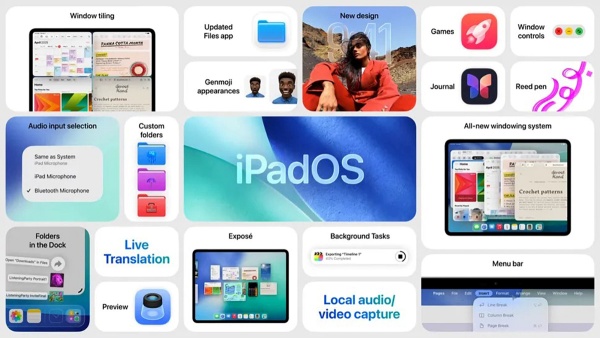
Scribble was introduced with iPadOS 14, so your iPad must be running iPadOS 14 or later. Additionally, make sure your device natively supports Apple Pencil (1st gen, 2nd gen, or Apple Pencil USB-C / Pro).
To check your iPadOS version:
-
Open Settings.
-
Tap General > About.
-
Check the Software Version. If you are running anything below iPadOS 14, update your system under General > Software Update.
2. Verify Scribble is toggled on in settings
It sounds simple, but a minor software refresh or an unintended toggle can turn the feature off without you realizing it.
-
Open Settings on your iPad.
-
Scroll down and tap Apple Pencil.
-
Look for the Scribble toggle.
-
If it is disabled, turn it on. If it is already green, try toggling it off, waiting 5 seconds, and switching it back on.
3. Check language and keyboard settings
Scribble relies on supported language inputs to recognize your handwriting correctly. If your primary keyboard language isn’t supported by Apple Scribble, the feature won’t trigger.
-
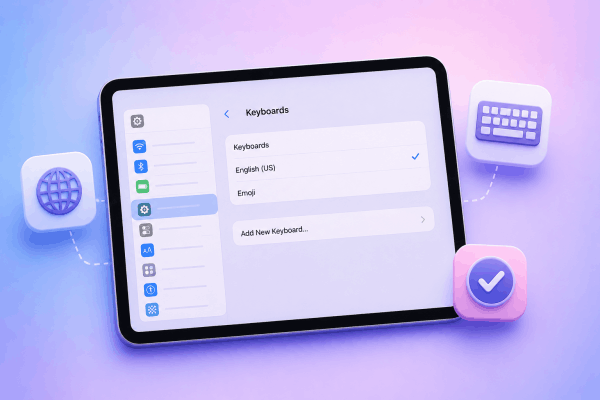
Go to Settings > General > Keyboard > Keyboards.
-
Make sure you have a supported keyboard language installed (such as English (US), English (UK), Spanish, German, French, Italian, Portuguese, or Simplified/Traditional Chinese).
-
If your primary keyboard is set to an unsupported language, add English as a secondary keyboard.
4. Tighten or clean the Apple Pencil tip
One of the most frequent physical culprits behind a unresponsive Apple Pencil is a loose tip. Over time, as you write, the nib can slightly unscrew itself, interrupting the electronic signal between the tip and the internal sensor.
-
Gently turn the nib clockwise to ensure it is firmly screwed into place.
-
Avoid over-tightening, but make sure there is no visible gap or wobbling.
-
If the nib is worn down to the inner metal core, replace it with an official Apple tip.
5. Re-pair your Apple Pencil via Bluetooth
If the bluetooth link experiences a temporary freeze, your iPad might still show the Pencil as connected even when signal telemetry isn’t working properly.
-
Go to Settings > Bluetooth.
-
Find your Apple Pencil under My Devices.
-
Tap the Info (i) icon next to it and select Forget This Device.
-
Re-attach your Apple Pencil:
-
For 2nd Gen / Pro: Snap it magnetically to the side of your iPad.
-
For 1st Gen / USB-C: Plug it directly into your iPad’s Lightning/USB-C port (or use the adapter).
-
-
Tap Pair when the prompt appears on your screen.

6. Restart your iPad the simple way
A simple system restart clears temporary system caches, stops unresponsive background processes, and refreshes the touch input service. You don’t need to do a force reset with hardware buttons – a standard soft reboot works best.
-
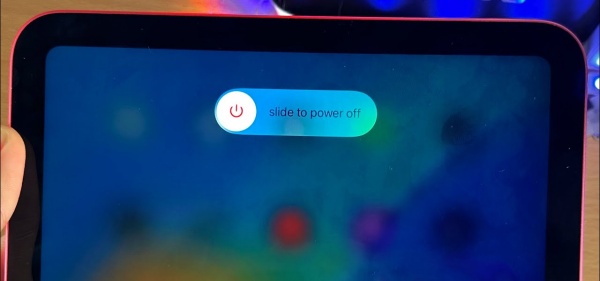
Press and hold either Volume button and the Top button until the power-off slider appears. (On iPads with a Home button, press and hold the Top button).
-
Drag the “Slide to power off” slider to the right.
-
Wait about 30 seconds until your iPad screen goes completely black.
-
Press and hold the Top button again until the Apple logo appears to turn it back on.
7. Test in native Apple apps first
Sometimes, the issue isn’t with Scribble itself, but with the specific app you are using. Some third-party text fields don’t properly support continuous handwriting input.
Open native iPadOS apps like Notes, Safari (write directly in the search bar), or Reminders. If handwriting to text conversion works seamlessly in Apple Notes but fails in another app, the app developer likely needs to release an update for Scribble support.
8. Remove or replace thick screen protectors
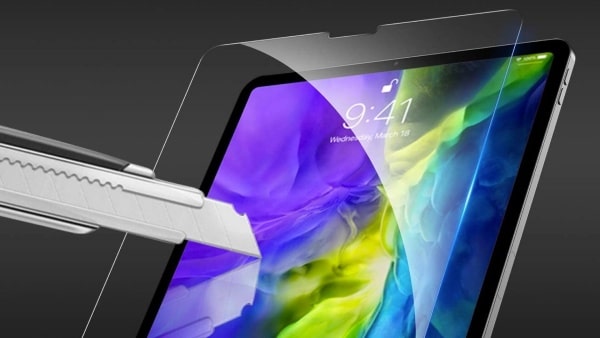
Thick matte paper-feel films or dense tempered glass screen protectors can sometimes reduce pencil sensitivity. If you recently applied a new screen protector and noticed your Scribble strokes skipping or failing to convert, try pressing slightly firmer or testing the Pencil on a clean, bare glass surface.
Pro-tips for a smoother Apple Pencil Scribble experience
Once you get Scribble up and running, here are a few practical habits to keep your handwriting conversion lightning-fast:
-
Write on the baseline: Try writing in straight, horizontal lines near text fields rather than at steep diagonal angles.
-
Scratch out to delete: If you make a mistake, simply scratch over the word with your Pencil to erase it immediately.
-
Circle to select: Need to highlight text? Draw a circle around a word or sentence to select it without needing to double-tap with your finger.
-
Keep your screen clean: Skin oils and dust buildup can occasionally cause erratic pencil inputs. A quick wipe down with a microfiber cloth goes a long way.
Discover More:
- Apple Pencil battery draining fast when not in use? 7 quick fixes
- Apple Pencil double tap not working? Bring your shortcuts back to life
Frequently asked questions
Does Apple Pencil Scribble work in all apps?
No. While Apple integrated Scribble natively across standard iPadOS text fields, third-party developers must enable support within their own apps. If an app uses custom text inputs, Scribble might not function there.
Why does Scribble keep converting my handwriting into wrong words?
Incorrect conversion usually stems from inconsistent stroke speed or non-supported language layouts. Try adjusting your writing speed slightly and verify that your system keyboard matches the language you are physically writing in.
Can I use Scribble with third-party stylus pens?
Scribble works best with the official Apple Pencil family. While some high-quality third-party styluses with palm rejection work, cheaper pens lacking low-latency pressure and tilt sensors often struggle to register continuous handwriting strokes.
Final thought
Dealing with iPad Scribble not working with Apple Pencil can temporarily halt your workflow, but in almost every case, it boils down to a quick setting check, a quick nib adjustment, or a simple system restart.
iPadOS thrives on seamless user experience, and once you re-establish a fresh pairing between your Pencil and iPad, you’ll be back to converting your handwritten notes effortlessly. Take a quick moment to run through these practical fixes, and enjoy the true freedom of writing on your iPad!





