
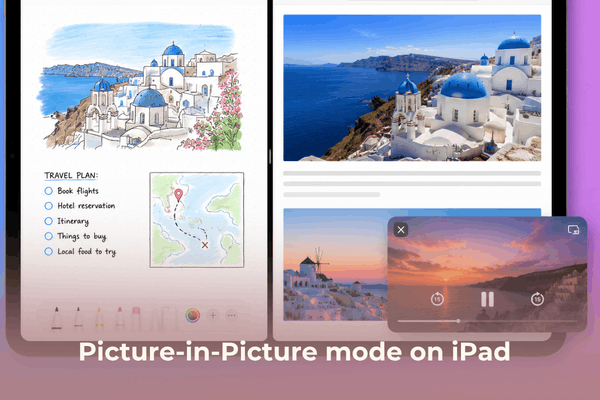

Learn how to enable and troubleshoot Picture-in-Picture mode on iPad. Discover practical tips to boost your productivity.
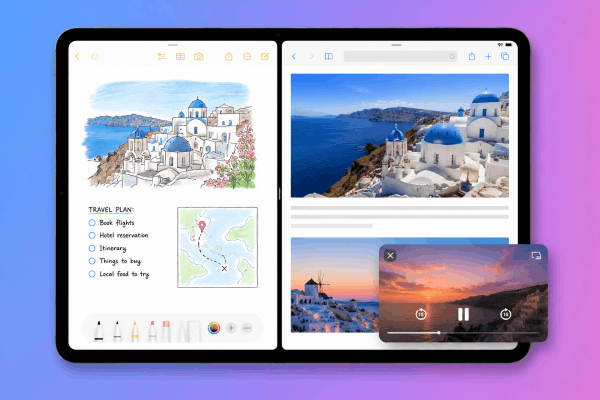
Imagine you are in the middle of an intense Korean drama marathon, but a sudden work email or a message from a friend pops up. In the past, you would have to pause, switch apps, and lose your flow. But for those of us who live and breathe iPad productivity, there is a better way. Picture-in-Picture (PiP) is the secret sauce that transforms your tablet from a simple media player into a multitasking powerhouse.
In this guide, we will dive deep into how to enable, manage, and even troubleshoot Picture-in-Picture mode on iPad with practical tips gathered from the heart of the tech community.
CONTENTS:
How to enable or disable Picture-in-Picture mode on iPad
Setting up PiP is straightforward, but ensuring it works automatically every time requires a quick trip into your settings. Apple designed this to be intuitive, yet many users often find themselves accidentally disabling it during a system update.
Enabling PiP automatically
To make sure your videos transition smoothly when you swipe up to go home, follow these steps:
-
Open the Settings app on your iPad.
-
Navigate to General.
-
Tap on Picture in Picture.
-
Toggle the switch for Start PiP Automatically to the ‘On’ position (Green).
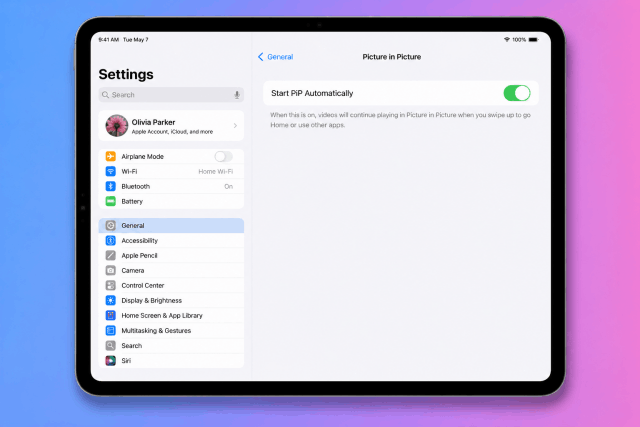
When this is active, any supported video app, like Apple TV, Safari, or FaceTime, squeezes the video into a corner the moment you leave the app.
How to disable PiP
If you find the floating window distracting or if it gets in the way of your workspace, you can easily turn it off using the same path: Settings > General > Picture in Picture and toggle it off. This prevents the window from appearing unless you manually trigger it via the specific icon within a video player.
Practical ways to control the PiP window
Once the window is floating on your screen, you aren’t stuck with it in just one spot. The real magic of the iPad interface lies in its gestures.
-
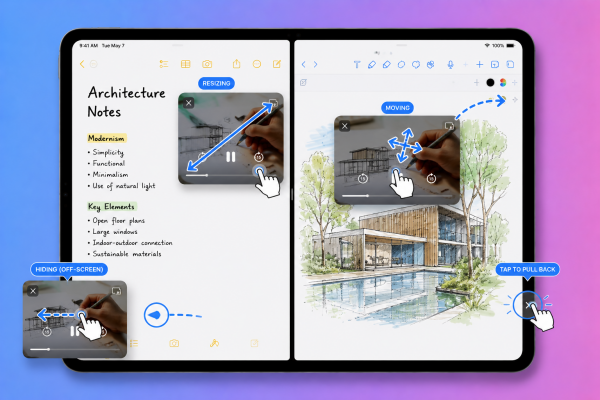
Resizing: You can pinch to zoom the window in or out. This is incredibly helpful when you need to see more detail in a tutorial while taking notes in another app.
-
Moving: Simply drag the window to any of the four corners of your screen. It will magnetically snap into place, ensuring it doesn’t cover your main content.
-
Hiding (Off-screen): If you need the full screen for a moment but want the audio to keep playing, drag the PiP window off the left or right edge of the screen. You will see a small arrow tab that you can tap to pull the video back whenever you’re ready.
Beyond the basics: Using PiP with different apps
Not all apps handle Picture-in-Picture the same way. While system apps like FaceTime and Safari work flawlessly, third-party apps sometimes require a bit of “finesse.”
Browser-based multitasking
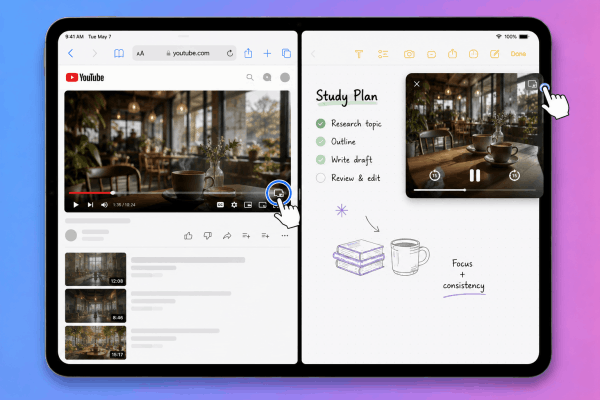
If an app doesn’t natively support PiP, try opening the website in Safari. Most web video players have a small “two-box” icon in the corner. Tapping this will force the video into PiP mode. This is a common workaround used by tech enthusiasts to bypass limitations in certain social media or streaming apps.
FaceTime and video calls
PiP is a lifesaver for long-distance calls. By enabling PiP, you can continue a FaceTime call while checking your calendar or looking up a restaurant recommendation. The person on the other end will still see your camera (on supported iPad models with Center Stage), making it the ultimate tool for “parallel playing” or collaborative work.
Troubleshooting: What to do when PiP stops working
It is frustrating when you expect a video to float and it simply disappears. Based on common feedback from active user communities, here are the most effective fixes:
-
Check app-specific settings: Some apps have their own PiP toggle hidden within their account settings. Even if the iPad system setting is on, the app might be overriding it.
-
Force restart: Sometimes the “Springboard” (the iPad’s interface manager) glitches. A quick restart often recalibrates the multitasking features.
-
Update your iPadOS: Features like PiP receive frequent stability updates. Ensure you are running the latest version of iPadOS to avoid compatibility bugs with newer apps.
-
The “Web Version” trick: If a specific video app is being stubborn, delete the app and use the browser version in Safari. This often unlocks PiP functionality that the app developer may have restricted.

Additional tips for a better iPad experience
-
Combine with Stage Manager: If you have a newer iPad, try using PiP alongside Stage Manager. This allows you to have multiple app windows open while your video floats on top, creating a true desktop-like environment.
-
Audio focus: Remember that PiP keeps the audio focused on the video. If you open another app that plays sound (like Spotify), your iPad might pause the PiP video.
-
Battery preservation: Running PiP does use slightly more battery and CPU power because the iPad is rendering two active environments. If you are low on juice, consider closing the PiP window.
Read More:
- Can’t save images from Google on iPad and how to fix
- Safari not loading pages on your iPad? Here is how to get back online
FAQs about Picture-in-Picture Mode on iPad
Can I use Picture-in-Picture for YouTube?
Yes, but it depends on your region and subscription status. In many regions, YouTube requires a Premium subscription for PiP. However, you can often use the Safari browser workaround to enable it for free.
Does PiP work on all iPad models?
PiP works on most modern iPads, including the iPad Pro, iPad Air (2nd gen and later), iPad (5th gen and later), and iPad mini (4th gen and later).
Can I have two PiP windows open at once?
Currently, iPadOS only supports one floating PiP video window at a time. If you try to open a second one, the first one will usually close or be replaced.
Why does the window disappear when I’m playing a game?
Some high-performance games disable PiP to save system resources or prevent the window from blocking essential game controls.
Conclusion
Mastering Picture-in-Picture mode on iPad is a small step that makes a massive difference in how you interact with your tablet. It bridges the gap between entertainment and productivity, allowing you to stay connected and informed without constantly hitting the pause button. By following the steps above and utilizing the practical community-tested workarounds, you’ll be multitasking like a pro in no time.
Happy multitasking, and don’t forget to keep exploring those iPad settings, there’s always a new trick waiting to be discovered!







