


Fix iPad sound not working with easy steps, from volume checks to software resets, this guide helps you bring the sound back fast.
There’s nothing worse than opening your iPad to watch a video or listen to music, only to realize silence. No sound, no alerts, not even that cheerful keyboard click.

If your iPad’s sound suddenly stopped working, don’t panic. It happens more often than you’d think, and in most cases, you can fix it yourself – no repair shop needed (well, unless it’s a hardware problem, and that’s the one thing none of us want to happen).
Here’s everything you can try, step by step.
CONTENTS:
- Fix iPad sound not working with simple steps
- 1. Make sure it’s not just the volume (yes, really)
- 2. Disconnect Bluetooth and check audio output
- 3. Turn off Silent Mode
- 4. Restart your iPad
- 5. Check Sound settings
- 6. Clean the speaker grills carefully
- 7. Update iPadOS
- 8. Reset all settings (don’t worry, your data is safe)
- 9. Test with headphones and external speakers
- 10. Contact Apple Support or authorized repair center
- Bonus: iPad sound not working only in some apps?
- Final thoughts
Fix iPad sound not working with simple steps
If your iPad suddenly goes quiet, don’t forger to try these quick tips to get the sound back.
1. Make sure it’s not just the volume (yes, really)
It sounds obvious, but trust me, it happens to everyone.
Press the Volume Up button on the side of your iPad. You should see a volume bar on the screen. If it says “Headphones” or “Connected to device,” that means your iPad thinks it’s paired with another audio device (we’ll fix that next).

Also, swipe down from the top-right corner to open Control Center and make sure the volume slider isn’t muted.
Tip: Some apps have their own sound controls (like YouTube or games), so double-check inside the app too.
2. Disconnect Bluetooth and check audio output
Sometimes your iPad sends sound to a Bluetooth speaker, AirPods, or even your car’s system.
Here’s how to check:
-
Go to Settings => Bluetooth.
-
If something is connected, tap the (i) icon next to it => choose Disconnect or Forget This Device.
You can also open Control Center, tap the AirPlay icon (the triangle with circles), and make sure iPad is selected as the audio output.
Once disconnected, play something again, you might hear sound immediately.
3. Turn off Silent Mode
Older iPads have a side switch that can mute all sounds (except alarms).
If your iPad doesn’t have one, swipe down from the top-right corner and check the bell icon in Control Center.
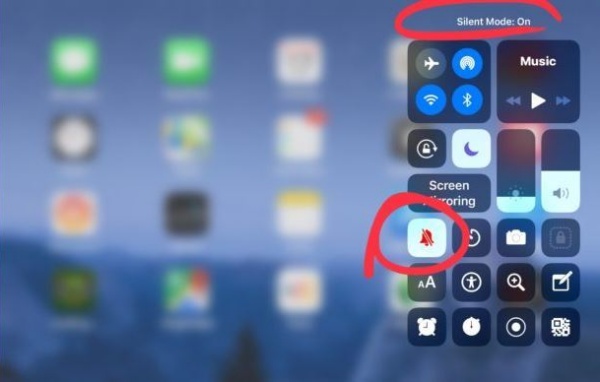
If it’s highlighted or crossed out, tap it to turn sounds back on.
Even the “Do Not Disturb” mode can silence notifications. Go to Settings => Focus => Do Not Disturb and make sure it’s off.
4. Restart your iPad
When in doubt, restart.
Press and hold the Power + Volume button until you see slide to power off. Wait a few seconds, then turn your iPad back on.
This clears small software glitches that can randomly kill sound.
After restarting, try playing a video or opening a song in Apple Music to check.

5. Check Sound settings
If your iPad still refuses to make a sound, dive into Settings:
-
Go to Settings => Sounds (or Sounds & Haptics on newer iPads).
-
Make sure the Change with Buttons option is on.
-
Adjust the Ringer and Alerts slider to see if you hear any sound.
If it works here but not in apps, the issue might be app-specific (try reinstalling that app).
Read More:
- iPad gesture controls: how to use and fix them when they stop working
- How to use external display with iPad, the complete guide
6. Clean the speaker grills carefully
Dust, lint, or debris can block your iPad’s speakers, especially if you carry it around without a case.
Use a soft toothbrush or dry microfiber cloth to gently clean the speaker holes.
Avoid blowing air directly or using liquid cleaners.
Then, test your sound again. You might be surprised how often this simple trick works.
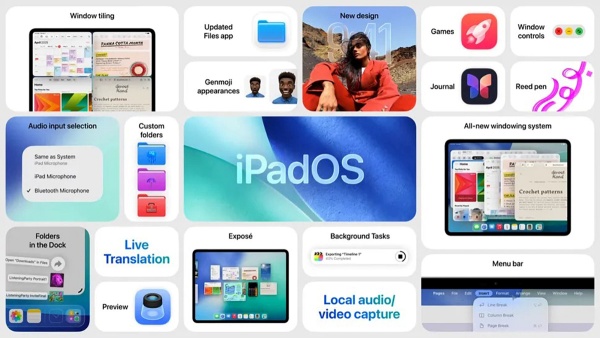
7. Update iPadOS
Outdated software can cause sound bugs, especially after new app updates.
Go to Settings => General => Software Update and install any available updates.
Apple frequently fixes sound-related issues in their minor releases.
Make sure your iPad has at least 50% battery or is plugged in before updating.
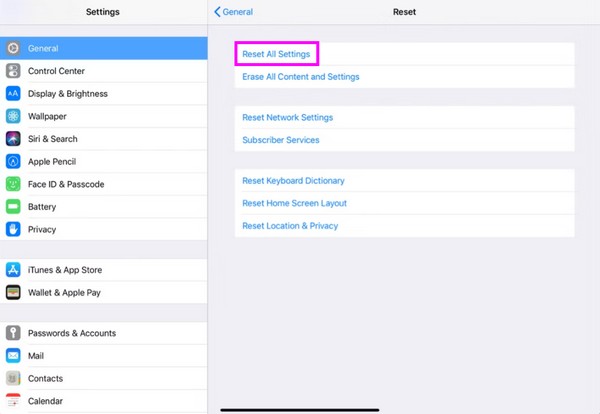
8. Reset all settings (don’t worry, your data is safe)
If nothing works so far, it might be a settings conflict.
You can reset all preferences without losing photos or apps:
-
Go to Settings => General => Transfer or Reset iPad => Reset => Reset All Settings.
-
Enter your passcode and confirm.
This resets things like sound preferences, network settings, and accessibility options, sometimes, that’s all it takes. I’m not a big fan of this method, but it actually works in some cases.
9. Test with headphones and external speakers
Plug in wired headphones or connect Bluetooth earbuds to see if you get sound that way.
If you can hear audio through them but not through the iPad’s built-in speakers, it’s likely a hardware issue.
In that case, skip to the next step.
If your iPad is still silent after trying everything above, it might be a hardware issue – damaged speakers or logic board.
You can contact Apple Support or visit an authorized repair center for diagnostics. Before going, back up your iPad via iCloud or Finder just to be safe.
Bonus: iPad sound not working only in some apps?
Sometimes the problem isn’t with the iPad at all. If sound works in some apps but not others:
-
Check if the app is muted in its own settings.
-
Make sure it’s updated to the latest version.
-
Delete and reinstall the app.
For Safari or Chrome, try clearing your cache or reopening the website in a new tab – browser glitches can also kill audio temporarily.

Final thoughts
When your iPad goes quiet, it’s easy to worry something’s seriously wrong, but 9 out of 10 times, it’s a tiny fix. The key is to go step by step: start simple, move to settings, and save resets for last.
If you’ve tried everything and it’s still silent, that’s when professional help is worth it. Otherwise, you’ll probably have your iPad singing again before you finish this article






