Learn how to use iPad gesture controls like a pro: full guide with tips, settings, and quick fixes when gestures stop working.
When you first use an iPad, it feels magical, everything moves smoothly with just a swipe. But if you’ve ever forgotten a gesture or found one suddenly not working, that magic fades fast.

Gestures are one of the most powerful parts of iPadOS. They let you control your device faster with fewer taps. In this guide, you’ll learn how to master iPad gesture controls, how to enable or customize them, and what to do when gestures stop working.
CONTENTS:
- What are iPad gesture controls?
- Essential gesture controls every iPad user should know
- How to enable or disable gesture controls on iPad
- How to customize your gesture settings
- When gestures stop working: causes and fixes
- Pro tips to master iPad gestures
- When nothing works: advanced troubleshooting
- Q&A about how to use iPad gesture controls
- Final thoughts
What are iPad gesture controls?
Gesture controls are touch-based shortcuts that help you navigate and multitask on your iPad – no buttons required. Instead of pressing a home button, you can swipe, pinch, or slide your fingers to move between screens, open apps, or access quick tools.

Apple introduced gesture controls years ago, but they’ve evolved dramatically through iPadOS 15-18. Today, they’re smoother, smarter, and almost essential for anyone using an iPad without a physical Home button.
Why bother learning them? Because gestures make your iPad feel alive – every move is fast, natural, and surprisingly addictive once you get used to it.
Essential gesture controls every iPad user should know
Here’s a quick rundown of the most useful gestures you’ll want to master.
Home and multitasking gestures
-
Go to Home Screen: Swipe up from the bottom edge.
-
App Switcher: Swipe up from the bottom and pause halfway.
-
Switch between recent apps: Swipe left or right along the bottom edge.
-
Split View or Slide Over: Swipe up slowly => open the Dock => drag an app to the side or top.
These gestures are the foundation of iPad multitasking. Once you get them down, you’ll fly through your apps like a pro.
Control Center and Notifications
-
Swipe down from the top-right corner to open Control Center.
-
Swipe down from the top-left corner for Notification Center.
Apple Pencil gestures
If you have an Apple Pencil (2nd generation), double-tap the flat side to switch between tools.
Or swipe from the bottom-right corner to open Quick Note – perfect for jotting down ideas in seconds.

Keyboard and multitouch tricks
Pinch with four fingers to close an app.
Spread five fingers apart to open the App Switcher.
Hold the bottom edge to activate Stage Manager (if your iPad supports it).
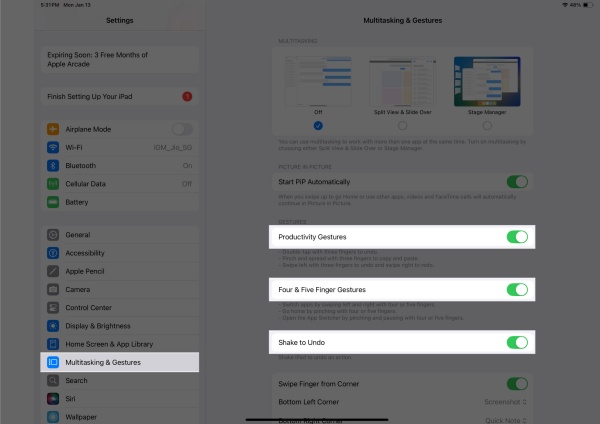
Tip: You can turn gestures on or off anytime in Settings => Home Screen & Multitasking => Multitasking & Gestures.
How to enable or disable gesture controls on iPad
Some people love gestures, others prefer buttons. Luckily, Apple makes it easy to choose.
-
Open Settings.
-
Go to Home Screen & Multitasking => Multitasking & Gestures.
-
Toggle Gestures on or off.
If you’re drawing, gaming, or just want fewer accidental swipes, turning gestures off temporarily can help.
How to customize your gesture settings
While you can’t fully customize every gesture, there are still a few useful options:
-
Turn Multitasking Gestures on or off.
-
Choose what the corner swipe does (Quick Note or Screenshot).
-
Enable Trackpad Gestures if you’re using a Magic Keyboard or external trackpad.
If you like experimenting, you can also create shortcuts that mimic gestures using the Shortcuts app or Accessibility => AssistiveTouch.

When gestures stop working: causes and fixes
If your gestures suddenly stop responding, don’t panic. It’s usually something simple.
1. Gestures are turned off
Go to Settings => Home Screen & Multitasking => Multitasking & Gestures and toggle Gestures back on.
2. iPad is lagging or frozen
Restart it: hold the Power + Volume button, then slide to power off.
Still stuck? Force restart: press Power + Home (for older iPads) or Power + Volume Up/ Down (for newer models).
3. Software glitch after an update
Update to the latest iPadOS version under Settings => General => Software Update.
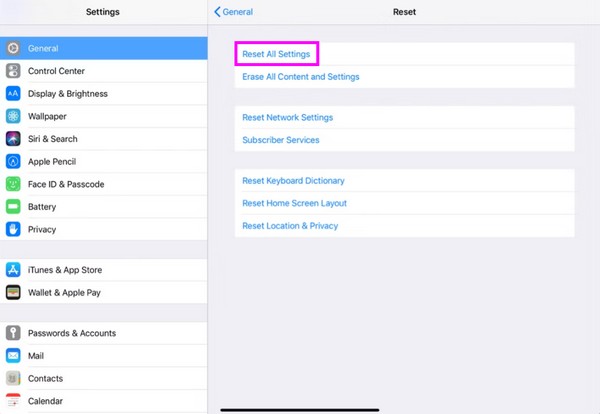
If that doesn’t help, try Reset All Settings, it keeps your data but resets your preferences.
4. Screen protector or case blocking the edges
Thick protectors or heavy cases sometimes interfere with edge gestures.
Try removing them and see if the swipe works again.
5. Gesture conflict with AssistiveTouch or Accessibility
If AssistiveTouch is on, it can override certain gestures.
Go to Settings => Accessibility => Touch => AssistiveTouch and disable it temporarily.
Quick fix: When gestures freeze, locking and unlocking your screen often resets the touch response without restarting the device.
Pro tips to master iPad gestures
-
Practice gestures daily, even five minutes helps build muscle memory.
-
Pair gestures with a keyboard or trackpad for a smoother, desktop-like feel.
-
Artists can turn off gestures while drawing to avoid accidental swipes.
-
New to gestures? Enable Guided Access in Accessibility to avoid random taps while learning.
Once you’ve memorized the core gestures, you’ll notice how much faster and cleaner your workflow becomes.
When nothing works: advanced troubleshooting
If your gestures are still unresponsive:
-
Back up your iPad (Settings => Apple ID => iCloud => iCloud Backup => Back Up Now).
-
Restore your iPad using Finder, iTunes, or iCloud.
-
If gestures still fail afterward, it might be a hardware issue, contact Apple Support or visit an authorized service center.
I wouldn’t really suggest doing this unless you have to. Backing up and restoring takes time, and even though your data remains intact, you’ll still need to set up quite a few things again. It’s better to keep this as your last resort.
Q&A about how to use iPad gesture controls
Q: How do I reset gestures on iPad?
A: Go to Settings => General => Transfer or Reset => Reset All Settings. Your data stays safe, but gesture preferences reset.
Q: Why can’t I swipe up to go Home anymore?
A: The gestures setting might be off, or your screen protector could be blocking the edge.
Q: Can I use gestures with Magic Keyboard or trackpad?
A: Yes! Trackpad gestures integrate perfectly, you can swipe between apps, pinch to zoom, and open the Dock with a simple move.
Read More:
- How to use external display with iPad, the complete guide
- iPad backup and restore guide: keep your data safe and easy to recover
Q: Do all iPads support gesture controls?
A: All iPads running iPadOS 12 or later do, but advanced gestures like Stage Manager require M1 or newer chips.
Q: Are gestures faster than using buttons?
A: Definitely. Once you’re familiar with them, gestures make the iPad feel quicker and more fluid than any traditional navigation.
Final thoughts
Gesture controls are what make the iPad experience so intuitive. They replace clicks with motion, letting you move through your digital world almost effortlessly.
If they ever stop working, remember, it’s rarely serious. A quick check in settings or a restart usually brings everything back to normal.
Once you’ve mastered gestures, you’ll never want to go back to buttons again.