


Learn how to use external display with iPad: setup, Stage Manager tips, connection fixes, and best accessories for a smooth dual-screen workflow.
Your iPad is powerful enough to handle work, study, or creative projects. But sometimes, its screen feels a little small. That’s when connecting an external display becomes a game changer: turning your iPad into a mini desktop workstation.
In this guide, you’ll learn everything about using an external monitor with your iPad: what you need, how to set it up, what to expect, and how to fix common issues.
CONTENTS:
- Why use an external display with iPad?
- How to use external display with iPad, the complete guide
- Mirror vs extended display: know the difference
- How to fix common connection problems
- Best tips for a smoother experience
- When using an external display makes sense?
- Limitations to keep in mind
- Q&A about how to use external display with iPad
- Final thoughts
Why use an external display with iPad?
I think having a second screen isn’t just about size. It’s about freedom. You can edit videos on a big monitor, draw more precisely, or open multiple apps without crowding your iPad screen.

If you work or study from your iPad, connecting it to a display can make everything faster and more comfortable.
How to use external display with iPad, the complete guide
Below is a step-by-step guide to using an external display with your iPad:
Before you start: what you need
Not every iPad connects the same way. Some models only mirror the display, while others (like iPad Pro M1 / M2 or iPad Air M2) support true extended desktop.

Here’s what to check first:
-
Port type: Most new iPads use USB-C. Older models with a Lightning port require a Lightning Digital AV Adapter.
-
Cable or hub: Choose one that supports HDMI or DisplayPort and, ideally, allows power passthrough so you can charge your iPad while using it.
-
Monitor compatibility: Any modern display works, but one with at least 60Hz refresh rate and good color accuracy gives a better experience.
Pro tip: A USB-C hub with HDMI, USB-A, and SD slots is more future-proof than a simple adapter.
How to connect your iPad to an external display
Once you have the right accessories, setup is quick:
-
Plug the HDMI or DisplayPort cable into your monitor.
-
Connect the other end to your iPad or hub.
-
Turn on your monitor.
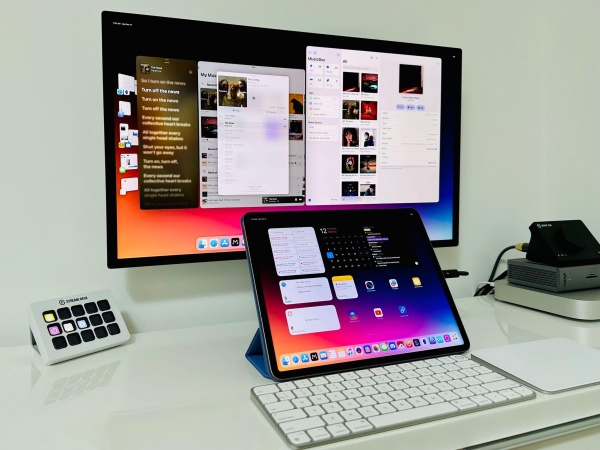
The iPad should automatically detect the external display.
If not, open Settings => Display & Brightness => Arrangement (on iPadOS 17 or later) to manage your displays.
You can choose to mirror your iPad or use extended display mode with Stage Manager.
Mirror vs extended display: know the difference
When you mirror, both screens show the same thing – useful for teaching, presentations, or showing content to others.
When you extend, your monitor becomes a second workspace.
You can move windows between screens, resize them, and keep different apps open on each.
Extended mode works only on iPad models with Apple Silicon (M1, M2, M4).
If your iPad is older, you’ll still get mirroring, but not true dual-screen multitasking.
Read More:
- iPad backup and restore guide: keep your data safe and easy to recover
- How to use widgets on iPad and make it aesthetic
Using Stage Manager for multitasking
Stage Manager is the feature that makes external display support shine. It lets you place up to eight apps at once – four on your iPad and four on the external monitor.
To turn it on:
-
Open Control Center => Stage Manager.
-
Tap the icon to enable it, then drag apps to either screen.
You can resize windows, overlap them, and even use full-screen apps on the monitor while sketching or taking notes on your iPad.
Pro tip: If you’re using an Apple Pencil, you can draw directly on your iPad while viewing the final artwork on the larger monitor.
How to fix common connection problems
Even with the right setup, issues can pop up. Here’s how to handle them quickly:
1. The monitor shows no signal
Check your cables and power source. Try unplugging and reconnecting. Some cheaper adapters don’t transmit video properly – switching to a certified USB-C hub often fixes this.
2. iPad only mirrors, not extends
This usually means your iPad doesn’t support extended display. You’ll need an M-series iPad with iPadOS 16 or newer.

3. The display looks zoomed in or has black bars
Open Settings => Display => Display Zoom or Aspect Ratio and adjust until it fits.
4. Lag or flicker
Use a cable that supports 4K 60Hz. Also, close heavy background apps that consume memory.
5. The monitor disconnects when iPad sleeps
Disable Auto-Lock temporarily in Settings => Display & Brightness while you work.
Best tips for a smoother experience
-
Keep your iPad updated to the latest iPadOS – Apple improves display support almost every version.
-
Use a stand to align your iPad and monitor naturally.
-
Connect a Bluetooth keyboard and mouse for a desktop-like setup.
-
Adjust brightness separately for each screen – it helps reduce eye strain.
-
If you edit video or draw, consider color-calibrating your monitor for accurate tones.
These small tweaks make a big difference in daily use.
When using an external display makes sense?
Adding a second screen isn’t just for professionals. It’s useful in so many ways:
-
Designers and artists can sketch on iPad while viewing the canvas full-size.
-
Students can watch lectures on one screen and take notes on the other.
-
Video editors can drag their timeline to the monitor for a clearer view.
-
Presenters can project slides while controlling them from the iPad.
Once you get used to it, working with dual screens feels almost impossible to give up.

Limitations to keep in mind
Even though iPadOS is getting closer to macOS, it’s still not perfect.
You can’t yet connect multiple external monitors, and not every app supports extended layouts. Some older apps still mirror no matter what.
Also, note that connecting to high-resolution displays may drain the battery faster, especially if you’re powering the monitor directly from your iPad.
Q&A about how to use external display with iPad
Q: Which iPad models support extended display?
A: iPad Pro M1/M2/M4 and iPad Air M2 support full external display with Stage Manager. Older models can only mirror.
Q: Can I use any HDMI adapter?
A: Not all adapters are equal. Look for one labeled “4K HDMI, USB-C PD.” Cheaper ones may cause lag or screen flicker.
Q: Can I draw on iPad while showing my work on the monitor?
A: Yes. Apps like Procreate, Concepts, and Clip Studio Paint support this perfectly.

Q: Will connecting an external display drain battery faster?
A: Slightly, yes. It’s best to plug your iPad into power while using an external screen.
Q: Can I use a wireless display instead of HDMI?
A: You can, via AirPlay. It’s great for watching movies or slideshows, but not ideal for real-time creative work due to latency.
Final thoughts
Using an external display with your iPad can completely change the way you work.
Whether you’re sketching, editing, or studying, a larger screen helps you focus better and get more done.
Just make sure you have the right adapter, a compatible iPad, and a bit of patience when setting up the first time.
Once you’ve tried it, you might never want to go back to a single screen again.







